
Updated functionality currently in Beta
This article contains either new or updated functionality that is not generally available at this time.
Welcome to Minfos 8.9.1. This release includes workflow improvements across Replenish, Dispense, Till, Reporting and Stock Manager - helping you process scripts and orders more smoothly, reduce manual steps, and improve visibility in key screens and reports.
Enhancements
Replenish
You can now assign separate supplier accounts for a single supplier to support Ethical and OTC ordering in Replenish (where you have more than one active account for the supplier). This is especially useful for pharmacies that manage different trading terms, credit limits, or delivery schedules depending on the product type.
This change helps ensure your orders are routed to the correct account automatically, reducing the need for workarounds and minimising ordering errors.
How to use it:
In Supplier Editing → Order Settings, select the appropriate Ethical Account and OTC Account (when available for that supplier).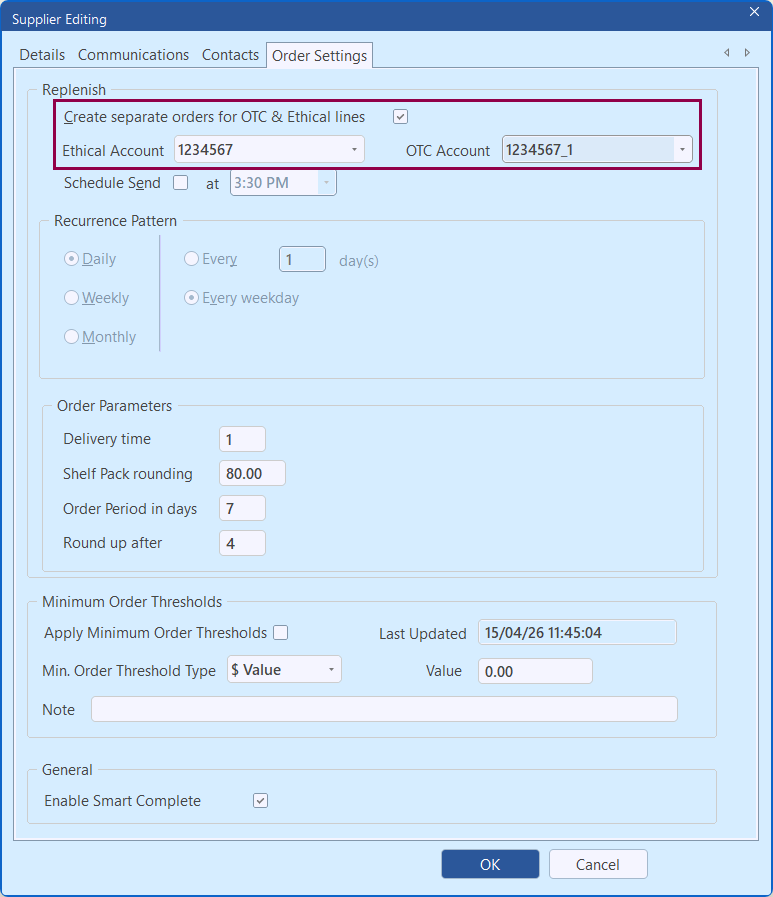 When orders are transmitted for that supplier, they are automatically transmitted from the appropriate specified account.
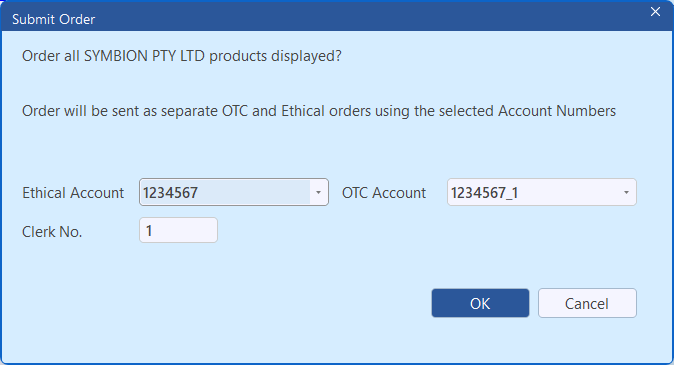 Refer to Configure Replenish ordering for multiple supplier accounts (Ethical and OTC) to learn more.
In the Replenish screen, you can now filter the product list to view Ethical, OTC items or All items.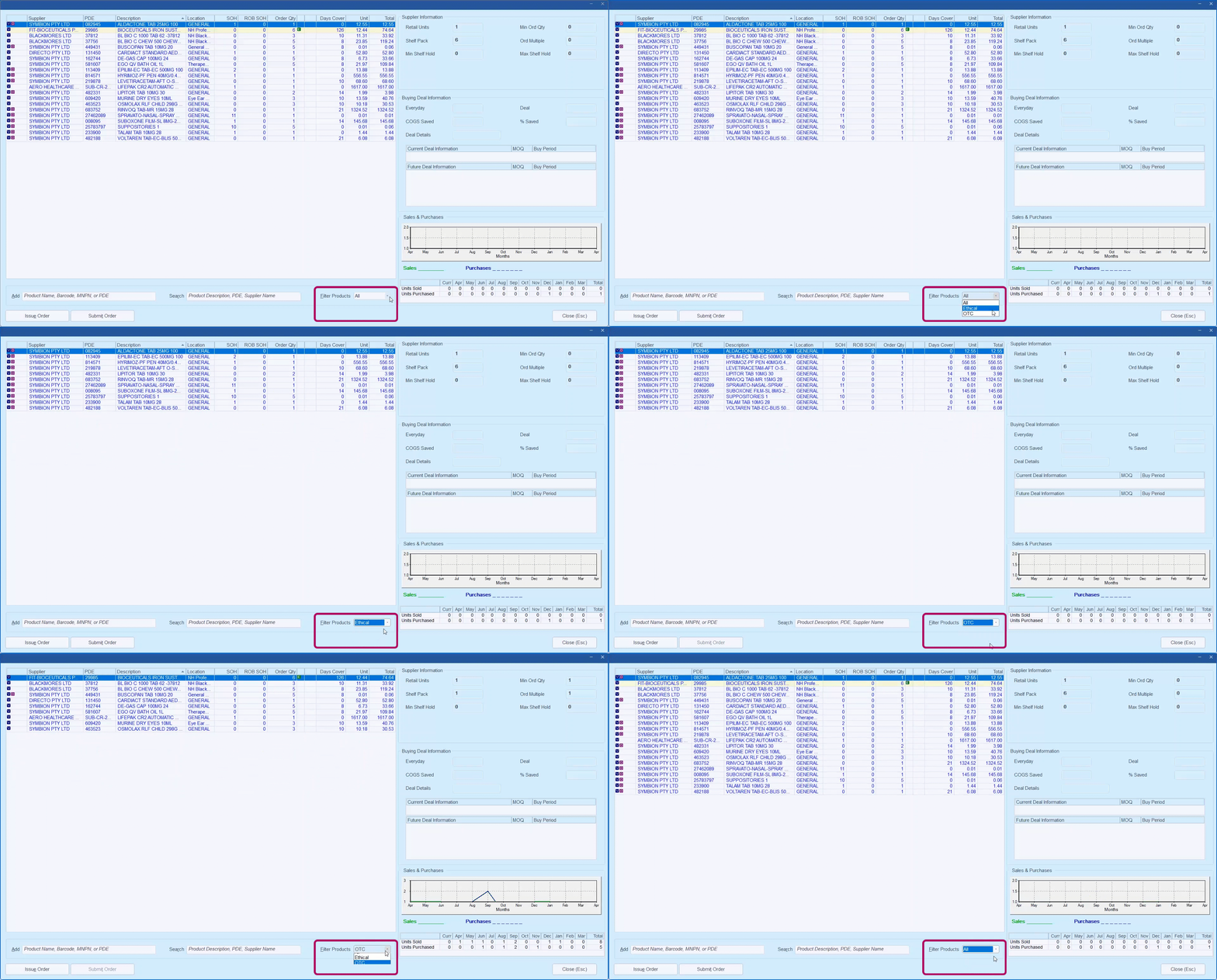 When you issue or submit an order the products in the filtered view will be included in the order. For example, If you had Filter Products set to OTC, all OTC products for the selected supplier will be included in the order.
Refer to Submit/Transmit a Replenish Order for further details.
You can now customise an extra column in the Replenish window and display the product detail that matters most to your workflow. This makes it easier to confirm you’re ordering the right items without jumping into Product Maintenance.
This improvement is particularly helpful for teams that rely on Location, Department, Brand, or other attributes to review orders quickly and confidently.
How to use it:
Go to Shop Configuration → Replenish.
Set the Additional Column to the value you want displayed (Choose from - Location, Department, Company, Brand, IEU, Class, AR Code). Location is selected by default.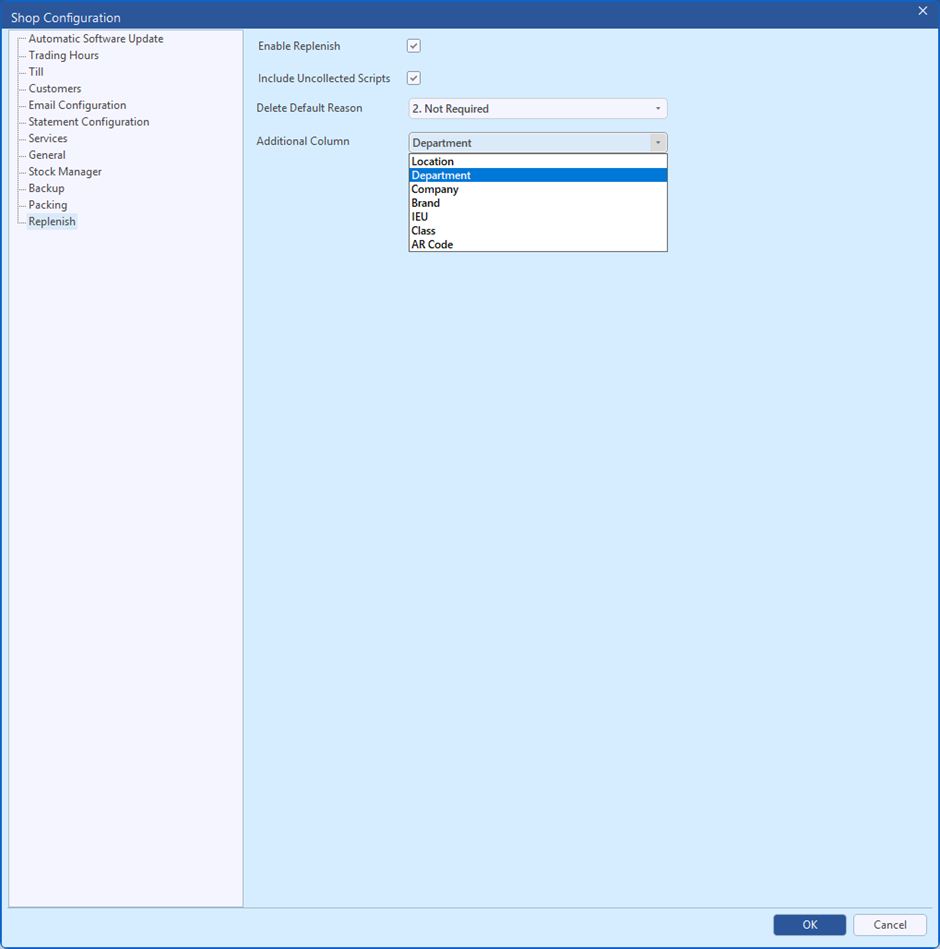 Re-open Replenish to see the new column.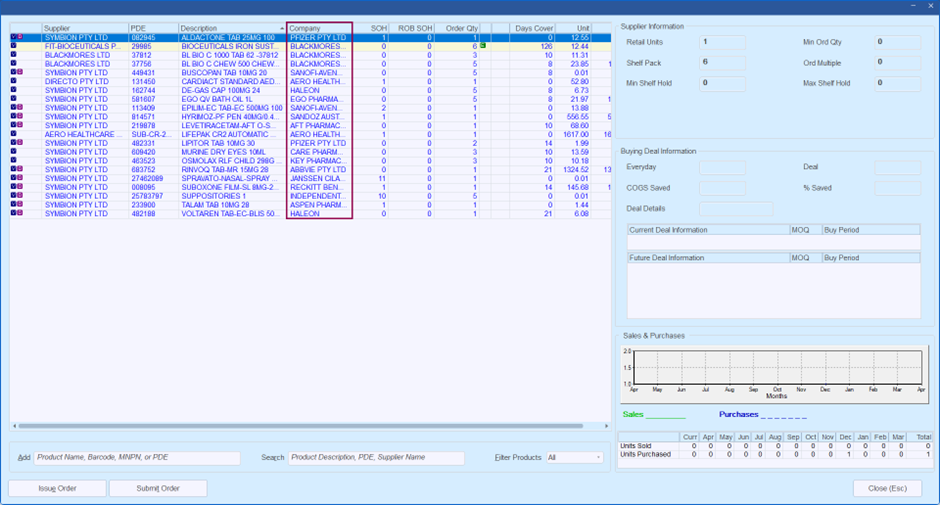
Note You may need to reset your saved column widths so the new column is visible as expected. After adjusting the first time, the set column widths will be retained.
Dispense
You can now see a clear 60-day dispensing indicator in the Possible Matches Found window for eligible PBS items. This makes it easier to identify 60-day items and select the correct listing, helping reduce avoidable rejections and safety net consequences caused by choosing the wrong listing. 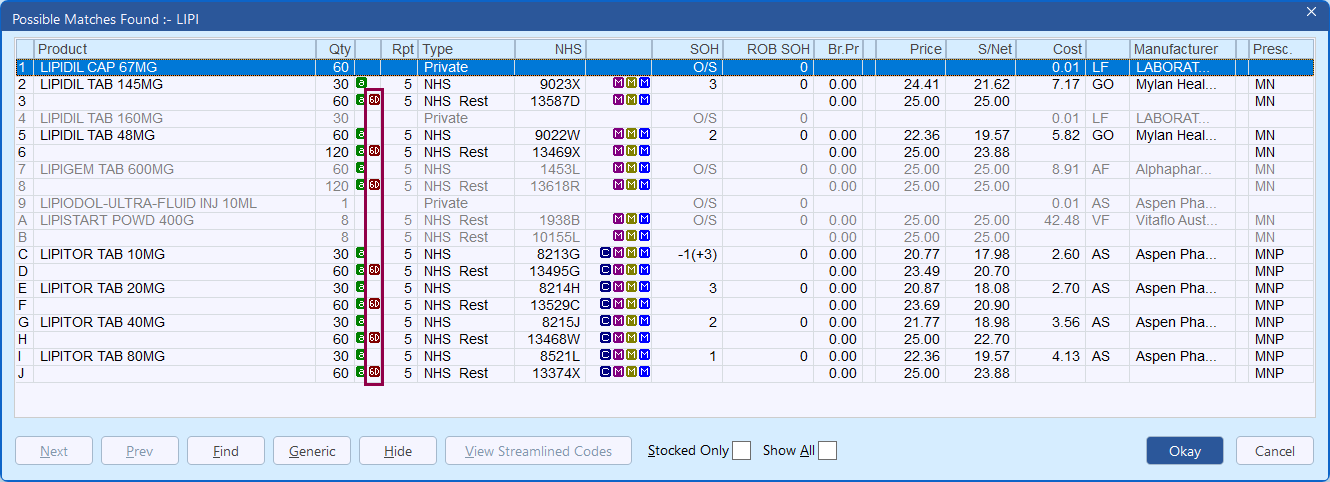 This is a visual indicator only - it doesn’t change dispensing, pricing, or claiming logic. It’s designed to support quicker, more confident selection.
To launch the Legend window and view an explanation of each icon, right click anywhere in the Possible Matches Found window.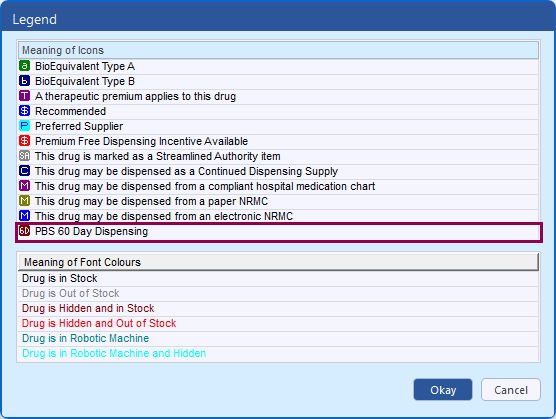 Refer to 60 Day Dispensing information for further details.
You’ll notice the calendar window in Dispense is now consistent in size with the calendar displayed in Stock Manager. This reduces unnecessary scrolling and makes date selection easier - especially on busy dispense days.
This also helps minimise confusion when switching between modules, because the calendar behaviour looks and feels the same.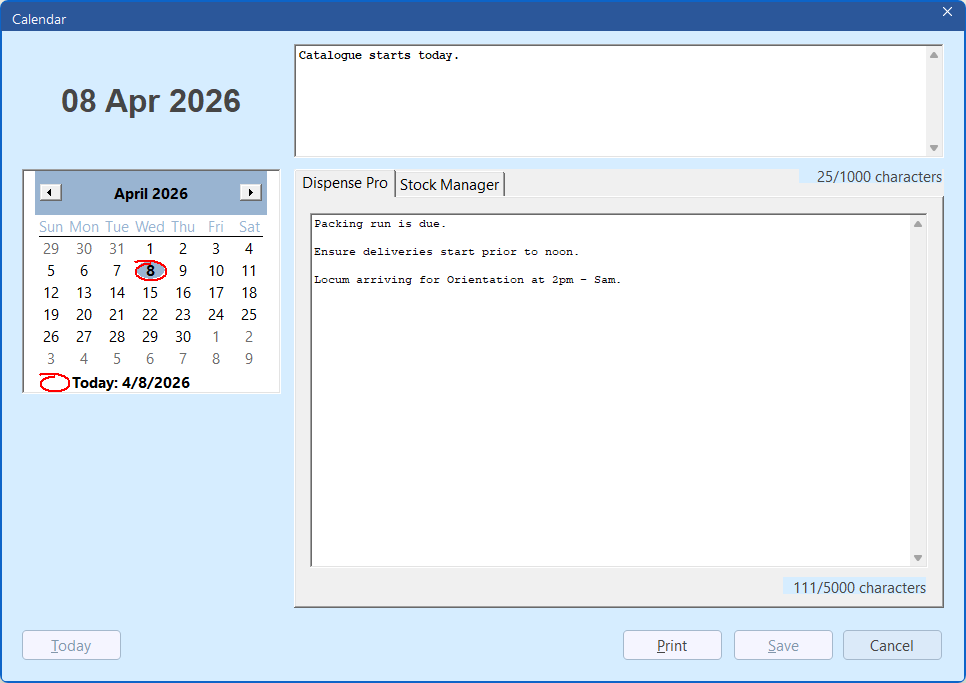 Refer to Minfos Calendar for further information.
You can now schedule the Owing Scripts report to run automatically, helping you stay on top of outstanding owings without needing to remember to run the report manually.
The report screen also includes improvements that make date range reporting clearer - supporting more consistent reporting and follow-up workflows.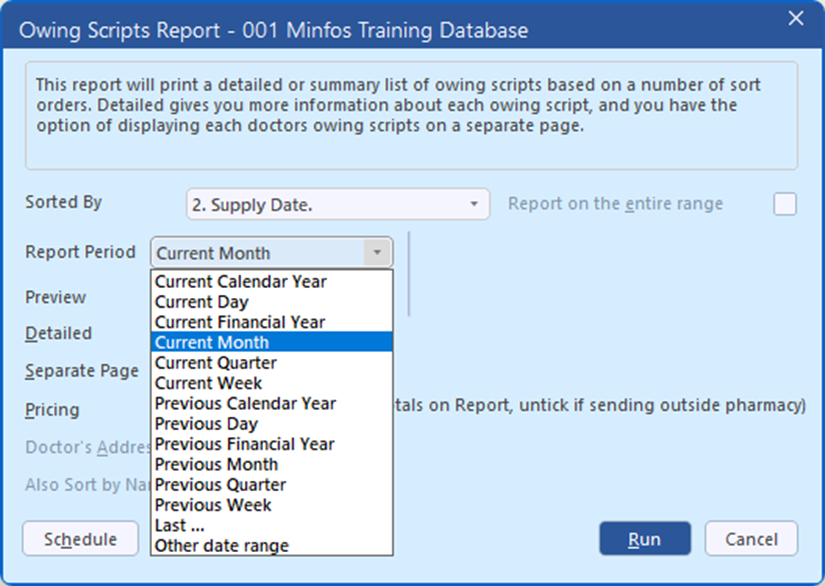 Refer to Owing Scripts Report for details.
You can now schedule the Uncollected Scripts report so it runs automatically and is delivered to nominated recipients. This helps you follow up uncollected items more reliably - especially when responsibilities are shared across staff or shifts.
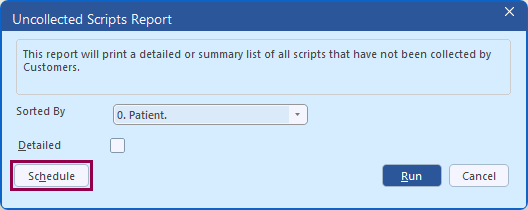
Refer to Uncollected Scripts Report for further information.
Stock Manager
You can now more easily track orders that were completed automatically through Smart Complete. The Ordering Audit Report records Smart Complete completion activity so you can confirm what happened (and when) without guesswork.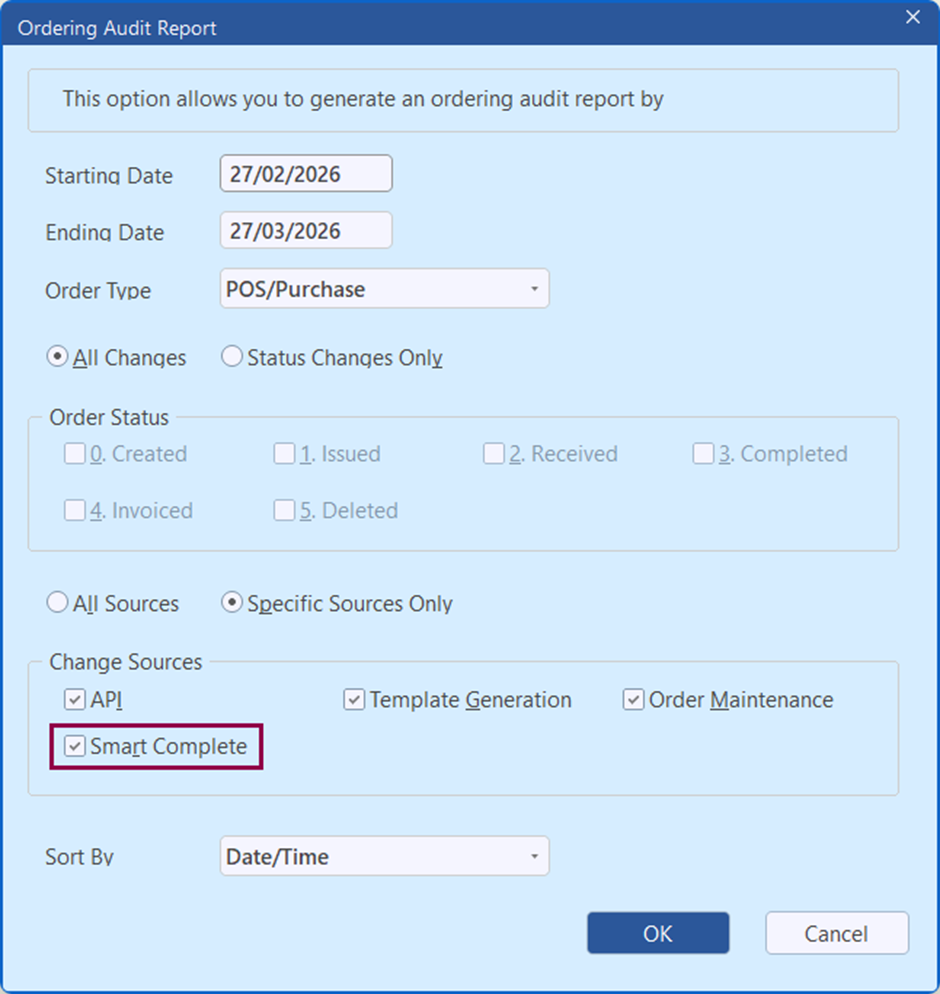
 Refer to Ordering Audit Report for further details.
Note Smart Complete audit detail is captured from 8.9.1 onwards (no historical backfill).
Till
If your pharmacy processes online orders for in-store payment, you can now bring multiple online orders into a single Till sale (up to 10 orders at a time). This makes checkout faster when a customer arrives with more than one online order to pay for - reducing repeated payment steps and improving the customer experience.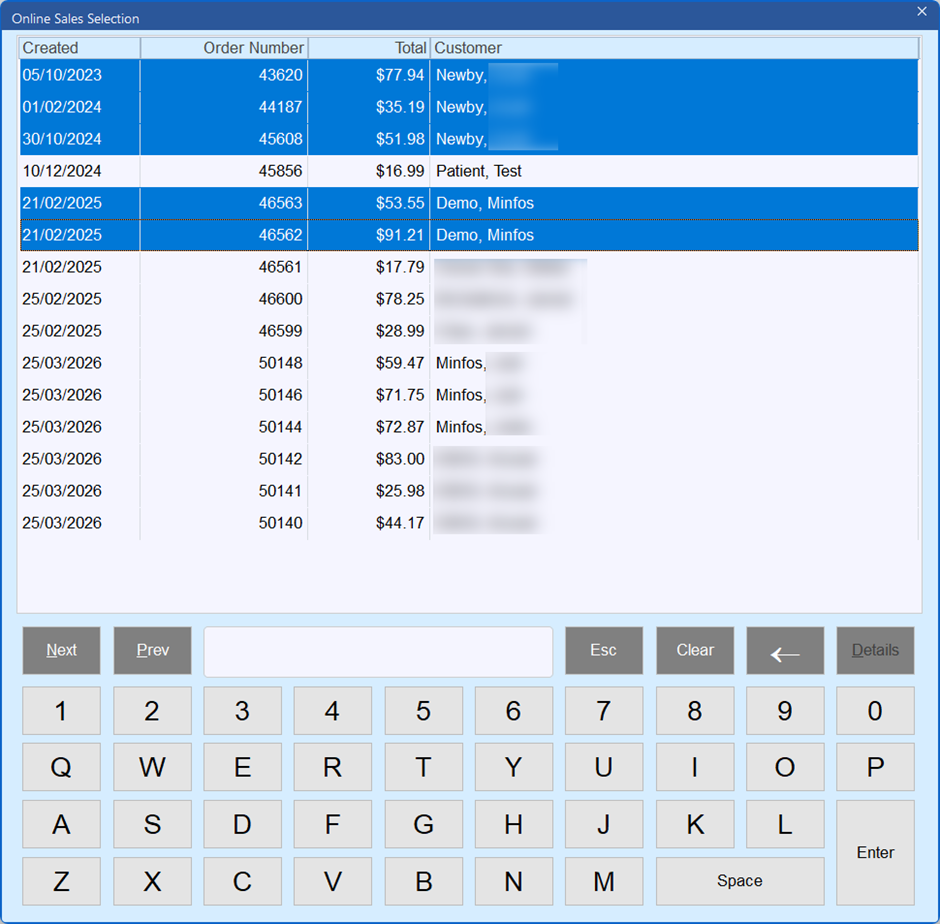 Minfos also applies a consistent “lowest price wins” rule across the combined basket, helping ensure pricing stays fair and consistent when the same item appears across multiple orders and/or is scanned again at the counter.
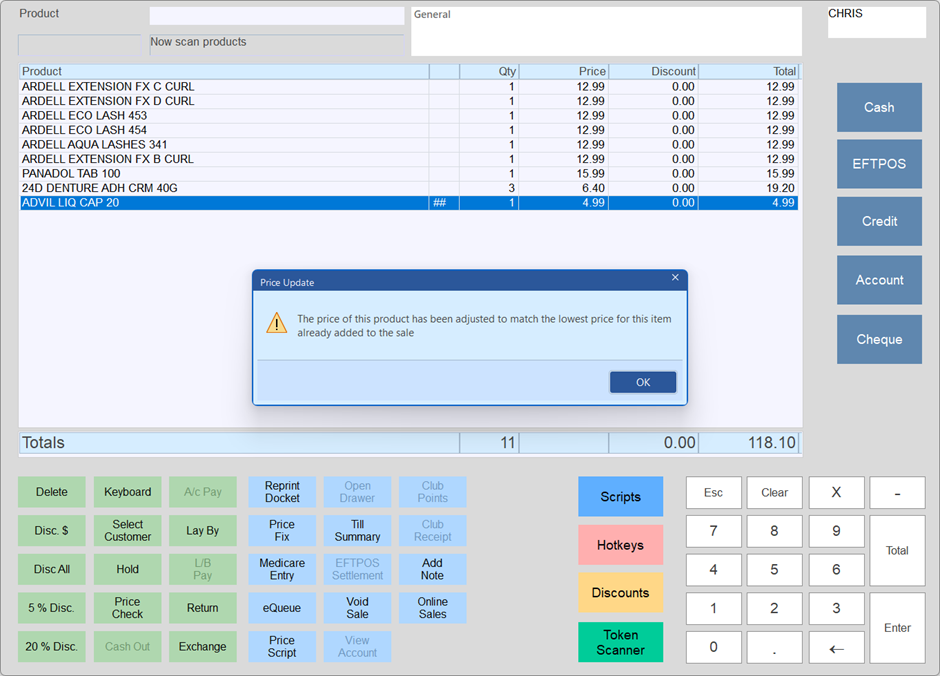 Refer to Process Online Sales at the Till for details.
Important note (rollback restriction) Once your store updates to 8.9.1 and you complete a sale that includes multiple online orders, you won’t be able to roll back your database/Minfos version. (If you only process single-order sales, rollback remains possible.)
Resolved Issues
- Additional fixes and safeguards have been implemented to Replenish to avoid products appearing multiple times in the Replenish list.
- Improvements have been made to ensure that the eScript Details window does not show the directions of the previous script occasionally.
- Applying a co-payment discount to a General CTG patient will no longer revert to no discount when tabbing through the Dispense Form or when editing the script.
- Selecting the Co-Pay Status of ‘Opt In’ will now apply the Co-pay discount automatically for a CTG patient.
- Occasionally, the price of a Private script was displayed incorrectly for a CTG patient. This has been rectified and when a Private script is downloaded for a CTG patient, it will be displayed correctly.
- The correct claim serial number will now be sent for a White Repatriation Entitlement patient.
- Stock of Alternate Barcodes will now be requested from Consis robot if quantity of 0 is received for the Primary Barcode.
- The Generic Drug Listing in Stock Manager will now display other generics where the strength is written in a different format.
- The Product Audit Report will no longer display a change to Retail Price B incorrectly.
- Importing a Customer’s image will now display the picture consistently.