
Minfos functionality allows stores to offer a Pay in Store option for online sales.
After this option has been enabled, sales clerks can retrieve online sales transactions via a configurable hotkey, then process payment for the sale at the Till. Refer to Enable Minfos to retrieve online sales for payment at Till for set up guidance.
1. At the Till, enter your Clerk Code and press [Enter].
2. Click the Online Sales hotkey.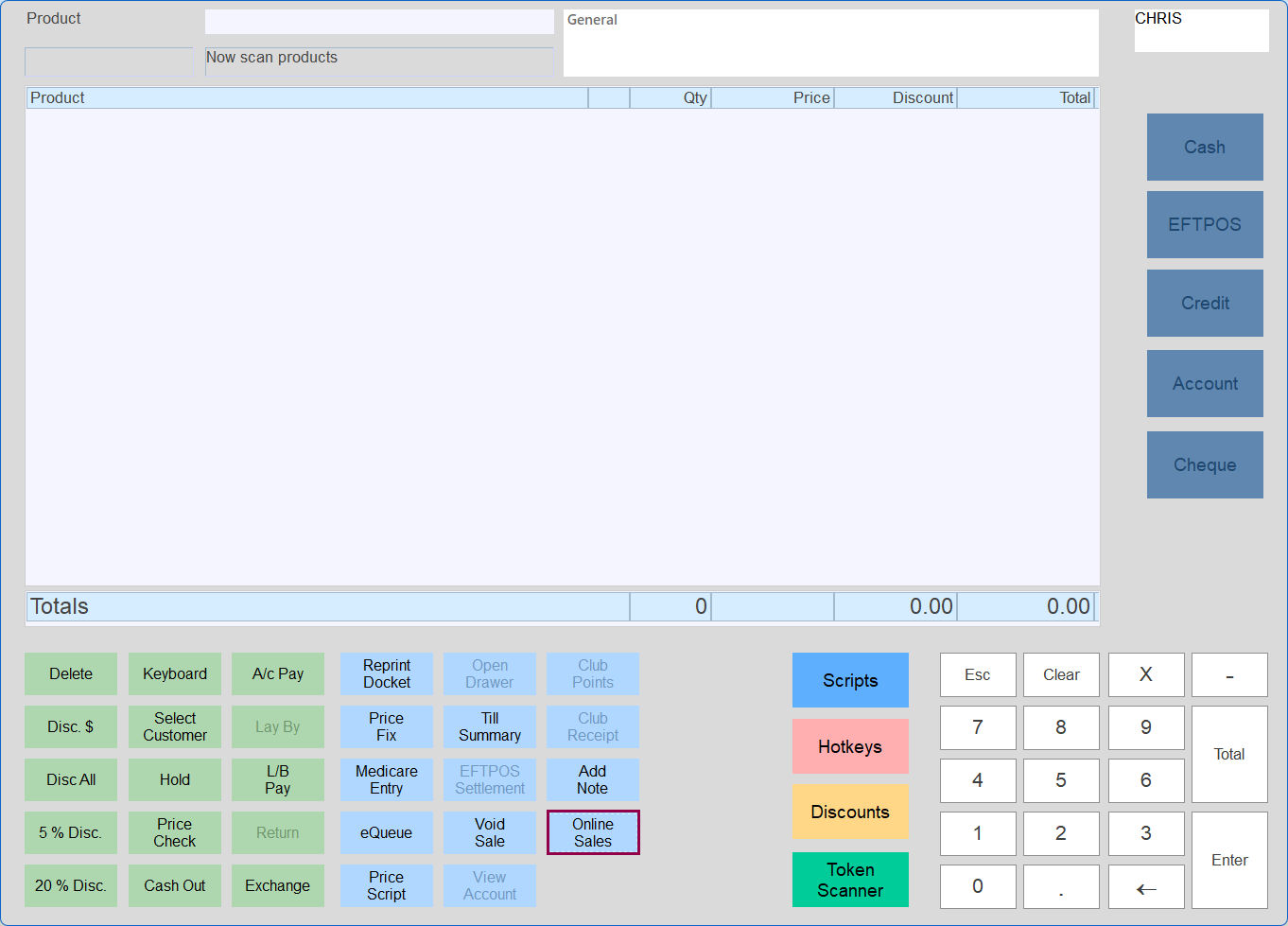 The Retrieve Online Sale window is displayed.
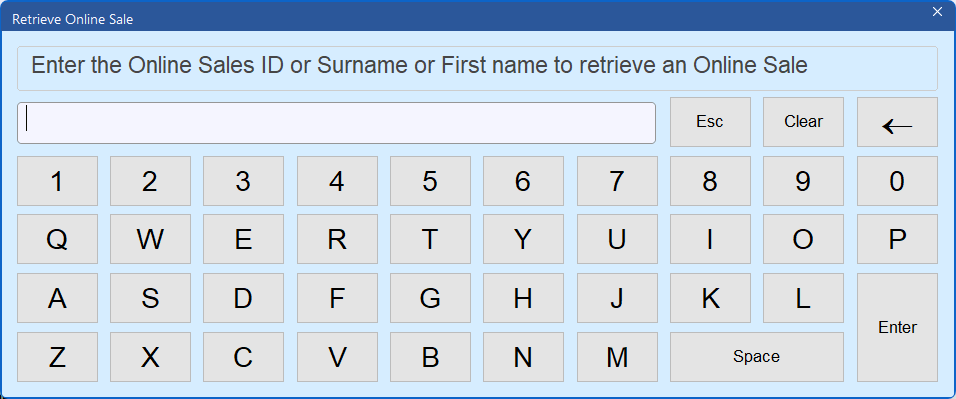 3. Enter the Online Sales ID, Surname or First name of the relevant online sale, and click Enter.
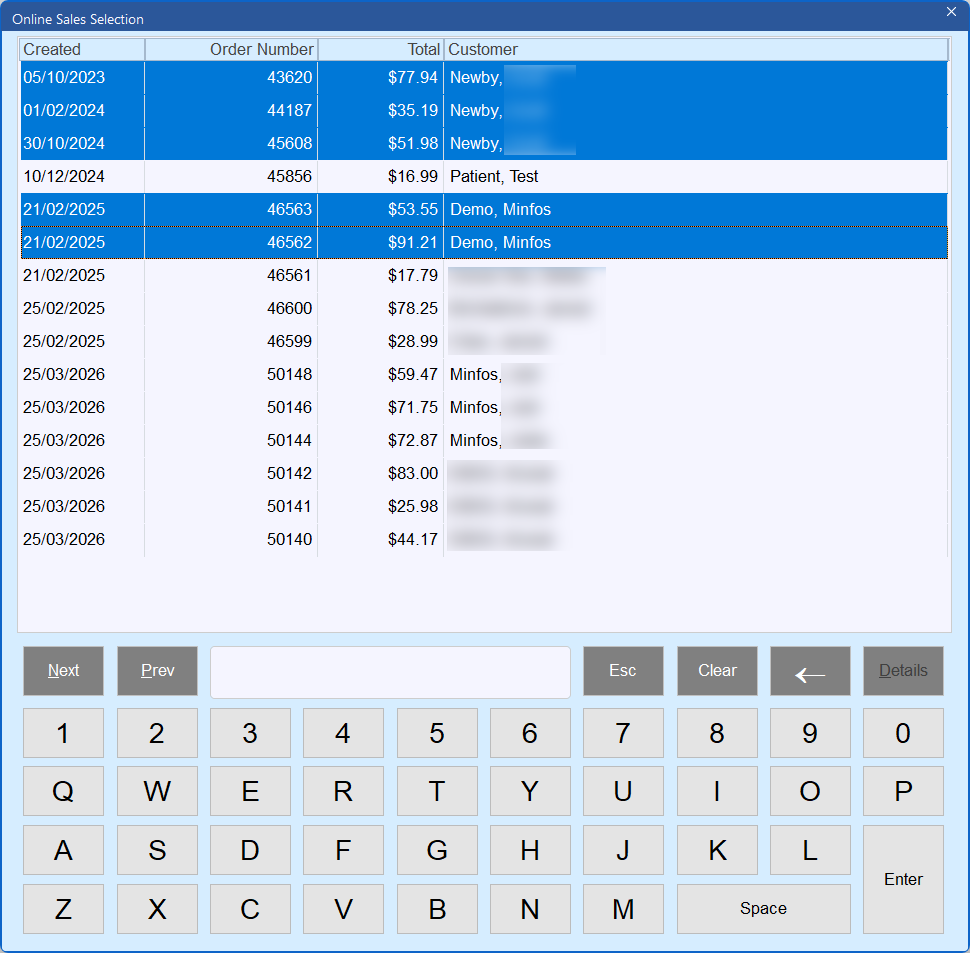
The matching results are displayed in the Online Sales Selection window.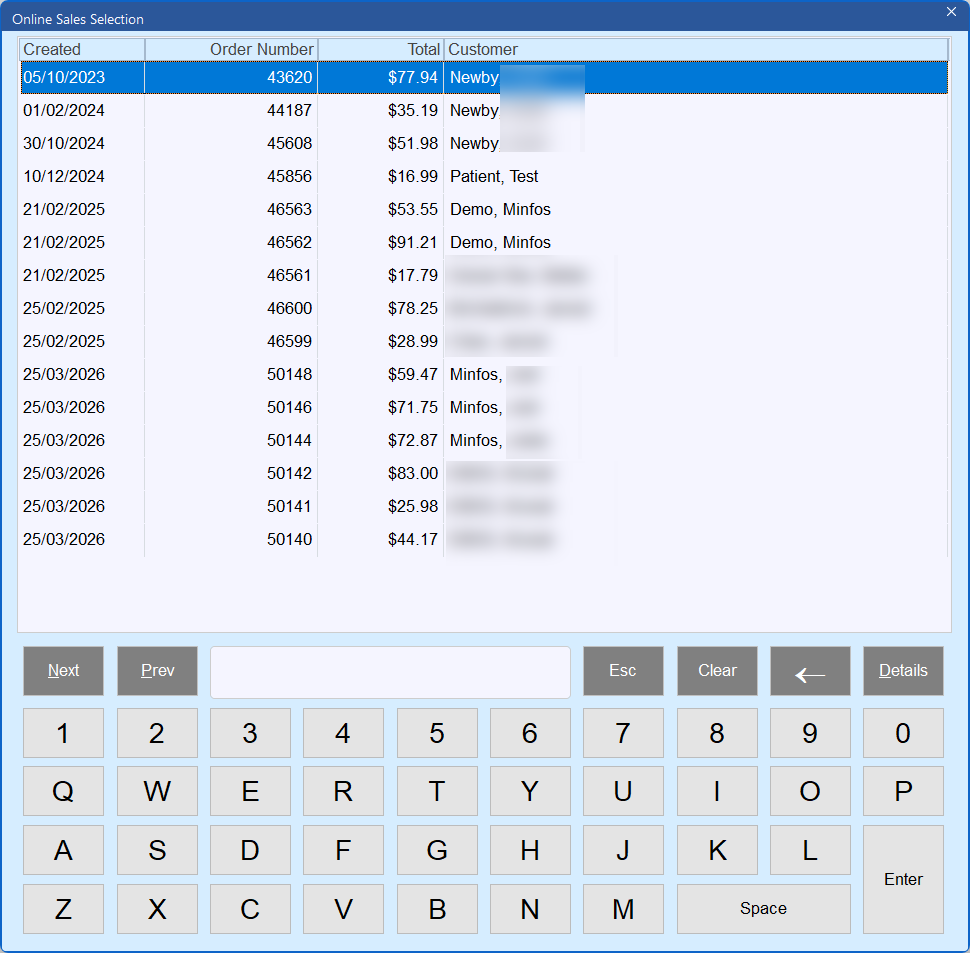
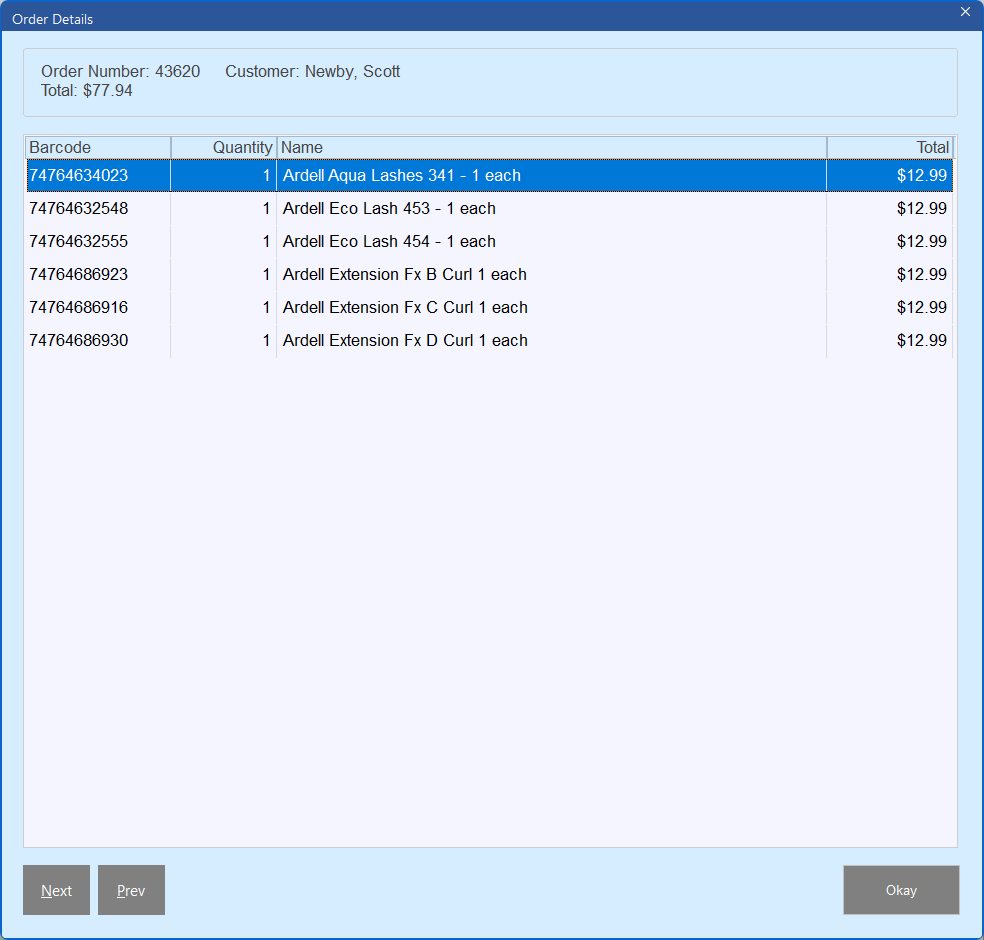
To view the contents of a sale prior to selecting it for payment, highlight the sale and click Details. The Details option is not available when multiple online sales are selected.

The sale contents are displayed in the Order Details window.
4. Select the required online sale/s and click Enter.
Note A maximum of 10 online sales or 199 products may be added to a Till transaction.
 The products in the selected online sale/s are added to the Till transaction.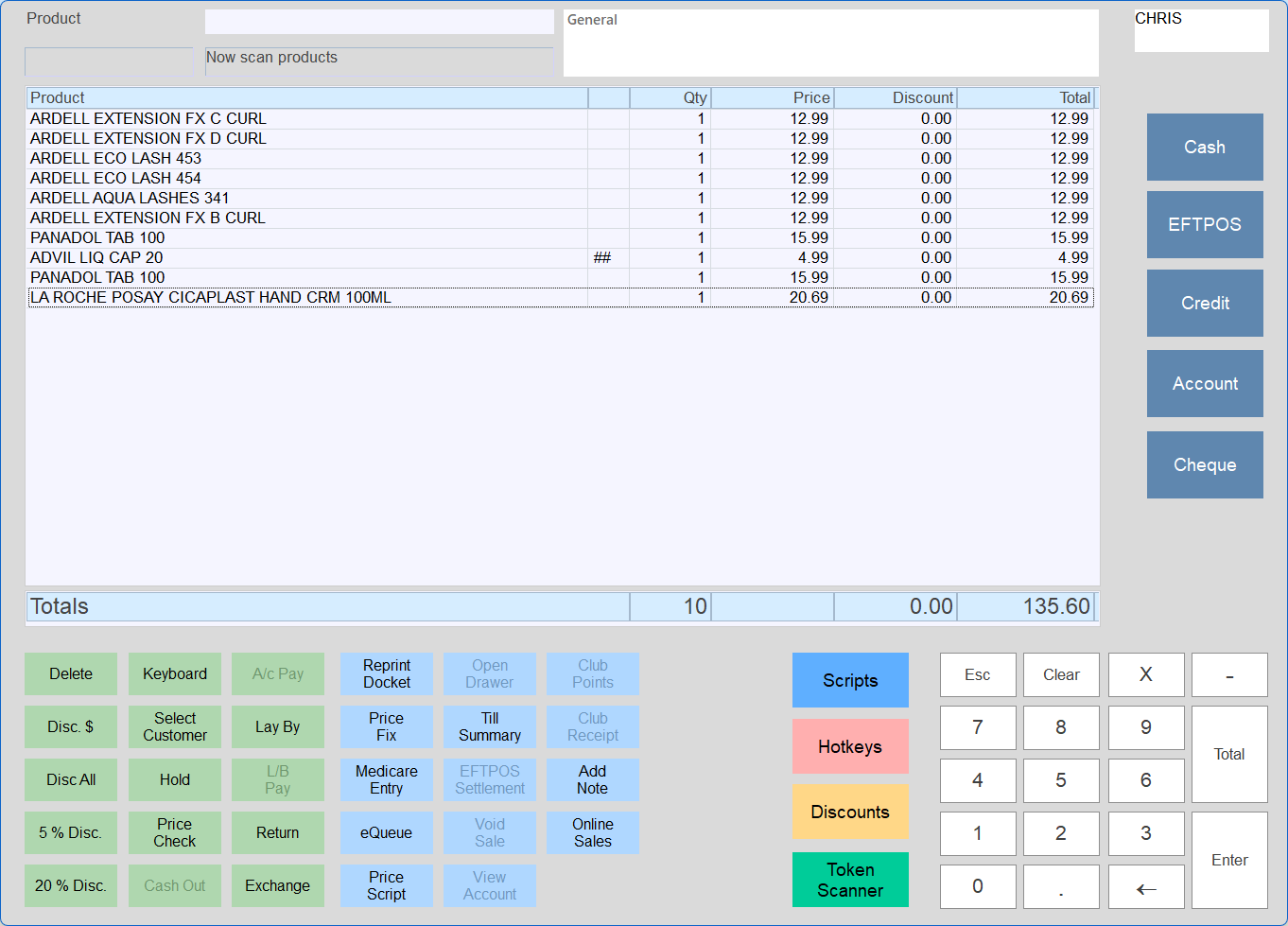
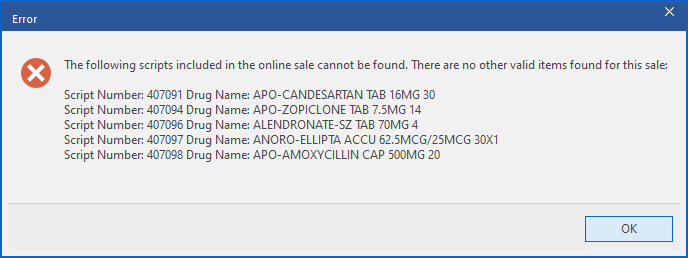
If a selected online sale contains scripts that cannot be found in your Minfos, the following Error is displayed, listing the scripts that cannot be found. The other items are added to the sale.If the selected online sale contains only scripts that cannot be found in your Minfos, the following Error is displayed, listing the scripts that cannot be found. No items are added to the sale.
Note For non-prescription items, Minfos will compare the price from your Minfos and the price from the online sales system and apply the lowest price to the sale. If the same item is in multiple selected online sales at different prices, Minfos will always apply the lowest price to the product at the Till. The Price Update prompt is displayed informing you of the price adjustment.For prescription items, the Minfos price is always applied.
5. Add any additional products to the sale if required.
6. Finalise the sale and process payment following your usual process.
Note If an online sale is selected for payment by mistake, cancel the entire sale then reselect the correct online sale/s. If you only delete the incorrect products from the sale (rather than cancelling the sale), the online sale will still be marked as collected and will be removed from the Online Sale list.