
Enhancements
Dispense
Get faster, clearer insights at the point of dispense with the new, streamlined way to view and manage date‑stamped customer notes.
Notes now appear directly within the Dispense Form and Script Enquiry, sitting neatly alongside scripts in chronological order - giving pharmacists a complete story in seconds.
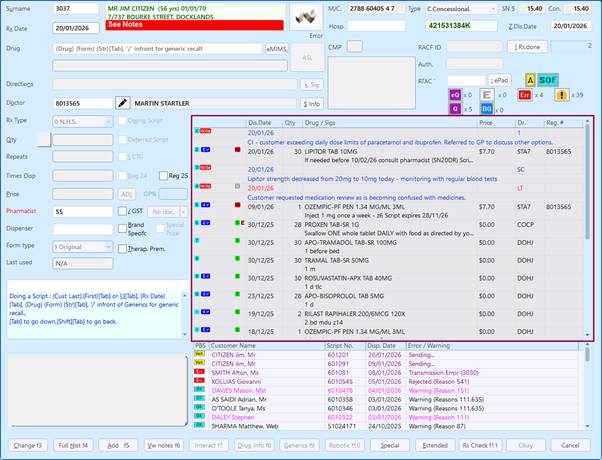
Each note is visually highlighted with coloured text and icons for instant recognition.
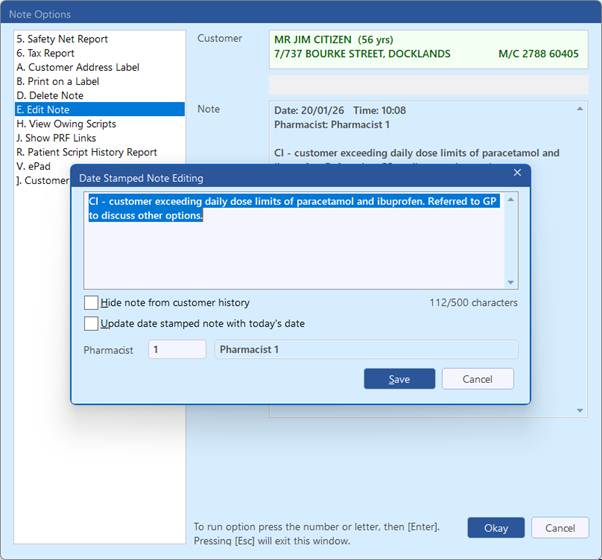
With a quick double‑click, you can open Note Options to view, edit, delete, hide, or even re‑date a note with today’s date. Deleted notes remain clearly identified, ensuring transparency and control without cluttering your workflow.
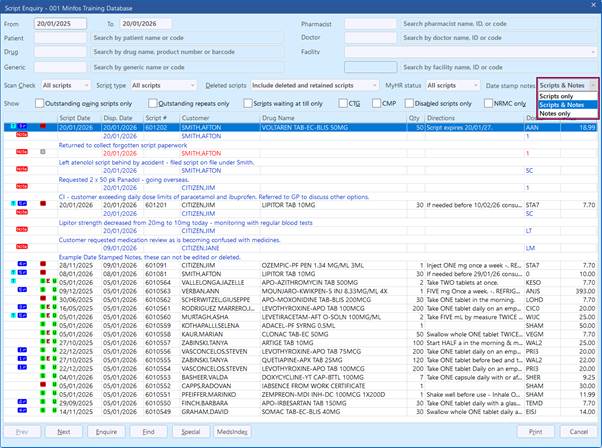
The Script Enquiry window has also been updated with a new Date Stamp Notes filter, making it easy to view scripts only, scripts with notes, or notes on their own.
Printed reports from the Script Enquiry window can now include notes too, so your documentation always reflects the full picture.
By bringing date stamped notes directly into your core dispensing views, this enhancement boosts visibility, reduces unnecessary screen switching, and helps pharmacists make confident, well‑informed decisions that support safer patient care.
Refer to Customer Notes in Dispense and Script Enquiry Overview for further details.
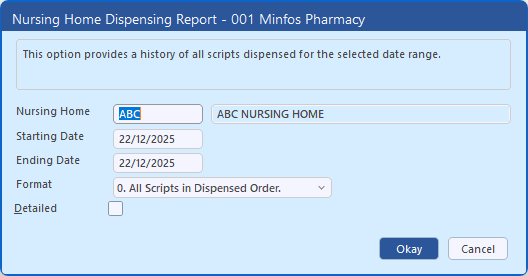
The description displayed in the Nursing Home Dispensing Report has been revised to provide a clearer and more accurate explanation of the report’s purpose. This update was made to improve understanding and reduce confusion when selecting and using the report.
Replenish
Save time and keep your stock flowing with the new Auto-send feature in Replenish. You can now configure suppliers to automatically send Replenish orders on a schedule you choose - daily, weekly, or monthly.
Why you will love it:
- Set and forget: No more manual transmissions or missed cut-off times
- Reliable: Orders send even if Replenish isn’t open
- Peace of mind: Email alerts notify you if an order fails to send
How it works:
First, ensure you have enabled Auto-sending of Orders in Shop Configuration.
Then, for each supplier you wish to set up to Auto-send Replenish orders, tick Schedule send and Choose your preferred time and recurrence pattern in Supplier Editing. Refer to Configure suppliers to automatically send Replenish orders for step by step guidance.
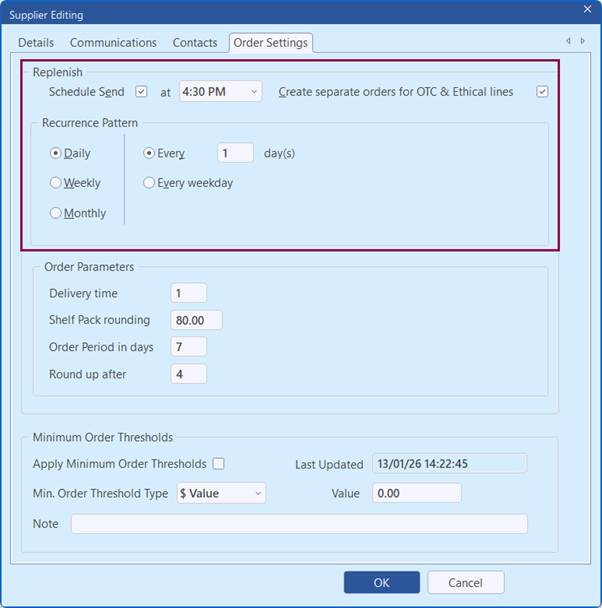
Orders will appear in Order Maintenance with Issued status once sent. Failed orders remain in Created status and can be resent manually.
Your Replenish ordering process just got even smarter and more automated!
When using /PDE to manually add a product to the Replenish window, Minfos now consistently selects the correct product and prevents duplicate PDEs being added.
When multiple products share a PDE, Replenish automatically picks the first product alphabetically (instead of the lowest product number).
If a PDE is already in the list, it won’t be added again. Instead, the existing duplicate PDE product is highlighted. Where there are multiple duplicate PDE products already in the Replenish window, the first duplicate PDE product is highlighted.
These improvements reduce accidental duplication and ordering errors.
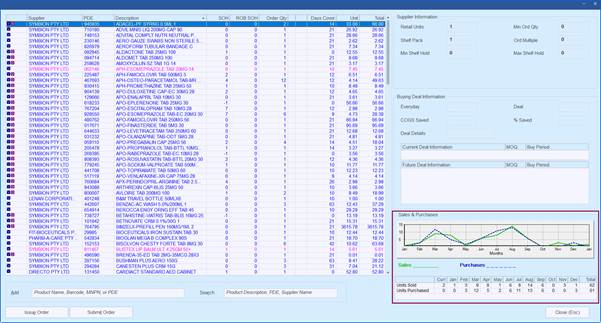
A new Sales & Purchases table has been added to the Replenish screen, displaying monthly sales and purchase quantities for the selected product.
Positioned directly below the existing graph, it gives a clear, at-a-glance view of product movement to support faster, more accurate ordering decisions.
Stock Manager
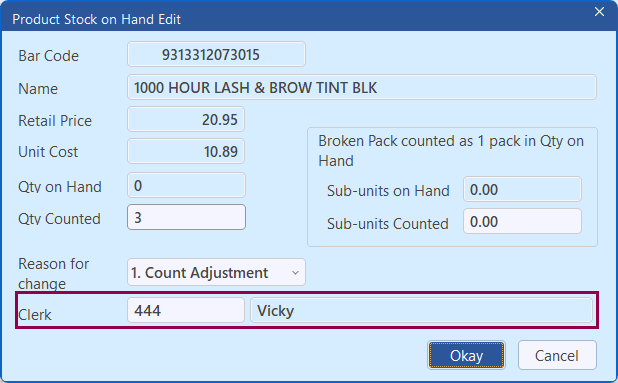
Save time during Rolling stocktakes by entering the Clerk code just once.
When you review the first product in the Product Stock on Hand Edit window during a rolling stocktake, the Clerk code is captured and automatically applied to all remaining adjustments in the session. If another clerk takes over, update the code and the new one will apply going forward.
Audit trails remain fully accurate, with Clerk Names recorded in the Product and Category Audit Reports. Refer to Enter manually counted stock by Rolling Stocktake for details.
Note The Integrated Order Settings panel is only displayed where Integrated Ordering/Buy Better is enabled. Refer to your banner group for further information.You can now see Integrated Order Settings directly in Shop Configuration.
These settings are displayed as read‑only (controlled by your banner group) and help you understand the factors influencing Days Cover and Replenish order quantities.
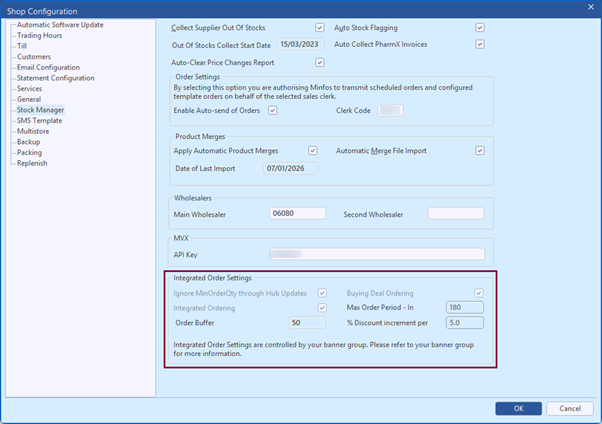
Please refer to your banner group for further information.
Till
From Minfos 8.8.1 Scan rebate values are displayed in Product Sales Enquiry and Sales Detail Enquiry windows, providing improved visibility of rebates applied to sales.
Note Scan rebate functionality is only visible for pharmacies where Scan rebates is enabled. Please contact your banner group for further information.
Updated Product Sales Enquiry window functionality:
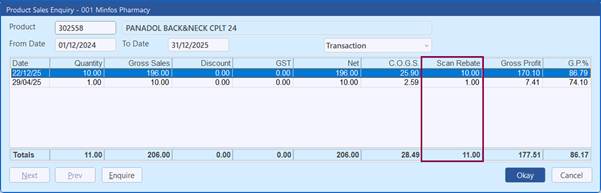
- New Scan Rebate column displays the Scan rebate amount applied at the time of the sale, or 0.00 if no rebate is applied
- Displayed COGS, Gross Profit, and GP% values include the Scan rebate amount
- Easily review Scan rebate information across individual Transaction, Daily and Monthly views without changing windows
Updated Sales Detail Enquiry window functionality:
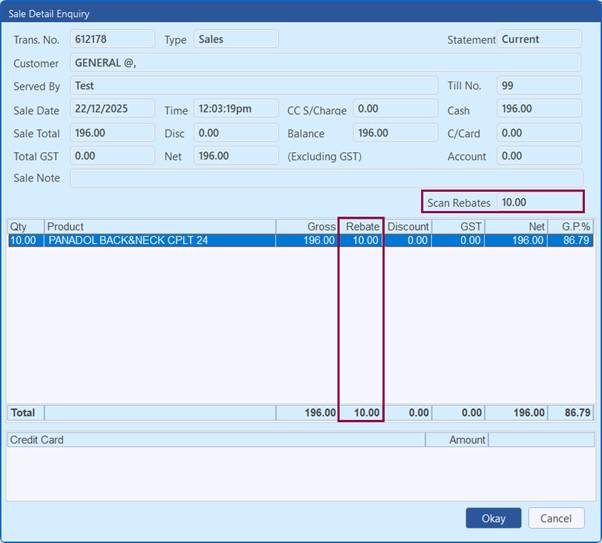
- New Rebate column displays the Scan rebate amount applied at the time of the sale, or 0.00 if no rebate is applied
- New Scan rebate field clearly displays the rebate applied to the selected line
These new updates support faster validation of rebate claims and confident business analysis. Refer to Scan Rebates for further information.
Resolved Issues
- Default SIGs will now be populated in the directions field if you have pre-populated dates in the Directions field.
- The No of times already dispensed is incorrect when viewing a copy of the repeat authorisation. This issue has now been fixed.
- You can now successfully search for patients with long surnames and first names in the Customer Record window.
- Using the Copy Script function on a script charged to Pillbox will no longer be incorrectly recorded as Third Party Packing.
- After initially deferring a repeat in Minfos, the Safety Net Consequences / Reg 25 prompt is no longer displayed in error when the deferred script is later dispensed.
- Ignored eScript errors will no longer be displayed when the Ignored Errors checkbox is not selected in the PDS Error window.
- The Chart Date field will now be cleared when selecting New Customer or pressing [F2] to clear the Dispense Form.
- All matching items will now be displayed when searching by Streamlined Authority code.
- For robotic dispensing, changing the Chute value while dispensing via the # pk button will now send the drug to the correct chute.
- The recorded Time of dispensing a script will now reflect the time the script was saved and not the time when the patient is selected.
- Paging up and down in selected Stock Manager Enquiry windows will now function correctly.
- In some circumstances, scheduled reports did not run as expected during the End-of-Day process. Improvements have been made to ensure that the scheduled reports will run correctly.
- The Till will no longer report Cost is greater than Retail incorrectly when selling multiple quantities.
- The correct Loyalty message will now be displayed at the Till when a new member is added with a phone number that is already in use.
- The Transfer FTP will now support later versions of FileZilla.