
You can add notes to a Customer Record that will display when the customer is selected in the Dispense Form.
You can configure the note to always display, or manually view the Notes by clicking Vw notes f6.
There are two types of Dispense notes available Free Text Notes or Date Stamped Notes. For notes at the Till refer to Customer notes to prompt at the Till.
Free Text Notes
- The first line of free text notes is displayed on the Dispense Form in red
- For messages that are important to the dispenser, but do not need to be recorded permanently in the customer's profile e.g. record customer preferences, such as a dislike of generic medication

Add a Free-Text Note
From the Dispense Form:
1. Click Vw notes f6, or press [F6].
The Customer Editing window is displayed with the Notes tab selected.
Alternatively,
2. Click Change f3, or press [F3].
The Customer Editing window is displayed with the Details tab selected.
3. Click the Notes tab.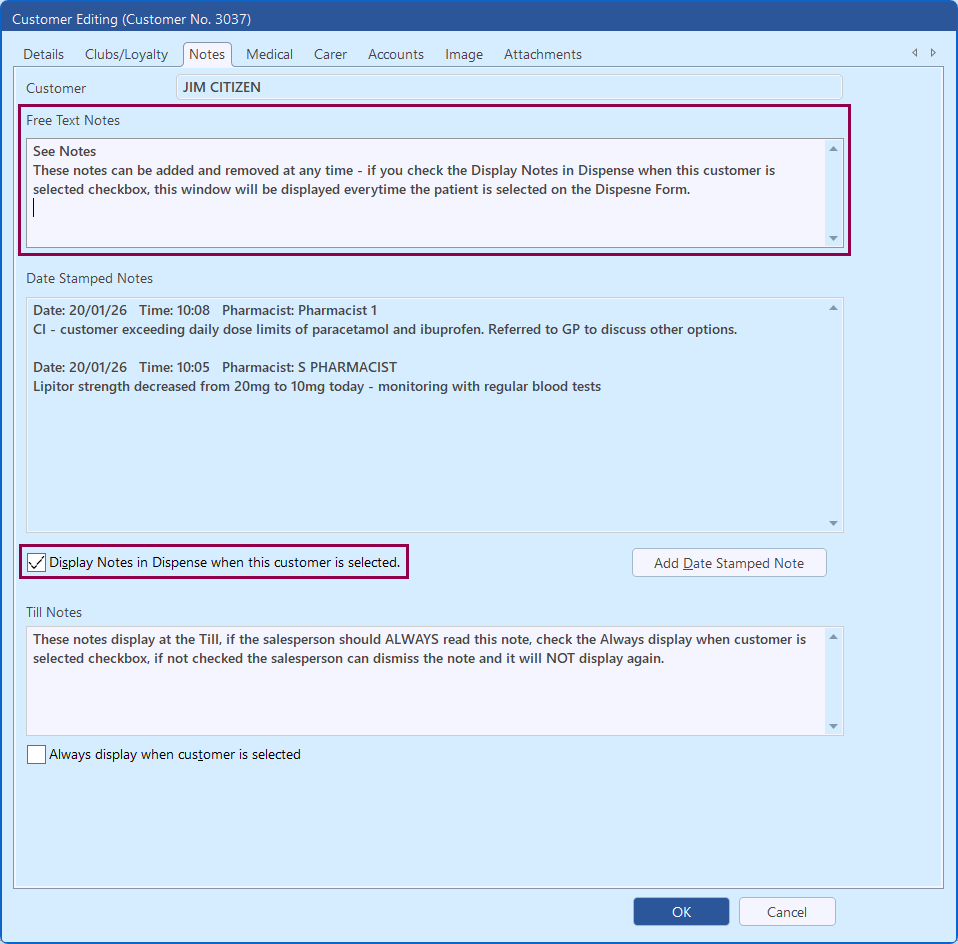 4. To record a Free Text Note, enter text in the Free Text Notes section.
Note: These notes can be deleted/removed at any time and there is no record of the note in the customers profile.
5. To display the Notes every time the customer is selected, ensure the Display Notes in Dispense when this customer is selected checkbox is checked.
6. Click OK to save and close.
Date Stamped Notes
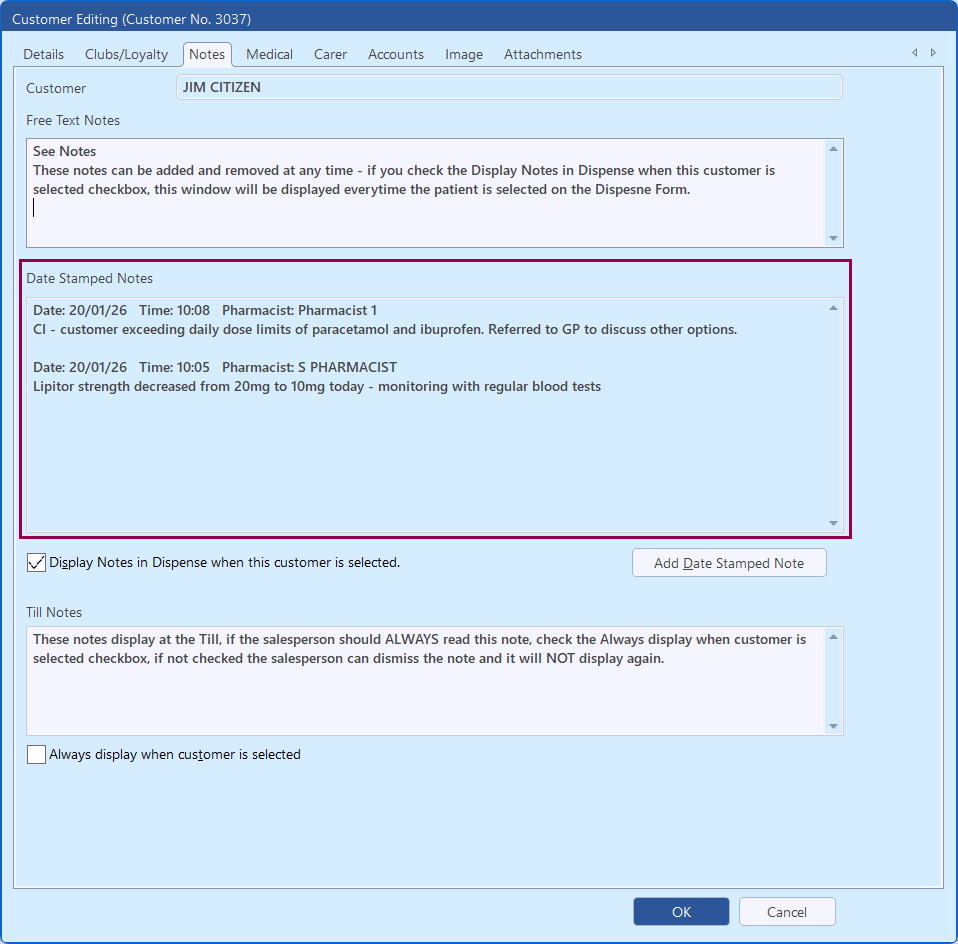
- Date Stamped Notes are best to record a date specific event e.g. a medication change or notes from a consult
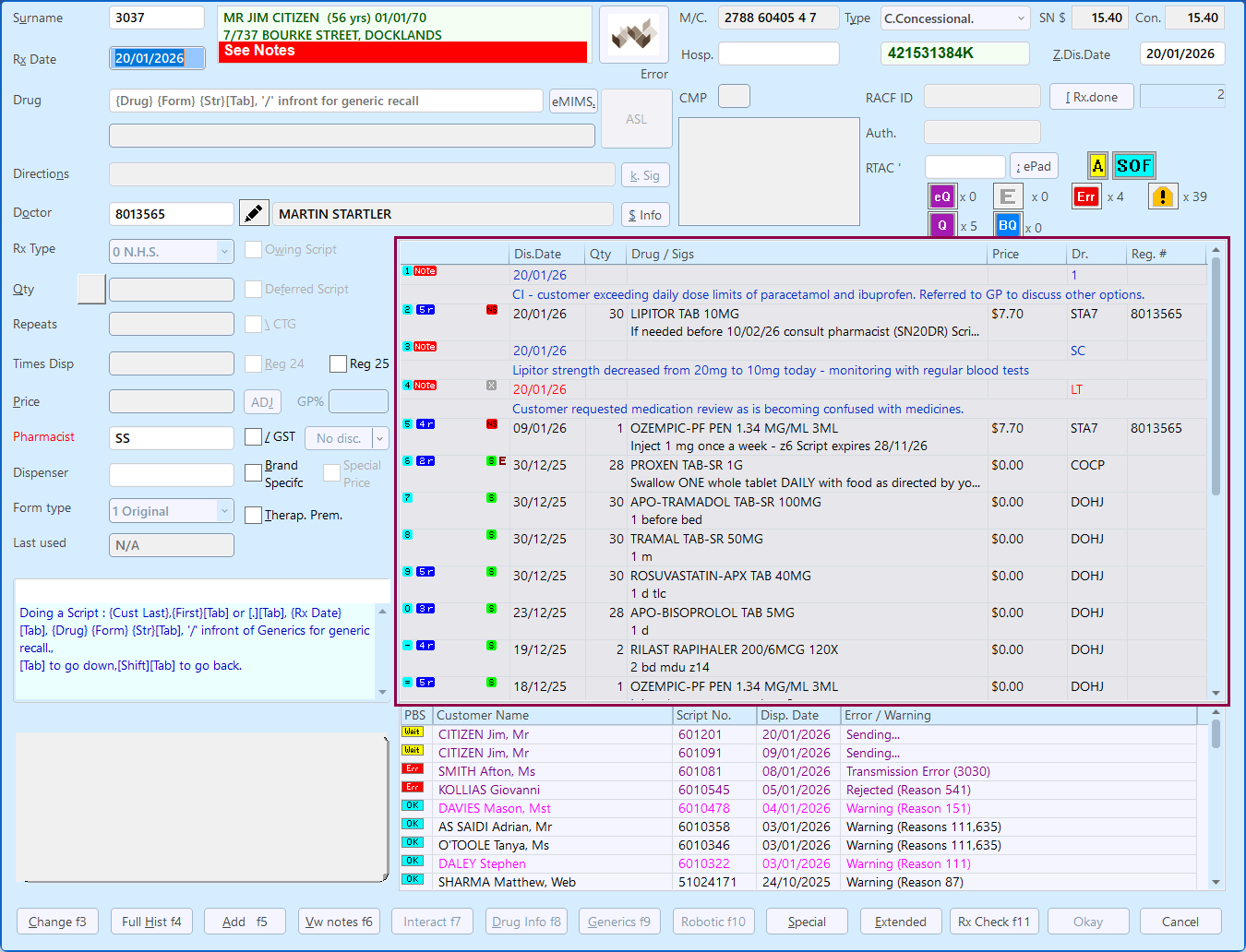
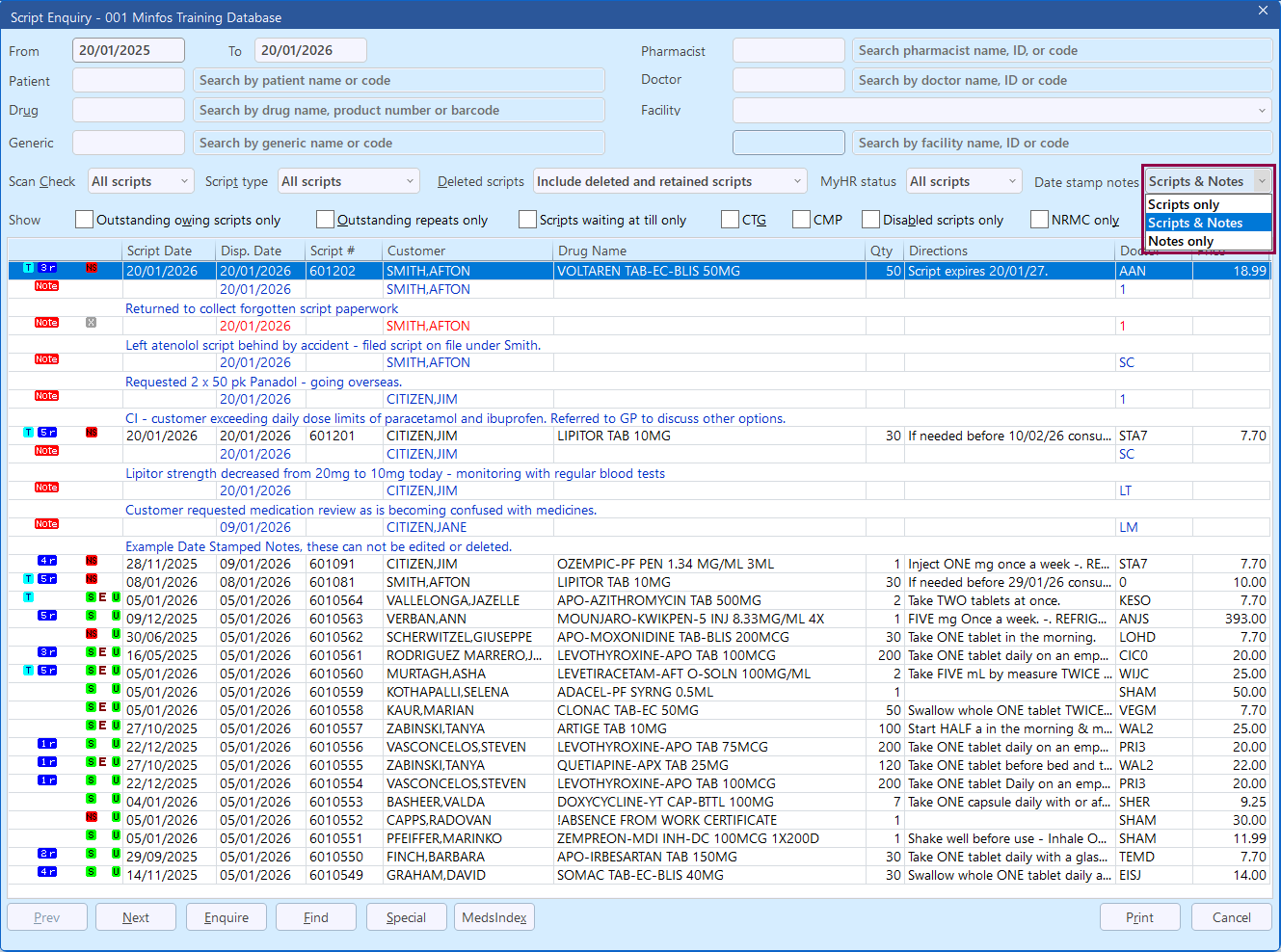
- Date Stamped Notes are displayed:
- In the Notes tab of the Customer Editing window
- In the Customer History panel of the Dispense Form
- In the Script Enquiry window when selected in the Date stamp notes dropdown
- In the Notes tab of the Customer Editing window
- Date Stamped Notes can be
- Deleted
- With option to retain or discard the note record
- Edited
- With option to re-save with today's date
- Deleted
Add a Date Stamped Note
From the Dispense Form:
1. Click Vw notes f6, or press [F6].
The Customer Editing window is displayed with the Notes tab selected.
Alternatively,
2. Click Change f3, or press [F3].
The Customer Editing window is displayed with the Details tab selected.
3. Click the Notes tab.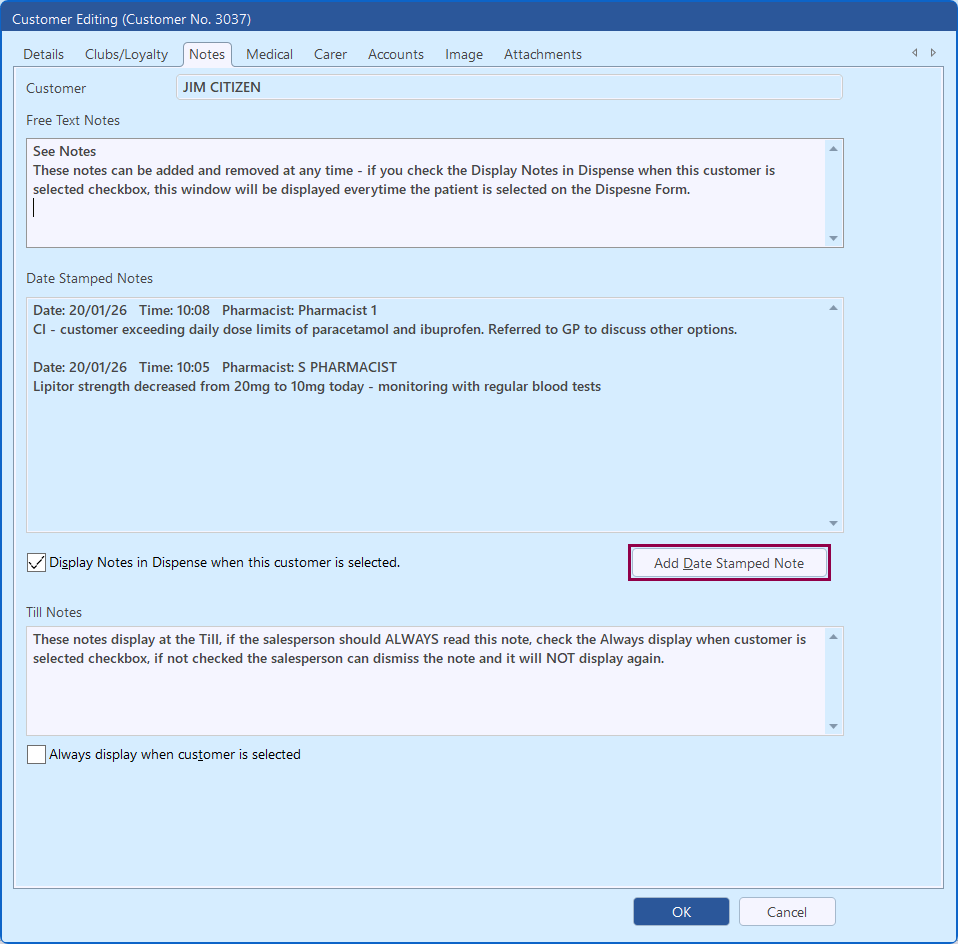 4. Click Add Date Stamped Note.
The Add Date Stamped Note window is displayed.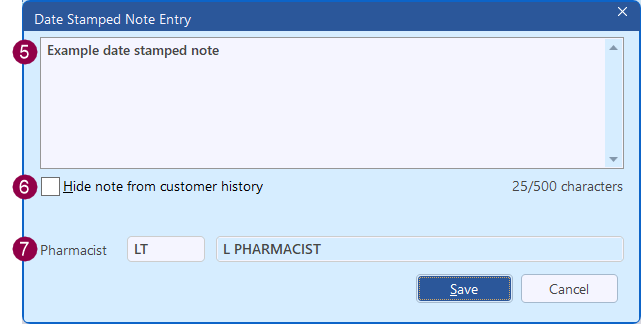
5. Enter the required text.
Note This field is limited to 500 characters. Notes with more than 500 characters will be truncated.
6. To hide the note from displaying in the customer history, tick Hide note from customer history.
7. Enter your initials in the Pharmacist field and press [Tab].
8. Click Save.
The Date Stamped Note is displayed in the Customer Editing window.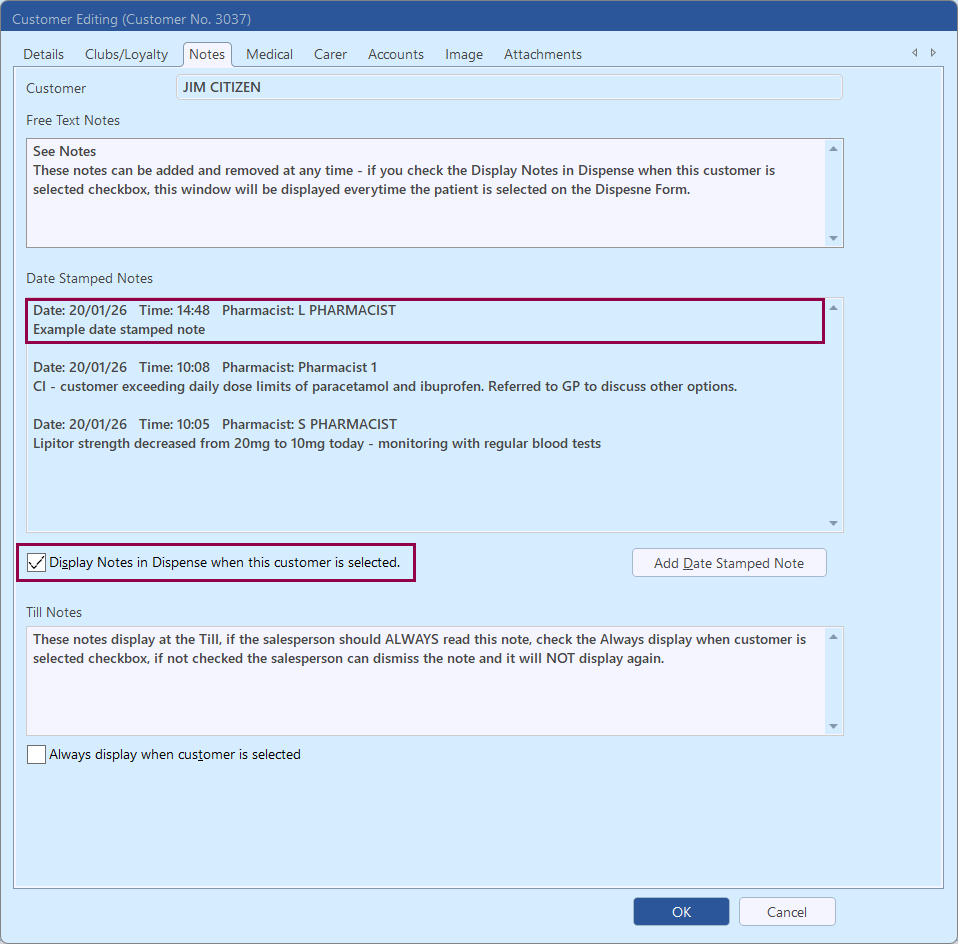 9. To set the Notes tab of the Customer Editing window to launch every time the customer is selected in Dispense, check Display Notes in Dispense when this customer is selected.
10. Click OK to save and close.
Delete a Date Stamped Note
1. Navigate to the Customer History panel of the Dispense Form.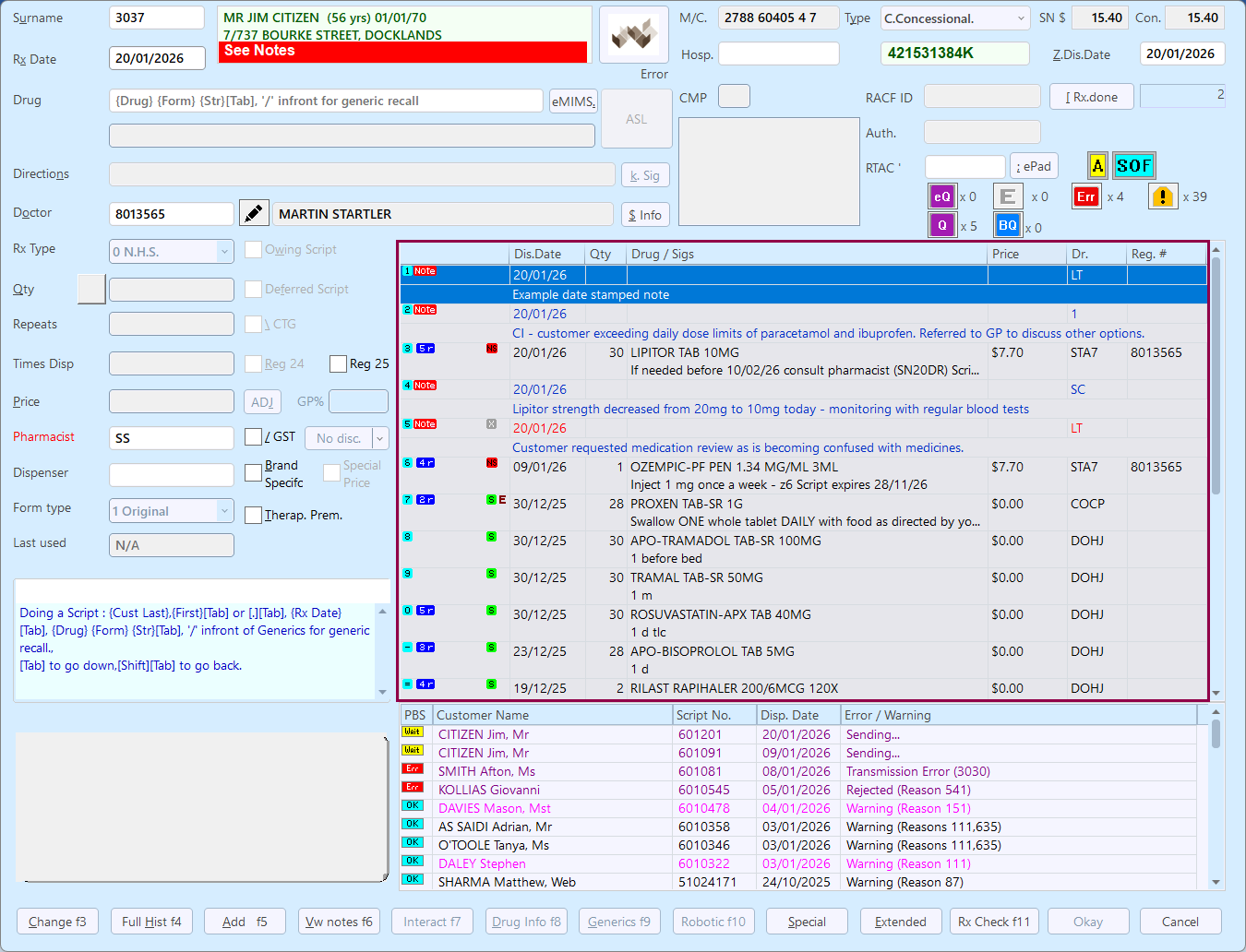 2. Double-click on the Date Stamped Note to be deleted.
The Note Options window is displayed.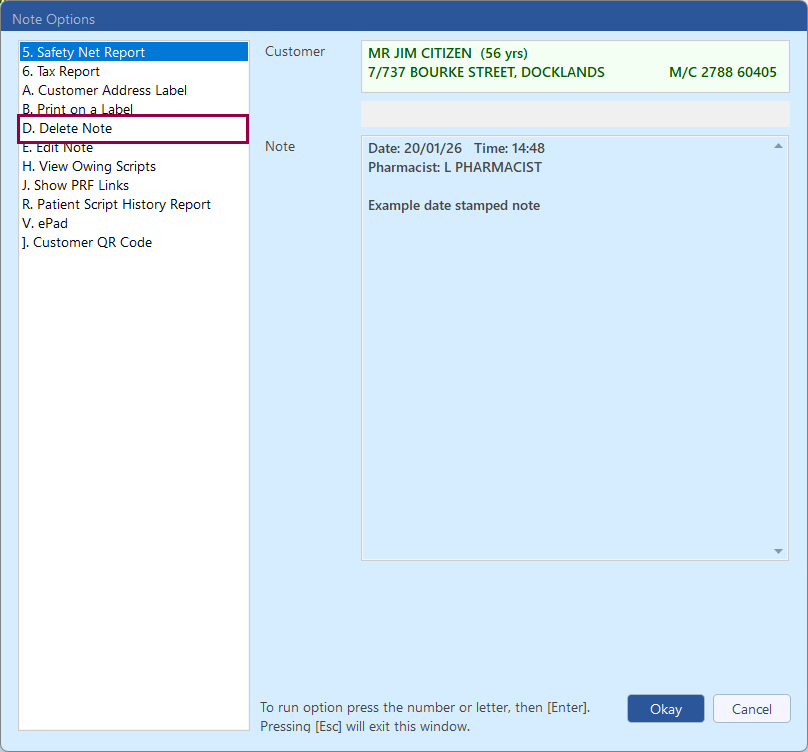 3. Select D. Delete Note and click Okay or press [D].
The Delete customer note? prompt is displayed.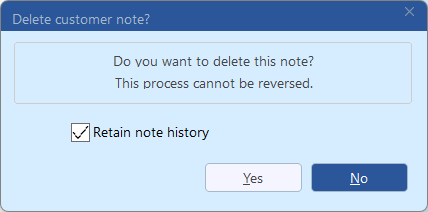 4. To retain a record of the note history, leave Retain note history checked. To remove the note record entirely, uncheck Retain note history.
5. Click Yes to confirm the note deletion.
The note is deleted and the Dispense Forrm is redisplayed.
If Retain note history was checked, the note date is displayed in red font alongside the deleted icon. If Retain note history was unchecked, the note is not displayed.
Edit a Date Stamped Note
1. Navigate to the Customer History panel of the Dispense Form.
2. Double-click on the Date Stamped Note to be edited.
The Note Options window is displayed.
3. Select E. Edit Note and click Okay or press [E].
The Date Stamped Note Editing window is displayed.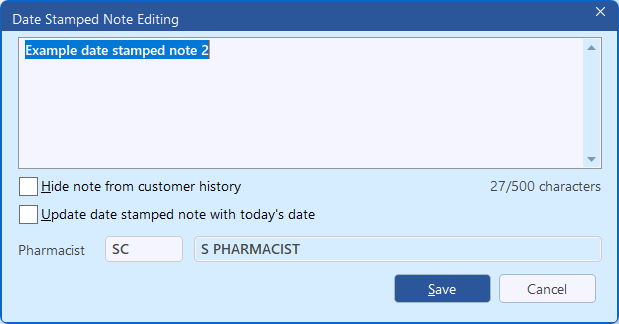
4. Make the required changes to the note.
5. To hide the note from displaying in the customer history check Hide note from customer history.
6. To update the note date to reflect today's date check Update date stamped note with today's date.
7. If required, update the displayed Pharmacist initials to your own and press [Tab].
8. Click Save to save the changes.
The note is updated and the Dispense Form is redisplayed.