
Follow the steps in this article to enable orders to be automatically sent from your Minfos.
The Smart-Send/Auto-send of orders feature is available for:
- Replenish orders
- Pharmacies where your banner group manages your order templates and will send these orders on your store's behalf. Refer to your banner group for further information
Auto-sending of orders is not available for standard orders generated or created in Order Maintenance.
1. From the Minfos Launch Pad, click Special and select Utilities.
The Utilities module is displayed.
2. Click Shop Configuration.
The Shop Configuration window is displayed. 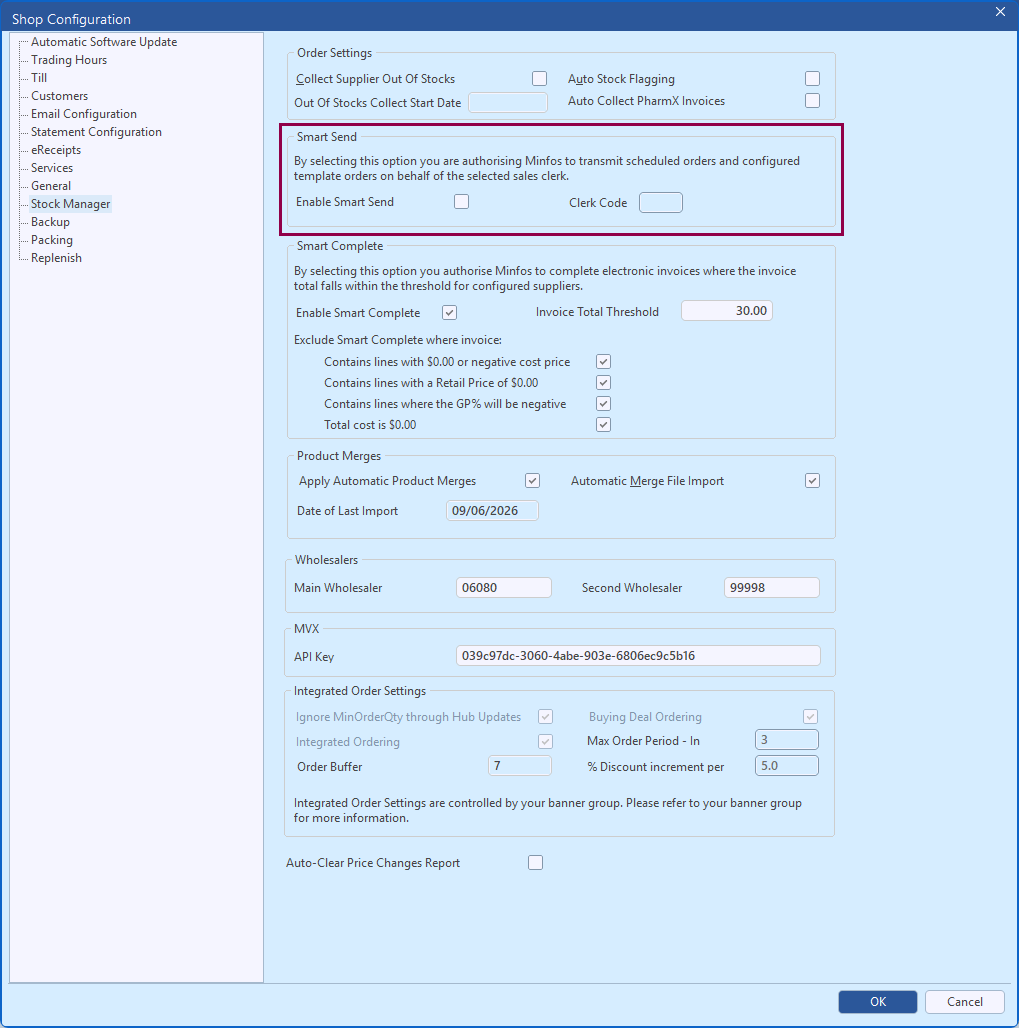 3. Click the Stock Manager tab.
4. In the Order Settings groupbox, check Enable Smart Send.
The Clerk Code textbox is enabled.
5. Enter the Clerk Code that will apply to all Auto-send orders.
6. Click OK.
The Shop Configuration window is closed and you are returned to the Utilities module.
Note To enable Auto-sending for Replenish orders your pharmacy must also set up a schedule for each supplier that you would like to auto-send orders for. Refer to Configure suppliers to automatically send Replenish orders.