
The Dispense Configuration window controls how the Dispense Form, labels, printing and pricing behave in your pharmacy. This article explains what each setting does and what each choice means.
Note: Configuration settings apply to the whole pharmacy unless stated otherwise. The Colour and Dispense Sounds tabs aren't covered in this article.
To open the Configuration window
From the Dispense Pro window:
1. Click the Maintenance menu and select D. Configuration.
The Configuration window is displayed.
2. Select the tab you need: Pharmacy, Dispense/Customer, Printing/Pricing or Suburb.
3. Change the settings as required, using the sections below.
4. Click OK to save and close.
Pharmacy tab
From the Pharmacy tab of the Dispense Configuration window:
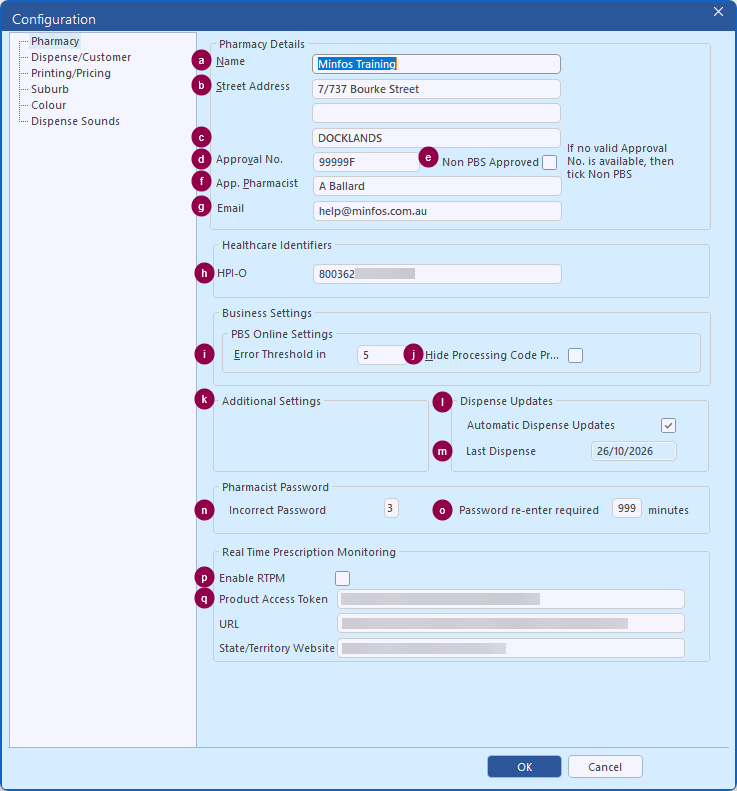
Pharmacy Details
a. Name: Your pharmacy's name as printed on repeat authorisation forms, receipts and tax invoices, owing notes and the PBS claim report. Up to 20 characters. Dispense labels take the pharmacy name and phone number from your store's business details instead.
b. Street Address: First two lines of your pharmacy's address, printed with the name on repeats, receipts and the PBS claim report. Up to 20 characters per line.
c. Street Address (line 3): Third line of your pharmacy's address, usually suburb, state and postcode. Entered in capitals. Up to 20 characters.
d. Approval No.: Your PBS approval number. It's sent with every PBS claim, printed on dispense labels, repeats and certificates of supply, and stored against each script. Up to 6 characters. If it's blank, Minfos treats the pharmacy as non-PBS: only private pricing is available and Minfos warns when you close Configuration.
e. Non PBS Approved: For pharmacies without a PBS approval number. Scripts are charged at full price with no government contribution and don't count towards the Safety Net.
i. Checked: Scripts are flagged as non-PBS, priced at full (private) price, and '** NON PBS **' prints where the approval number would.
ii. Un-checked: Normal PBS dispensing and claiming.
f. App. Pharmacist: The approved pharmacist's name. It prints at the top of receipts and tax invoices, owing notes and the eScript audit, and on dispense labels where the label layout includes it. Up to 20 characters.
g. Email: Your pharmacy's email address. ScriptMAP (in Reports) won't run until an email address is entered here. Up to 60 characters.
Healthcare Identifiers
h. HPI-O: Your pharmacy's Healthcare Provider Identifier - Organisation. It's sent with eScript dispensing and PBS claims for eScripts. eScripts can't be dispensed until it's entered. Must be 16 digits, start with 800362. Minfos won't save an invalid HPI-O.
Business Settings - PBS Online Settings
i. Error Threshold in Cents: When Medicare confirms a different amount from what you claimed, differences up to this many cents are accepted. Larger differences mark the script as a problem in claim editing.
Default is 5 cents (0 is treated as 5). A negative number stops price differences being flagged.
j. Hide Processing Code Prompt: Skips the Pharmacy Processing Code window when you resend a rejected script to Medicare.
i. Checked: Scripts are resent without asking for a processing code.
ii. Un-checked: The Pharmacy Processing Code window opens each time you resend a script.
Additional Settings
k. Enable myTWC Reminders: Terry White Chemmart stores only (the tickbox is hidden for other pharmacies). Shows the patient's myTWC Medication Reminders status icon on the Dispense Form.
i. Checked: The myTWC icon shows whether the patient is enrolled, invited or not enrolled.
ii. Un-checked: The myTWC icon is hidden.
Dispense Updates
l. Automatic Dispense Updates: Lets the Minfos server download and apply the monthly PBS dispense updates (and any ad hoc updates) automatically.
i. Checked: Updates are downloaded and applied automatically.
ii. Un-checked: Updates must be collected and applied manually. Dispense reminds you near the end of the month.
m. Last Dispense Update: The date the last dispense update was applied. Dispense warns that updates must be done before dispensing if the last update is from before the current month.
Pharmacist Password
n. Incorrect Password Attempts: How many wrong pharmacist passwords are allowed (for example when dispensing an eScript or opening My Health Record) before the password is locked.
Default is 3. A locked password must be reset by a supervisor.
o. Password re-enter required after: For eScripts, the same pharmacist's password is filled in automatically for this many minutes after they last entered it. After that it must be typed again.
Default is 10 minutes.
Real Time Prescription Monitoring
p. Enable RTPM: Connects the Dispense Form to your state or territory's Real Time Prescription Monitoring service, using the access token and URL below.
i. Checked: RTPM starts when the Dispense Form opens (only if the access token and URL are also entered).
ii. Un-checked: No RTPM checks.
Note: When you tick this, Minfos warns that you must be registered with your state or territory for RTPM first. Enabling it without registering gives incorrect notifications.
q. Product Access Token: The access token for your RTPM service. RTPM won't start without it.
i. URL: The address of the RTPM service. RTPM won't start without it.
ii. State/Territory Website: Your state or territory's RTPM portal. When the RTPM service can't be reached, the message telling you to log in to your portal manually links here. (Optional)
Dispense/Customer tab
From the Dispense/Customer tab of the Dispense Configuration window:
Dispense
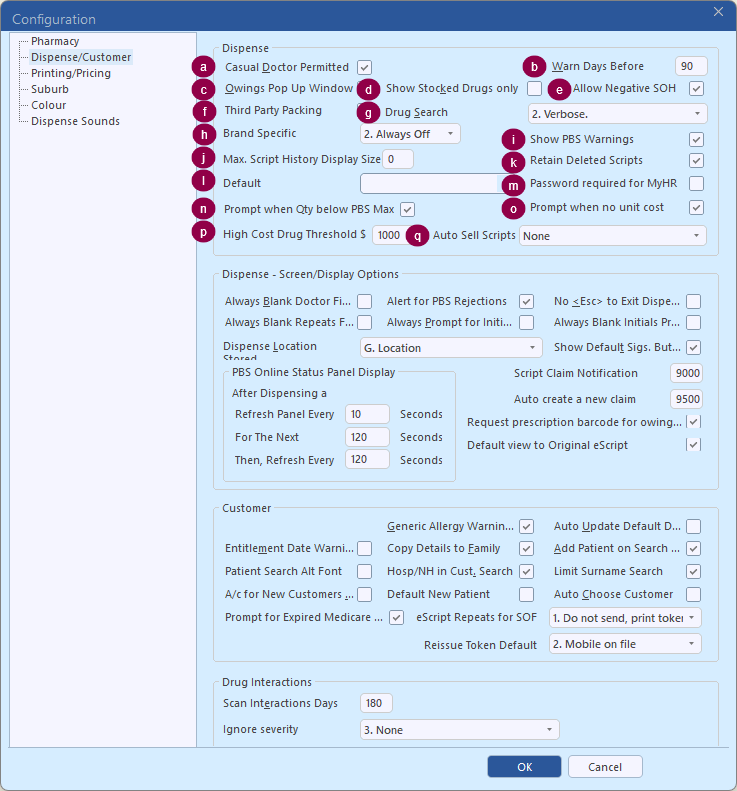
a. Casual Doctor Permitted: Lets you dispense against Minfos's generic 'casual' doctor (enter 0 or leave the Doctor field blank) when the prescriber isn't set up in your prescriber list.
i. Checked: Scripts can be saved against the casual doctor.
ii. Un-checked: Scripts can't be saved against the casual doctor. Every script needs a prescriber from Prescriber Maintenance.
b. Warn Days Before Expiry: How many days before a patient's Medicare (or concession/DVA) card expires Minfos treats it as 'expiring soon', for example in the Patient Medicare Report. Set to 0 to flag only cards that have already expired.
c. Owings Pop Up Window: When you select a patient with outstanding owing scripts, Minfos asks if you want to view them. For a scanned eScript that matches an owing, it offers to mark the owing off with that script.
i. Checked: You're prompted about outstanding owings when the patient is selected.
ii. Un-checked: No owing prompts.
d. Show Stocked Drugs only: Starts drug search windows with the 'Stocked only' filter ticked, so only products your pharmacy stocks are listed. You can untick the filter in the window.
i. Checked: Drug searches start filtered to stocked products.
ii. Un-checked: Drug searches start showing all matching products.
e. Allow Negative SOH: Controls whether you can dispense a product when there isn't enough stock on hand.
i. Checked: All products can be dispensed regardless of stock on hand.
ii. Un-checked: If stock on hand is zero, negative or less than the quantity, a Negative SOH prompt blocks dispensing. The dispenser must adjust stock, pick an in-stock brand or change the quantity. Committed (dispensed but uncollected) stock doesn't count as available. Refer to Dispense Negative Stock on Hand Configuration for further information.
f. Third Party Packing: Adds U. Third Party Packing to Script Options, where scripts packed by an outside packing provider can be marked as third-party packed and charged to an account.
i. Checked: U. Third Party Packing is available in Script Options.
ii. Un-checked: The Third Party Packing option is hidden.
g. Drug Search: Controls which products appear in the Drug Recall window when you search on the Dispense Form.
Click the dropdown and select one of the following:
i. 0. Minfos.: Shows only drugs, or items flagged as Dispensable, with every PBS listing line for each drug. Retail items won't appear unless flagged.
ii. 1. Brief.: Shows every product in the database, one line per product.
iii. 2. Verbose.: Shows every product in the database, with every PBS listing line for each drug, so retail items don't need to be flagged as Dispensable. This is the recommended setting.
iv. 3. Standard.: Shows only drugs, or items flagged as Dispensable, one line per product.
Refer to Check your Drug Search setting for further information.
h. Brand Specific: Sets the Brand Specific tick on the Dispense Form, which decides whether the brand or the generic (active ingredient) name is the main focus on the dispense label. Printing the active ingredient first aligns with active ingredient prescribing.
Click the dropdown and select one of the following:
i. 0. Default: The label follows how you searched: search by brand and the brand leads, search by generic (e.g. /atorvastatin) and the generic leads.
ii. 1. Always On: The brand name always leads on the label, however the drug was searched.
iii. 2. Always Off: The generic name always leads on the label, however the drug was searched.
Refer to Set your Dispense Brand Specific Configuration for further information.
i. Show PBS Warnings: Controls whether PBS warning messages display on the Dispense Form while you dispense. Rejections are still shown.
i. Checked: PBS warnings are shown on the Dispense Form.
ii. Un-checked: PBS warnings are not shown.
Refer to Configuration settings for Claims for further information.
j. Max. Script History Display Size: Caps how many past scripts show in the patient's history on the Dispense Form. The minimum is 20 scripts.
0 displays 20 scripts. Any number below 20 is automatically changed to 20 by Minfos. Only values above 20 increase the number of scripts displayed.
k. Retain Deleted Scripts: Adds a 'Retain script history' option when you delete a script, so the deleted script stays visible in the patient's script history.
i. Checked: The delete confirmation includes 'Retain script history', ticked by default.
ii. Un-checked: The option is hidden. Deleted scripts drop out of the patient's history and show only as 'Deleted' in Script Enquiry.
l. Default Compounder: The compounder filled in by default on the Chemotherapy Combinations window. Compounders are set up in Maintenance > 8. Compounder.
Click the dropdown and select one of the following:
i. (blank): Each entry shows as '<number>. <compounder ID>'. The list is greyed out if no compounders are set up.
Note: The list shows the compounders set up in Maintenance > 8. Compounder, not staff.
m. Password required for MyHR: Asks for the pharmacist's Minfos password on the My Health Record Access window before access to a patient's record is granted.
i. Checked: The pharmacist's password is needed to gain access to My Health Record.
ii. Un-checked: Access can be gained without a password.
n. Prompt when Qty below PBS Max: Warns the dispenser when the quantity entered is less than the PBS maximum quantity.
i. Checked: A 'Quantity below PBS Max' prompt appears. Yes (or Enter) continues, No returns to the Qty field.
ii. Un-checked: No prompt when the quantity is below the PBS maximum.
Refer to Configure Dispense to prompt when Qty is below PBS Max quantity for further information.
o. Prompt when no unit cost: Warns the dispenser when the selected product has no unit cost in its stock card, which would make GP% and reports wrong.
i. Checked: A 'No unit cost' prompt appears. Best practice is to invoice the product in (FIFO pharmacies must) or update the unit cost, then reselect it.
ii. Un-checked: No prompt. The GP% field still flags the missing cost.
Refer to Configure Dispense to prompt when an item has no unit cost set for further information.
p. High Cost Drug Threshold $: Drugs with a cost at or above this amount are treated as High Cost Drugs, so you can include, exclude or isolate them in the Sales By Range and Dispense Trading reports.
Default is $1000. Adjust to suit what your pharmacy treats as high cost.
Refer to Configure High Cost Drug Threshold for further information.
q. Auto Sell Scripts: Automatically rings off $0 scripts waiting at the Till during End of Day, so no Till operator is needed. Useful where the patient pays the supplier directly, such as allocated medicinal cannabis. Auto-sold scripts show in Sales Enquiry as 'Auto Invoice', stock on hand and script status update, and the sale uses the same clerk as nursing home auto invoicing.
Click the dropdown and select one of the following:
i. None: Scripts wait at the Till to be sold as usual.
ii. $0 NHS with Qty >0: $0 PBS (NHS) scripts with a quantity above 0 are sold automatically at End of Day.
iii. $0 Private with Qty >0: $0 private scripts with a quantity above 0 are sold automatically at End of Day.
iv. $0 NHS & $0 Private with Qty >0: Both $0 PBS and $0 private scripts with a quantity above 0 are sold automatically at End of Day.
Dispense - Screen/Display Options
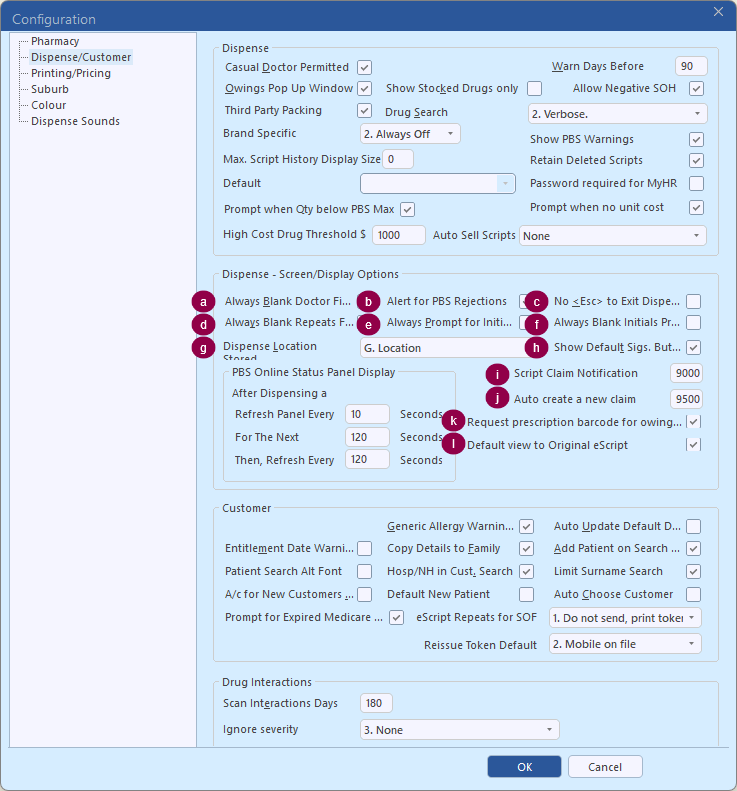
a. Always Blank Doctor Field: Stops Minfos filling the Doctor field with the patient's default doctor when you select a patient.
i. Checked: The Doctor field isn't pre-filled.
ii. Un-checked: The patient's default doctor is filled in automatically.
b. Alert for PBS Rejections: Makes the PBS Online panel on the Dispense Form flash when a new PBS rejection comes in.
i. Checked: The panel flashes until the rejected script is fixed and resubmitted, or the List of Rejected/Pending Scripts is opened (this stops it on all workstations).
ii. Un-checked: Only the standard PBS rejection prompt is shown.
Refer to Visual Alert for PBS Rejections for further information.
c. No <Esc> to Exit Dispense: Stops the Esc key from closing the Dispense Form, so it can't be exited by accident.
i. Checked: Esc won't close the Dispense Form. Use the Exit (F12) button instead.
ii. Un-checked: Esc closes the Dispense Form.
d. Always Blank Repeats Field: Leaves the Repeats field blank when a drug is selected, so the number of repeats has to be entered from the script.
i. Checked: The Repeats field starts empty.
ii. Un-checked: The Repeats field is filled with the drug's standard number of repeats.
e. Always Prompt for Initials: Shows the Pharmacist Details box (initials and name) in the window that opens when you save a script, so the pharmacist confirms or enters their initials for every script. eScripts always show this box, with a password, whatever this setting is.
i. Checked: Pharmacist Details shows for every script, with the cursor in the Initials field. The last pharmacist's initials are filled in unless Always Blank Initials Prompt is ticked. The script can't be saved with the initials left blank.
ii. Un-checked: Pharmacist Details only shows for eScripts. Paper scripts are saved without asking for initials.
Note: Works with Always Blank Initials Prompt: tick both to make pharmacists type their initials fresh on every script.
f. Always Blank Initials Prompt: Clears the initials prompt each time so the previous dispenser's initials aren't pre-filled.
i. Checked: Initials must be typed fresh for each script.
ii. Un-checked: The last initials entered are pre-filled.
g. Dispense Location Stored: Chooses which product category (I.E.U, Class or Location) shows on the Dispense Form as the product's location, and can be printed on the label. Works best with location names of five characters or less.
Click the dropdown and select one of the following:
i. < Not Stored >: No location is shown. This is the setting for new installs.
ii. A. I.E.U.: Uses the product's I.E.U category.
iii. B. Class: Uses the product's Class category.
iv. G. Location: Uses the product's Location category.
Note: After choosing, tick Display (Display Name in Dispense) on the category in Stock Manager › Maintenance › 1. Categories. Printing it on the label is optional and best done with Minfos Support.
Refer to Display Location on the Dispense Form and Dispense Labels for further information.
h. Show Default Sigs. Button: Shows the k. Sig button on the Dispense Form, which fills in the drug's default directions. It's greyed out for drugs with no default directions.
i. Checked: The k. Sig button is shown.
ii. Un-checked: The button is hidden.
i. Script Claim Notification: Shows a notification on the Dispense Form when the current claim reaches this number of records.
Default is 9000.
Refer to Configuration settings for Claims for further information.
j. Auto create a new claim trigger: Number of scripts after which Minfos automatically creates a new claim.
Keep this higher than the Script Claim Notification so you're warned first.
Refer to Configuration settings for Claims for further information.
k. Request prescription barcode for owing scripts: When you tick Owing Script on the Dispense Form, an Owing Script window asks for the eScript barcode. Useful when the internet or PDS is down, so the owing can be reconciled later.
i. Checked: The barcode window shows for every owing. Leave it blank and click OK if it isn't an eScript.
ii. Un-checked: No barcode window for owings.
Refer to Record token when dispensing an owing for further information.
l. Default view to Original eScript: Opens the eScript Details window on the copy of the original eScript by default, rather than the repeat authorisation.
i. Checked: Opens on the 'Copy of Original eScript' tab.
ii. Un-checked: Opens on the 'Copy of Repeat Authorisation' tab when there is one.
Refer to Print a copy of an eScript for further information.
PBS Online Status Panel Display
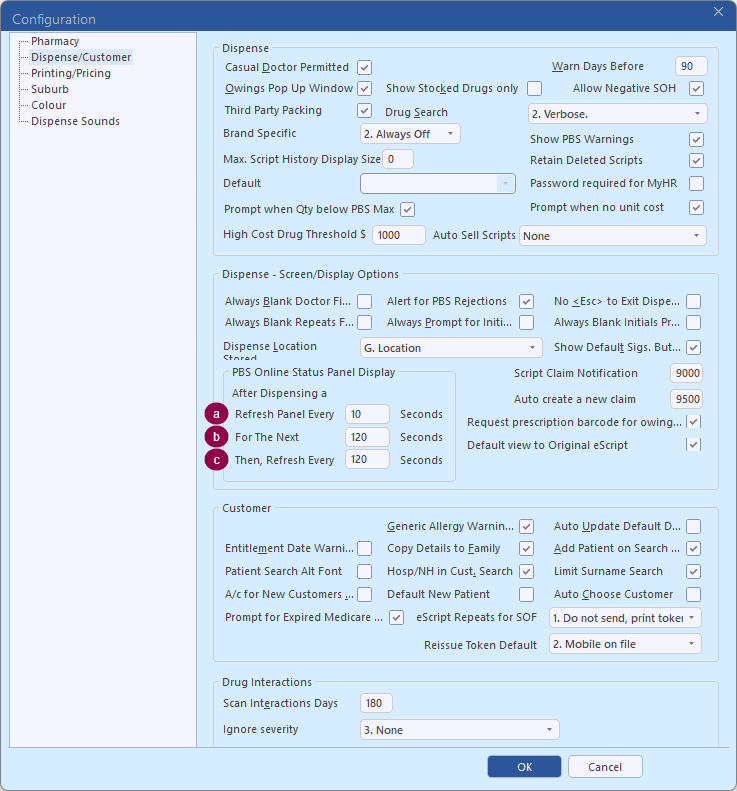
After Dispensing a Script:
a. Refresh Panel Every (seconds): After you dispense a script, how often the PBS Online status panel refreshes during the first period. Works with the PBS rejection prompt and the visual rejection alert.
Lower numbers show rejections sooner.
Refer to PBS Online Status Panel Display refresh rate for further information.
b. For The Next (seconds): How long the faster refresh rate runs after dispensing a script.
After this time, the slower 'Then, Refresh Every' rate takes over.
Refer to PBS Online Status Panel Display refresh rate for further information.
c. Then, Refresh Every (seconds): How often the PBS Online status panel refreshes once the initial period ends.
Lower numbers pick up late rejections sooner.
Refer to PBS Online Status Panel Display refresh rate for further information.
Customer/Drug Interactions
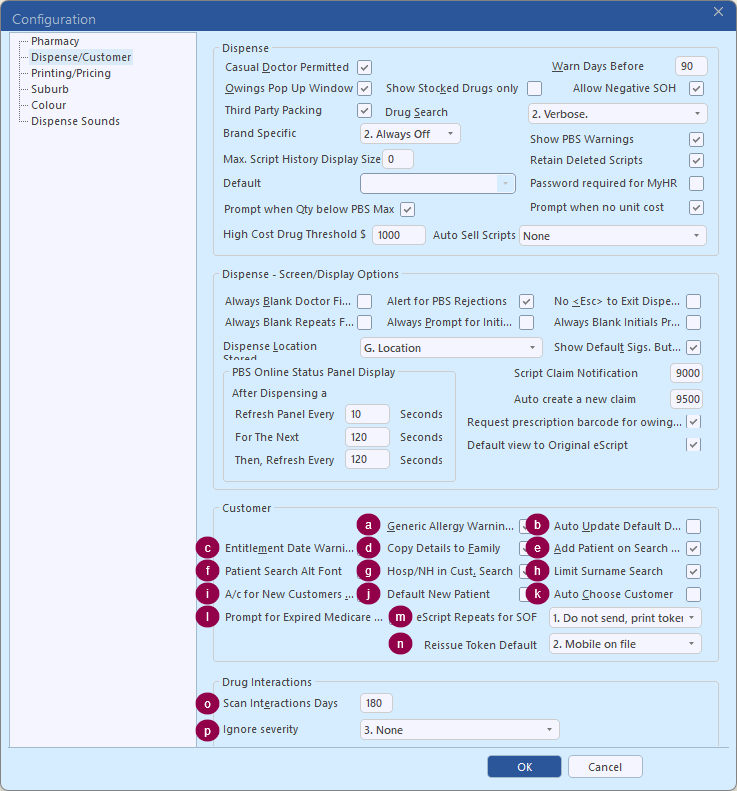
a. Generic Allergy Warnings: Checks the drug being dispensed against the generics in the patient's Allergy List, including drugs in the same generic class (for example penicillin and cephalosporin cross-sensitivity).
i. Checked: Allergy alerts display when there's a match.
ii. Un-checked: Allergy alerts are not shown.
Refer to Allergy Alerts for further information.
b. Auto Update Default Doctor: Updates the patient's default doctor to the prescriber on the script just dispensed (not for the casual doctor).
i. Checked: The default doctor updates automatically.
ii. Un-checked: The default doctor only changes when edited manually.
c. Entitlement Date Warnings: Warns when you select a patient whose concession card or DVA entitlement has expired.
i. Checked: A warning shows for expired concession cards and DVA entitlements.
ii. Un-checked: No warning.
d. Copy Details to Family: When you change a patient's address, Medicare or concession details, Minfos offers to copy the change to the rest of their family group.
i. Checked: You're offered to copy changed details to family members.
ii. Un-checked: Changes apply to that patient only.
e. Add Patient on Search Fail: If a patient name search finds no match, Minfos opens the new patient screen straight away.
i. Checked: The add-patient screen opens when nothing is found.
ii. Un-checked: You stay on the empty search list.
f. Patient Search Alt Font: Shows the patient lists in eQueue and Booking Queue in an alternative (9pt Arial) font.
i. Checked: The alternative font is used in eQueue and Booking Queue.
ii. Un-checked: The standard font is used.
g. Hosp/NH in Cust. Search: In customer search results, shows the hospital or nursing home name and ward/bed instead of the street address for patients in care.
i. Checked: Hospital/nursing home and ward/bed show in search results.
ii. Un-checked: The patient's street and suburb are shown.
h. Limit Surname Search: Controls what happens when a surname search finds no exact match.
i. Checked: Only exact matches are listed. If there are none, the list is empty.
ii. Un-checked: Minfos shortens the search until it finds the closest matching names.
i. A/c for New Customers (H): Pre-ticks 'Account Cust.' on the Customer Details screen when you add a new patient.
i. Checked: New patients start as account customers.
ii. Un-checked: New patients start as non-account customers.
j. Default New Patient: Chooses which option is highlighted in Script Options after you finish a script.
i. Checked: X. New Customer is highlighted, so Enter starts the next patient.
ii. Un-checked: S. Same Customer is highlighted, so Enter continues with the same patient.
k. Auto Choose Customer: If exactly one patient's name matches a search, Minfos selects them automatically instead of showing the list.
i. Checked: Single matches are selected automatically.
ii. Un-checked: You always confirm from the search list, which reduces the risk of picking the wrong patient.
l. Prompt for Expired Medicare Card: When a patient's Medicare number is missing, invalid or expired, opens the Medicare number window so it can be updated before claiming.
i. Checked: The Medicare window opens with the reason.
ii. Un-checked: You get a 'not claimable without a Medicare number' warning instead, with the option to dispense at full price.
m. eScript Repeats for SOF: Controls what happens to eScript repeat tokens for every customer marked as Scripts on File. It also sets the default Issue Repeat Token option when dispensing.
Click the dropdown and select one of the following:
i. 0. Do not send: No electronic token is sent and no paper token prints. Use G. Get Repeat from Script Options to dispense the repeat.
ii. 1. Do not send, print token: No electronic token is sent. A paper token prints automatically to file with the patient's scripts. This is the default.
iii. 2. Send: The Scripts on File flag is ignored and tokens are sent electronically.
Refer to Manage eScript tokens for Scripts on File customers for further information.
n. Reissue Token Default: The default delivery method when reissuing a token. It only applies when the eScript has no electronic address, has repeats, and was first dispensed with 'Do not send token'. By law it can't apply to eScripts that include an email or mobile.
Click the dropdown and select one of the following:
i. 0. Email on file: Sends to the email in the customer record.
ii. 1. Email on script: Sends to the email on the eScript.
iii. 2. Mobile on file: Sends to the mobile in the customer record. This is the setting for new installs.
iv. 3. Mobile on script: Sends to the mobile on the eScript.
Refer to Configure Reissue Token Default Delivery Method for further information.
o. Scan Interactions Days: How far back in the patient's dispense history Minfos looks for MIMS drug-drug interactions. Default is 180 days.
Refer to Configure Drug to Drug Interaction Alerts for further information.
p. Ignore severity level: Filters out lower-severity interactions from the automatic alert when a drug is selected. It doesn't affect Interact F7 or other interaction reports.
Click the dropdown and select one of the following:
i. 1. Minor and lesser severity levels: Only Severe and Moderate warnings display.
ii. 2. Caution and lesser levels: Severe, Moderate and Minor warnings display.
iii. 3. None: All warnings display: Severe, Moderate, Minor and Caution. This is the default.
Refer to Configure Drug to Drug Interaction Alerts for further information.
Printing/Pricing tab
From the Printing/Pricing tab of the Dispense Configuration window:
Printing
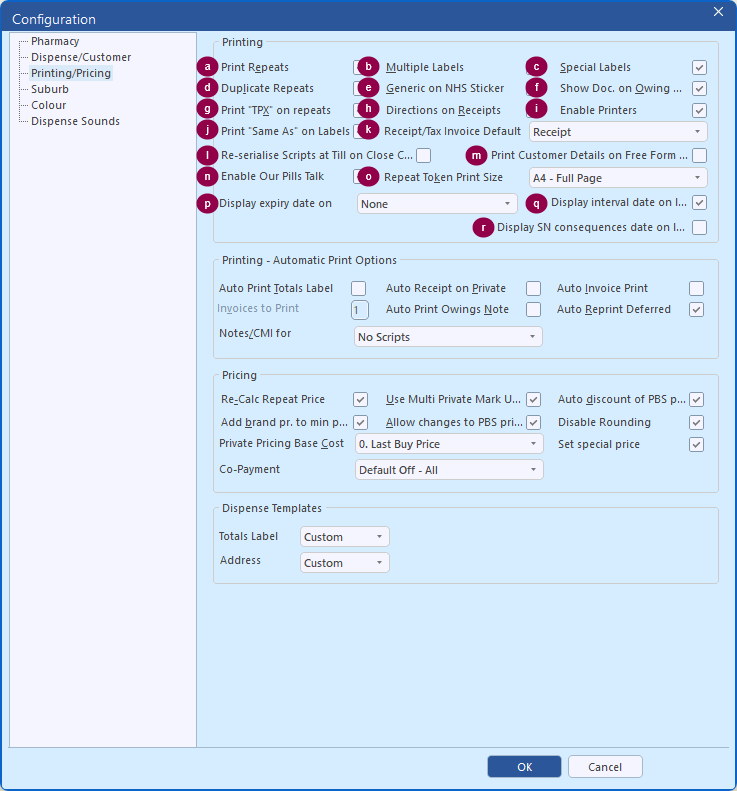
a. Print Repeats: Prints the repeat authorisation form when a paper script with repeats is dispensed.
i. Checked: Repeat forms print automatically.
ii. Un-checked: Repeat authorisation forms don't print at all, including reprints. eScript tokens aren't affected.
b. Multiple Labels: When two or more packs are dispensed, asks how many labels to print (one per pack by default).
i. Checked: One label per pack can be printed.
ii. Un-checked: One label per script.
c. Special Labels: Turns on special labels, used with care facilities that have Auto Label set in their Hospital, Nursing Home or Third Party record.
i. Checked: Special labels print for care-facility patients with Auto Label set, and C. Special Labels is available in Script Options.
ii. Un-checked: Special labels are off. The 'Auto Label' setting is ignored, both on care facilities and when it's enabled on a patient's profile in the Carer tab.
d. Duplicate Repeats: Prints a second copy of the repeat authorisation form.
i. Checked: A duplicate repeat form prints.
ii. Un-checked: One repeat form prints.
e. Generic on NHS Sticker: Adds the generic name in brackets after the brand name on the PBS (NHS) sticker, for example 'Lipitor 20mg (atorvastatin)'.
i. Checked: The generic name is added after the brand.
ii. Un-checked: Only the brand name prints on the sticker.
f. Show Doc. on Owing Note: Includes the prescriber's name and prescriber number on the printed owing note, making it easier to chase the script.
i. Checked: Prescriber details print on owing notes.
ii. Un-checked: They're left off.
g. Print "TPX" on repeats: TPX stands for Therapeutic Premium Exemption. On repeat forms for scripts where the therapeutic premium wasn't charged, prints 'TPX' in front of the authority number.
i. Checked: TPX prints before the authority number on premium-exempt repeats.
ii. Un-checked: The authority number prints without the TPX prefix.
h. Directions on Receipts: Prints the script's directions and prescriber name on the script receipt/tax invoice.
i. Checked: Directions print on receipts.
ii. Un-checked: Receipts show items and prices only.
i. Enable Printers: Lets Dispense send labels, repeats, tokens and other printouts to your configured printers.
i. Checked: Printing works as normal.
ii. Un-checked: Labels, repeat forms and eScript tokens won't print, reprint options are unavailable, and automatic receipts and notes after a script are skipped. You can still print receipts from Script Options (for example 7. Receipt\Tax Invoice). Only turn off if printers are unavailable.
Note: This setting isn't saved. It only affects the workstation where it was changed, and goes back to ticked when Dispense is closed.
j. Print "Same As" on Labels: When a different brand is supplied, adds 'Same as - <prescribed brand>' to the directions so it prints on the label and the patient knows it's the same medicine.
i. Checked: "Same as" is added to the directions.
ii. Un-checked: It isn't added.
k. Receipt/Tax Invoice Default: The document type pre-selected when printing a script receipt (7. Receipt\Tax Invoice and automatic private receipts). You can change it each time.
Click the dropdown and select one of the following:
i. Receipt/Tax Invoice: Prints a combined document titled 'Tax Invoice - Receipt'. This is the setting for new installs.
ii. Tax Invoice: A tax invoice is pre-selected.
iii. Receipt: A receipt is pre-selected.
l. Re-serialise Scripts at Till on Close Claim: When you close a claim, controls how rejected scripts moved into the new claim are handled.
i. Checked: Rejected scripts re-serialised into the new claim automatically print new labels.
ii. Un-checked: New labels aren't printed automatically. Recommended setting.
Refer to Configuration settings for Claims for further information.
m. Print Customer Details on Free Form Label: Sets whether customer details are ticked to print by default on free-form labels (B. Print on a Label).
i. Checked: Customer details are ticked to print.
ii. Un-checked: Customer details start unticked. You can still tick them.
n. Enable Our Pills Talk: Turns on the Our Pills Talk integration, which prints a QR code label patients can scan to hear information about their medicine.
i. Checked: Our Pills Talk options become available. The QR code label prints on a separate label after the dispense label.
ii. Un-checked: Our Pills Talk is off.
Refer to Release Notes – Minfos 7.0.1 (Our Pills Talk) for further information.
o. Repeat Token Print Size: Paper size for printed repeat eScript tokens. Applies to all workstations. Close and reopen Dispense on each workstation after changing.
Click the dropdown and select one of the following:
i. A4 - Full Page: Full A4 page.
ii. A4 - Half Page: Half an A4 page, to cut or fold.
iii. A5: A5 paper. Don't print tokens on PBS Repeat Authorisation Forms.
Refer to Repeat eScript Token Print Configuration for further information.
p. Display expiry date on label: Adds the script expiry date to the Directions field so it prints on the dispense label. Not added for scripts with no repeats left, S3 recordables, Dr's bags, or NRMC/HMC dispensing.
Click the dropdown and select one of the following:
i. None: Expiry date isn't added.
ii. Drugs with 6 month expiry: Added for Schedule 8 drugs.
iii. All monitored medications: Added for drugs flagged for real-time prescription monitoring.
iv. All scripts: Added for every script.
Note: The text added is 'Script expires <date>'.
Refer to Configure Minfos to automatically print date information on the dispense label for further information.
q. Display interval date on label: Adds 'Cannot supply before dd/mm/yy' to the Directions when an interval is entered, where the date is the dispense date plus the interval.
i. Checked: The interval date is added to the label.
ii. Un-checked: It isn't added.
Refer to Configure Minfos to automatically print date information on the dispense label for further information.
r. Display SN consequences date on label: For drugs with Safety Net consequences, adds 'If needed before dd/mm/yy consult pharmacist' to the Directions, where the date is the dispense date plus the Safety Net period.
i. Checked: The SN date is added to the label.
ii. Un-checked: It isn't added.
Refer to Configure Minfos to automatically print date information on the dispense label for further information.
Printing - Automatic Print Options/Pricing/Dispense Templates
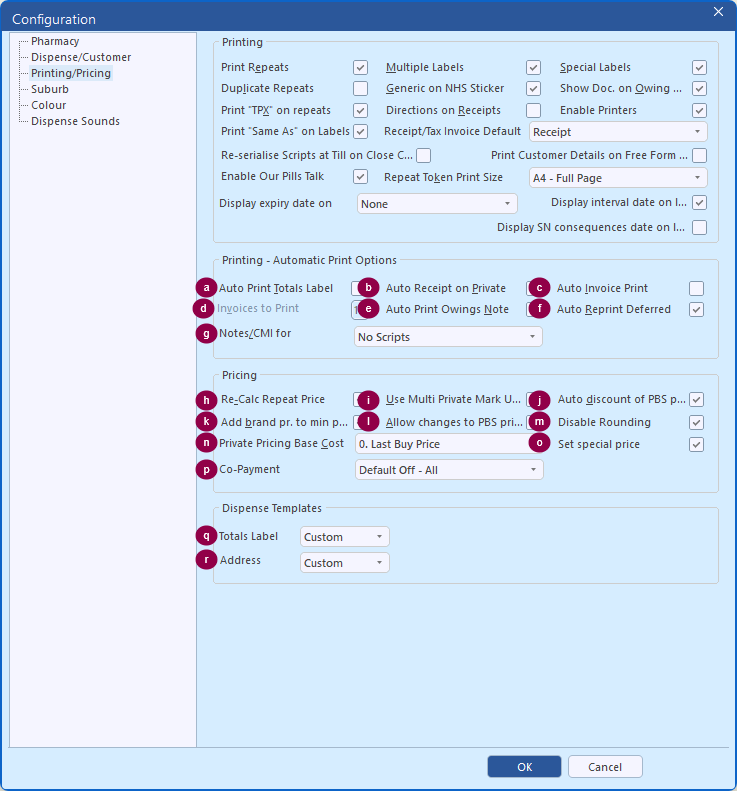
a. Auto Print Totals Label: Prints a totals label automatically when you finish a patient and move to a new customer.
i. Checked: Totals label prints automatically.
ii. Un-checked: Print it when needed with T. Totals Label.
b. Auto Receipt on Private: Opens the receipt window automatically after a private script is processed.
i. Checked: The receipt window opens after each private script, ready to print.
ii. Un-checked: No automatic receipt.
c. Auto Invoice Print: Prints an invoice when scripts are charged to an account (I. Invoice to Account or automatic care-facility invoicing).
i. Checked: Invoices print. Set how many copies in Invoices to Print.
ii. Un-checked: Invoices don't print and the invoice Print button is unavailable.
d. Invoices to Print: How many copies of each invoice print automatically.
Only available when Auto Invoice Print is ticked. A hospital or nursing home's own number of copies overrides this.
e. Auto Print Owings Note: Automatically prints an owings notice when a script is saved as an owing (not when editing).
i. Checked: Owing notes print automatically.
ii. Un-checked: Print owing notes manually.
f. Auto Reprint Deferred: When a script is deferred into the current claim and re-serialised, reprints its label.
i. Checked: The label reprints automatically.
ii. Un-checked: You're asked whether to reprint the label.
Refer to Configuration settings for Claims (Defer a script printing) for further information.
g. Notes/CMI for: Chooses which scripts Minfos automatically opens CMI printing for after the script is processed.
Click the dropdown and select one of the following:
i. No Scripts: Nothing prints automatically.
ii. Original Scripts: CMI for first dispensings only, not repeats.
iii. All Scripts: CMI for every script, originals and repeats.
h. Re-Calc Repeat Price: For internal private repeats only, decides whether the price is recalculated each time.
i. Checked: The price is recalculated from your current pricing options.
ii. Un-checked: The customer is charged the same price as the previous supply.
Refer to Dispense Pricing Configuration for further information.
i. Use Multi Private Mark Ups: Lets each drug use its own private mark-up instead of the default private mark-up.
i. Checked: A drug's own mark-up is used when it has one.
ii. Un-checked: The default private mark-up is used for every drug.
j. Auto discount of PBS price: Decides whether set or fixed prices also apply to PBS (NHS) scripts.
i. Checked: Set/fixed prices apply to both private and NHS scripts. Allow changes to PBS price must also be ticked.
ii. Un-checked: Set/fixed prices apply to private scripts only.
Refer to Dispense Pricing Configuration for further information.
k. Add brand pr. to min price: Add any brand premium on top of the NHS (PBS) minimum price, so the patient still pays the premium when the minimum price applies. It currently has no effect: prices are the same whether it's ticked or not.
i. Checked: No effect at present.
ii. Un-checked: No effect at present.
l. Allow changes to PBS price: Controls whether the special price checkbox is available on the Dispense Form.
i. Checked: The special price checkbox is available.
ii. Un-checked: The special price checkbox is hidden.
Refer to Dispense Pricing Configuration for further information.
m Disable Rounding: Stops Minfos rounding calculated script prices to the nearest 5 cents.
i. Checked: Prices aren't rounded.
ii. Un-checked: Prices are rounded to the nearest 5 cents.
n. Private Pricing Base Cost: The default cost the private Pricing Table starts from, for drugs without their own pricing set.
Click the dropdown and select one of the following:
i. 0. Last Buy Price: Uses the drug's last buy price. This is the setting for new installs.
ii. 1. List Price: Uses the preferred supplier's list price (or the last buy price if there isn't one).
iii. 2. Drug Cost: Uses the dispense cost on the drug record, where set (otherwise the last buy price).
Note: Changing this shows a warning: drugs using the Pricing Table with the selected option, default mark-up and default fee change to 'No Set Price'.
o. Set special price: Shows a Special Price tick on the Dispense Form. Ticking it keeps that price for the patient, and it's reused next time they get the same drug and quantity.
i. Checked: The Special Price tick is available for private and under co-payment scripts.
ii. Un-checked: The tick is hidden and special prices aren't applied.
Refer to Dispense Drug Pricing for further information.
p. Co-Payment Discount: Whether the optional co-payment discount is applied automatically to eligible scripts. You can still change it per script, and it's overridden by customer or care-facility rules. Discount amounts are set in Dispense Options.
Click the dropdown and select one of the following:
i. Default Off - All: No discount applied automatically.
ii. Default On - All: Discount applied to all eligible scripts.
iii. Default On - Concessional only: Applied to eligible concessional scripts only.
iv. Default On - General only: Applied to eligible general scripts only.
No effect at present.
Refer to Set Co-Payment Discount default for further information.
q. Totals Label: Chooses the standard or a custom totals label layout.
Click the dropdown and select one of the following:
i. Default: Standard totals label.
ii. Custom: Uses the totals label set as Active in Maintenance › Z. Dispense Templates. Only one can be active.
Refer to Dispense Address Labels for further information.
r. Address Label: Chooses the standard or a custom address label layout.
Click the dropdown and select one of the following:
i. Default: Standard address label.
ii. Custom: Uses the address label set as Active in Maintenance › Z. Dispense Templates. Only one can be active.
Refer to Dispense Address Labels for further information.
Suburb tab
From the Suburb tab of the Dispense Configuration window:
Suburb Default & Hot Keys
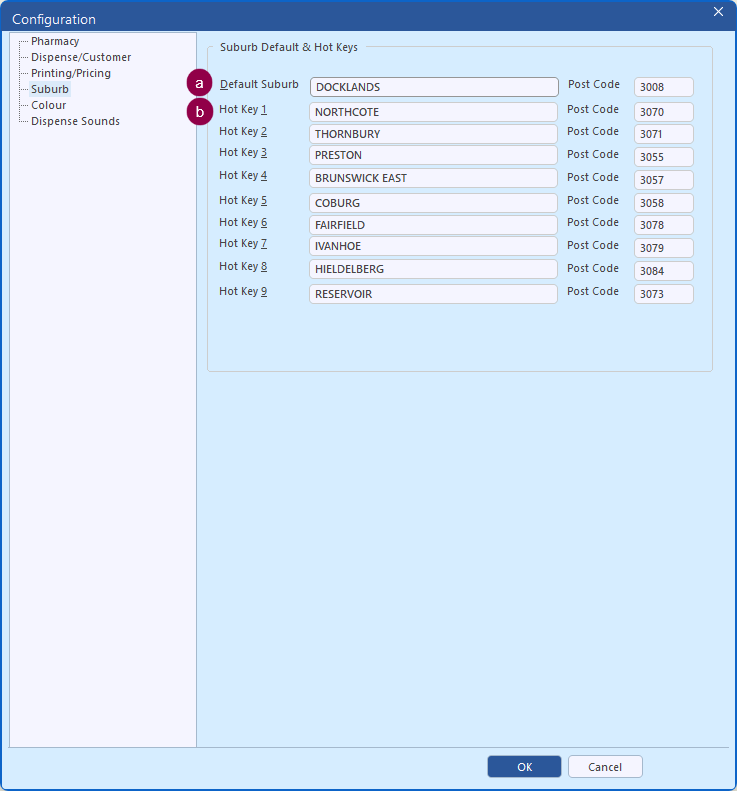
a. Default Suburb and Post Code: Not used. This value is saved but has no effect: new customers start with your store's own suburb and postcode.
You can leave this blank.
b. Hot Key 1 to Hot Key 9 (with Post Code): Suburbs you can drop into a customer's address with one shortcut. On the Customer Details screen, press Alt+1 to Alt+9 to fill in that hot key's suburb, postcode and your pharmacy's state.
Suburb up to 26 characters, in capitals. Post Code 4 digits.