
Updated functionality currently in Beta
This article contains either new or updated functionality that is not generally available at this time.
Multi-Factor Authentication (MFA) is available from Minfos 9.1.1, in line with Australian Digital Health Agency (ADHA) security requirements. this is an optional feature that can be enabled if required. MFA is off by default.
When MFA is enabled and set up, staff are asked to enter a 6-digit code from an authenticator app on their phone (such as Google Authenticator, Microsoft Authenticator or Authy) as well as their usual Minfos password, when they log in after the re-authentication period has passed, and when doing supervisor overrides.
Handheld scanners keep logging in as normal for accounts that don't use MFA. We recommend using separate accounts for handheld devices.
This article will guide you to:
- Enable Multi-Factor Authentication
- Set up Users for MFA
- Manage MFA Enrolment
- Make MFA mandatory for specific Minfos Users
Enable Multi-Factor Authentication
MFA is enabled in Shop Configuration under the Security tab:
- Tick Require multi-factor authentication.
- Enter how often staff need to enter a code on each workstation in Re-authenticate every (hours). The valid range is from 1 to 168 hours. In between, logging in on the same PC only needs a password.
- Click OK to apply.
Note: Disabling MFA requires a code from an administrator who has already set up MFA.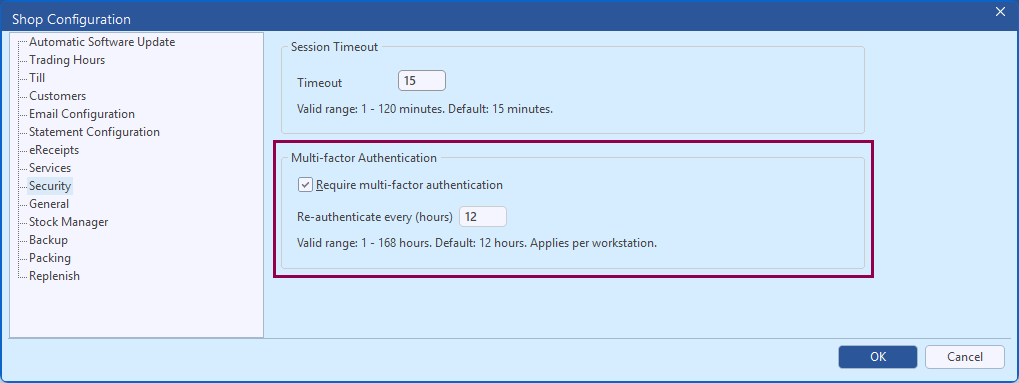
Set up Users for MFA
When MFA is enabled in Shop Configuration, Minfos Users can set up their MFA.
- Ensure you are logged into Minfos as the User you want to set up MFA for.
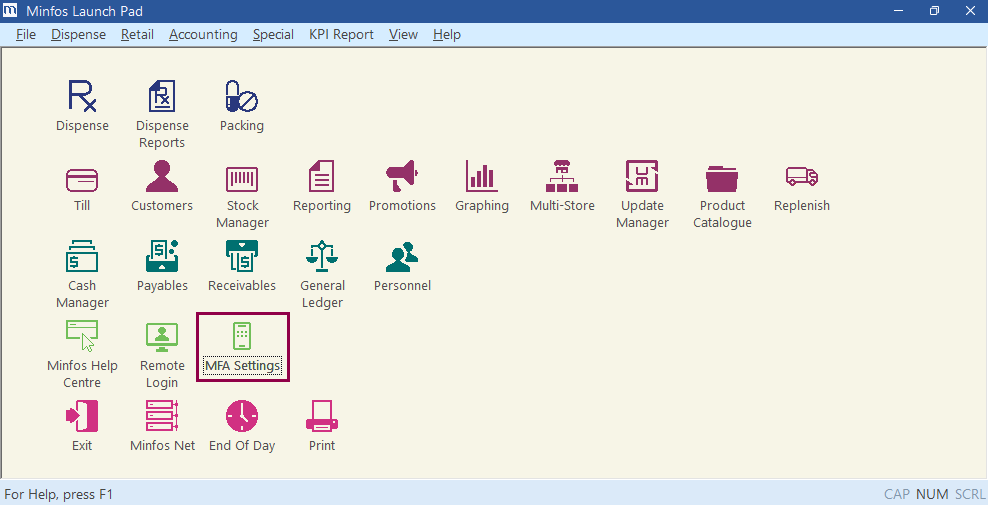
- From the Minfos Launch Pad, click MFA Settings.
- In your chosen authentication app, set up the account by scanning the QR code or entering the key displayed.
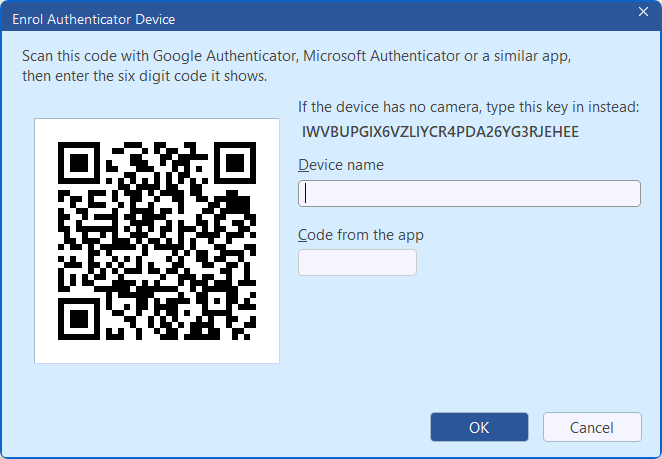
- Enter a name for your device (e.g. Sally’s phone).
- Enter the code from the app.
- Click OK.
Your account is now set up.
Manage MFA Enrolment
You can also set up and manage MFA enrolment from the User Security Maintenance window. If a staff member loses or replaces their phone, an administrator can reset their MFA in this window.
- From the Utilities module, click Users.
- Select the relevant User from the User List.
- Click MFA Devices.
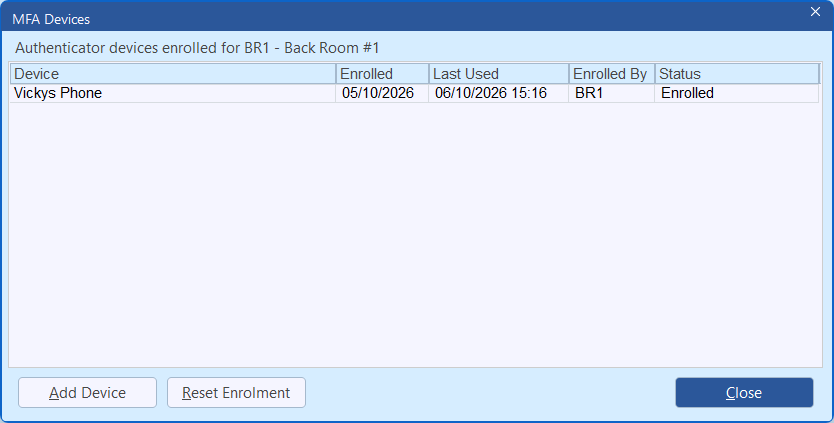
- Click Add Device and follow the prompts to set up a new MFA device for the User.
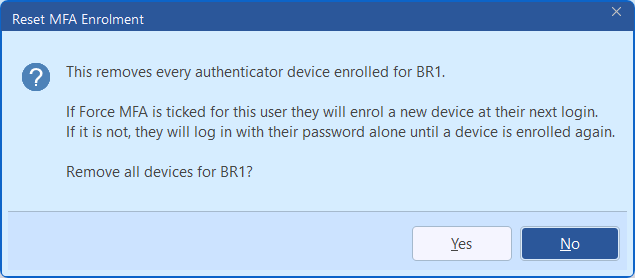
- Or click Reset Enrolment to clear all authenticator devices for the User. Click Yes to confirm.
Make MFA mandatory for specific Minfos Users
Administrators can make MFA mandatory for individual staff by ticking the Force MFA checkbox in User Security Maintenance. Those staff are asked to set it up at their next login.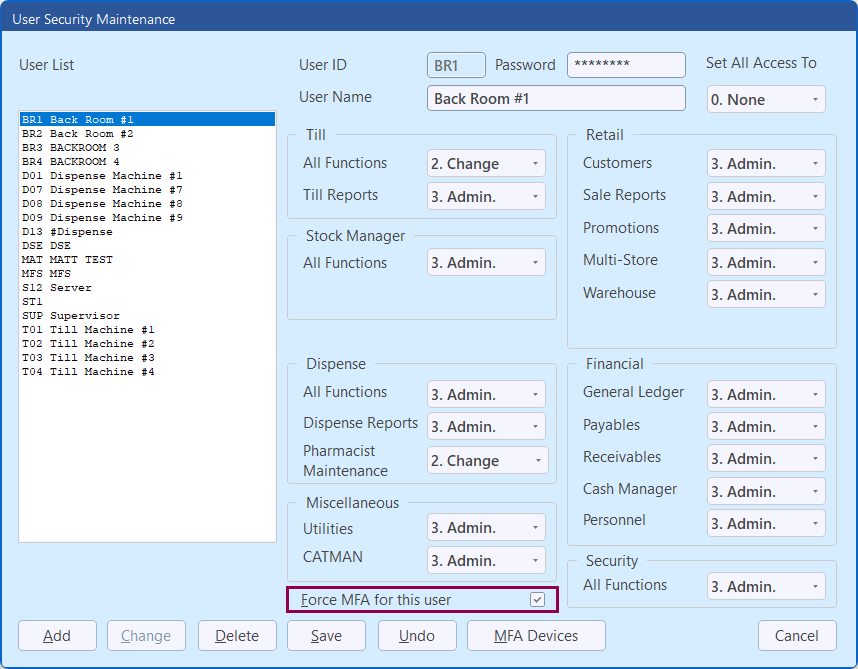
Note: All MFA activity, including setups, resets, codes entered and settings changes, is recorded in the Audit Log Report.