
Updated functionality currently in Beta
This article contains either new or updated functionality that is not generally available at this time.
We're pleased to announce the release of Minfos 8.9.2, bringing a range of enhancements designed to streamline your daily workflows across Replenish, Dispense, and Stock Manager.
Enhancements
Replenish
You can now choose to order only your selected items when issuing or submitting a Replenish order. When you have multiple items selected and click Issue Order or Submit Order, a new option is displayed.
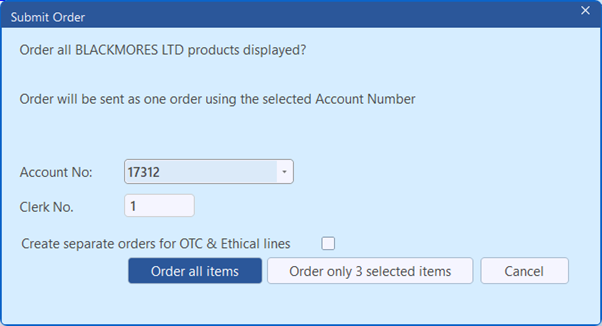
Click Order only X selected items to include only the highlighted items in the order. Unselected items remain in the Replenish grid.
This is especially useful when you need to prioritise certain products for immediate ordering without processing the entire list. Existing restrictions still apply — you can only select items from a single supplier at a time, and the split order functionality for OTC and Ethical items continues to work as expected.
Alternatively, click Order all items to include all items in the Replenish window belonging to the supplier.
Note: When only one item is selected, the checkbox does not appear and the existing order process applies as normal.
Refer to Issue a Replenish Order and Submit/Transmit a Replenish Order.
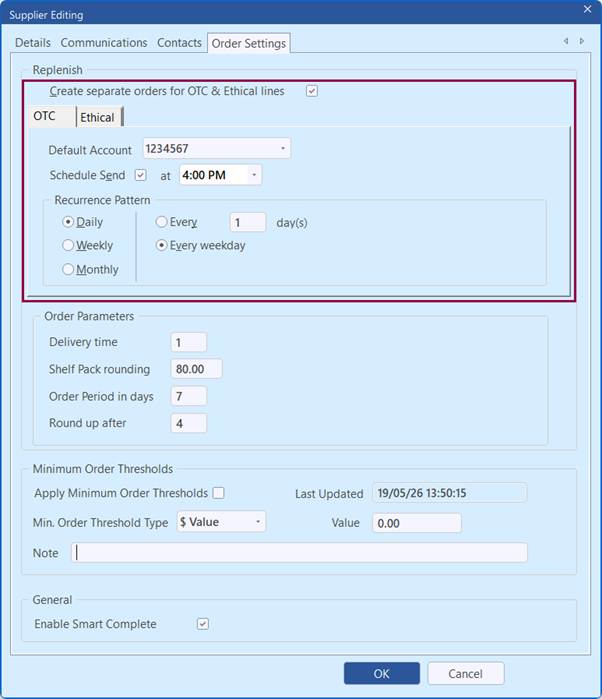
When Create separate orders for OTC & Ethical lines is enabled, you can now set independent auto‑send schedules for each account type. This allows your OTC and Ethical orders to be automatically sent at different times or frequencies - giving you greater control over how and when orders are transmitted to your supplier.
With separate orders enabled in Supplier Editing, you’ll see dedicated OTC and Ethical tabs, each with its own:
- Default account selection
- Schedule send option
- Recurrence settings (daily, weekly, or monthly)
Auto‑send can be enabled or disabled independently for each account type. For example, you might schedule Ethical orders to send daily at 4:00 pm, while sending OTC orders weekly on Mondays.
Refer to Configure suppliers to automatically send Replenish orders.
Dispense
You can now add scripts to the eQueue directly from the Active Script List (ASL) screen. When viewing a customer's ASL from the Dispense form, a new Queue Scripts button allows you to select one or more scripts and create a new basket in the eQueue with a single click.
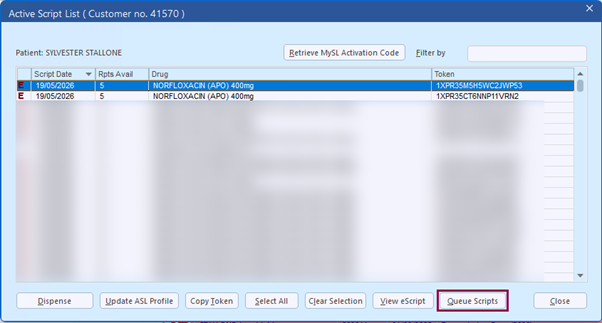
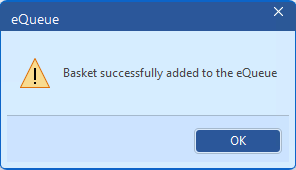
This streamlines the workflow for processing repeat prescriptions. Simply select the scripts you wish to queue, click Queue Scripts, and a new basket is created in the eQueue with the customer's details and all selected tokens. The basket is set to "Waiting" status, ready to be dispensed when convenient. Customer details such as mobile number, email, and concession number are automatically populated from their profile where available.
Refer to Add a script from an ASL to the eQueue.
When you scan an eScript token directly into the Dispense form and that eScript has already been added to a basket in the eQueue, Minfos now automatically recognises this and brings the associated basket into the eQueue workflow. The basket is marked as in progress and you can continue dispensing as normal.
Once all eScripts in the basket are dispensed, the basket is removed from the eQueue. If you cancel the dispense before completing, the basket returns to Waiting status. When moving to the next basket, the next basket is always selected from the top of the eQueue list.
This enhancement ensures that no matter how an eScript is scanned — via the eQueue or via a token — the basket workflow is always maintained.
Refer to Dispense from the eQueue.
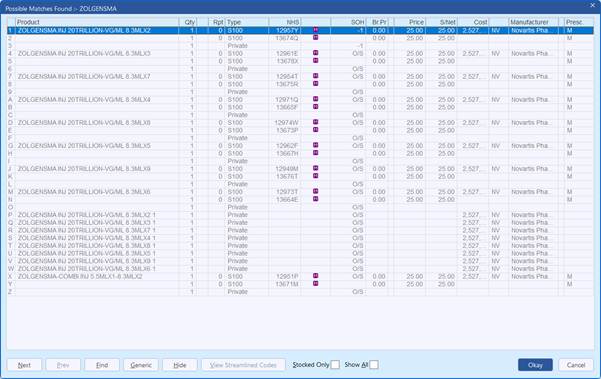
The Product column in the Possible Matches Found and Generic Drug Listing windows has been widened, making it easier to see the full product name, strength, and pack size without needing to manually resize columns.
This improvement applies to the standard and Enlarged Dispense form and is compatible with the Tranquil theme.
You can now rename wards directly within Nursing Home Management, without needing to create a new ward and manually move each customer.
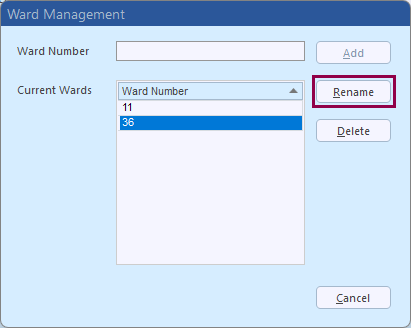
This is particularly useful when a nursing home facility renames a ward, or when you need to update ward names to match codes required by packing software such as DoseAid.
When you rename a ward in Nursing Home Maintenance > Ward Management, all customers assigned to the ward are retained and the updated ward name flows through to Minfos Packing.
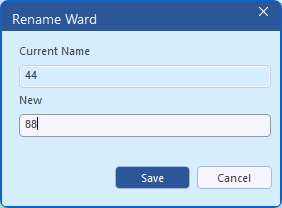
Refer to Set up Nursing Homes.
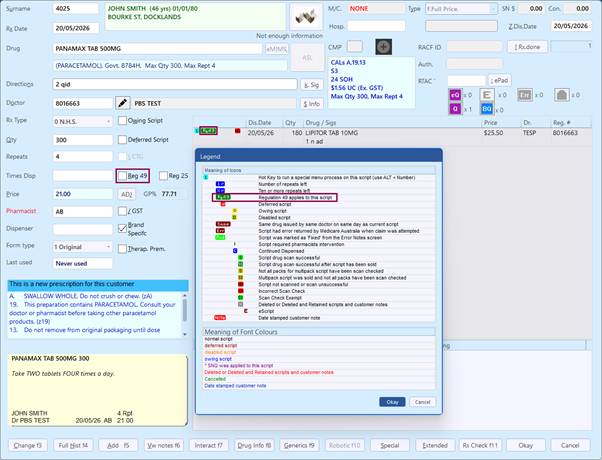
References to "Regulation 24" (Reg 24) throughout the Dispense form have been updated to "Regulation 49" (Reg 49) to reflect the current PBS legislation.
Regulation 49 allows pharmacists to supply a PBS prescription and all of its repeats at one time, when annotated by the prescriber with the words "one supply", "1 supply", "Regulation 49", or "Reg 49". This regulation was previously known as Regulation 24 prior to the remaking of the National Health (Pharmaceutical Benefits) Regulations in 2017.
All prompts and references in Minfos Dispense now reflect the updated regulation number. Please note that prescriptions endorsed with the former "Reg 24" notation remain valid and will continue to be accepted.
Stock Manager
New configurable safeguards have been added to Smart Complete, giving you greater control over which invoices are automatically completed.
You can now enable any combination of the following exclusion rules in Shop Configuration. When any enabled rule is triggered, the invoice will remain in "Received" status for manual review rather than being automatically completed. These rules are in addition to the existing restrictions that control invoice eligibility for Smart Complete (e.g. Invoices containing S8 items are not Smart Completed).
The new options under "Exclude Smart Complete where invoice:" are:
- Contains lines with $0.00 or negative cost price — Prevents automatic completion when any line item on the invoice has a zero or negative cost price.
- Contains lines with a Retail Price of $0.00 — Prevents automatic completion when any line item has a retail price of $0.00 in Minfos, ensuring products are correctly priced before stock is updated.
- Contains lines where the GP% will be negative — Prevents automatic completion when any line item would result in a negative gross profit percentage, helping you catch potential pricing issues before they affect your margin.
- Total cost is $0.00 — Prevents automatic completion when the total invoice cost is zero, which may indicate a missing or incomplete electronic invoice.
Each option can be enabled independently. When an invoice is prevented from being Smart Completed, the reason is captured by the Ordering Audit Report for your reference.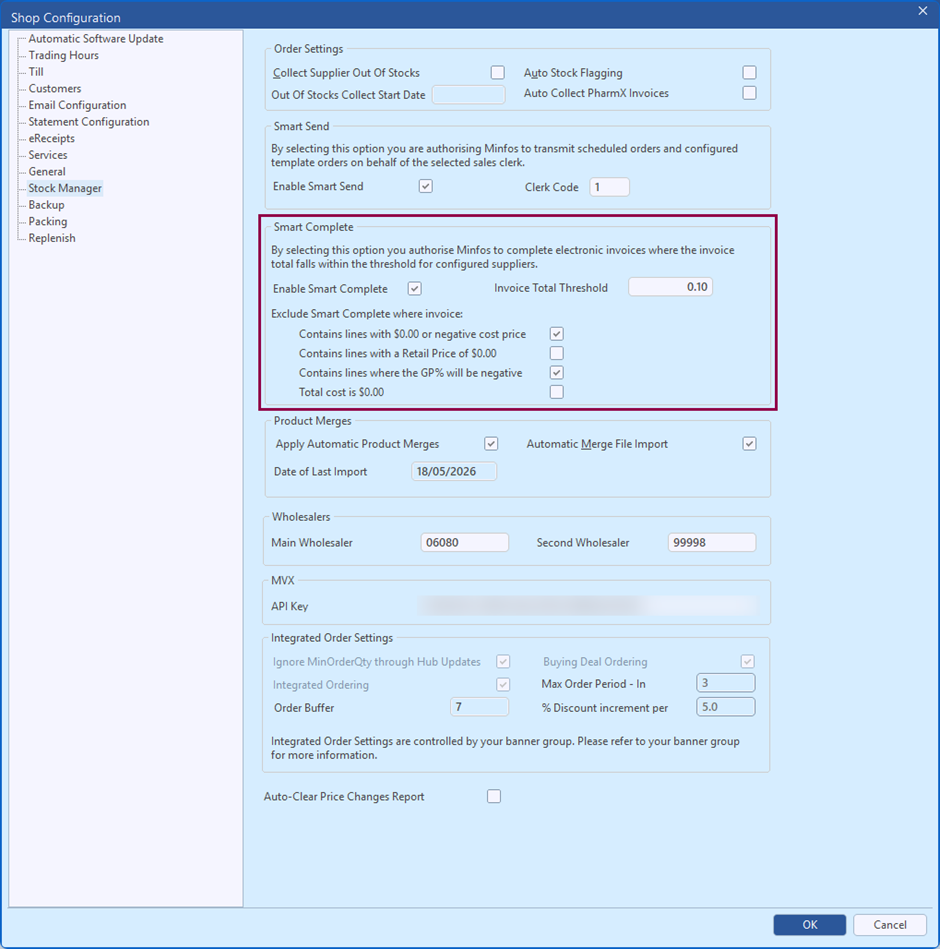 Refer to Configure invoices to automatically complete with Smart Complete.
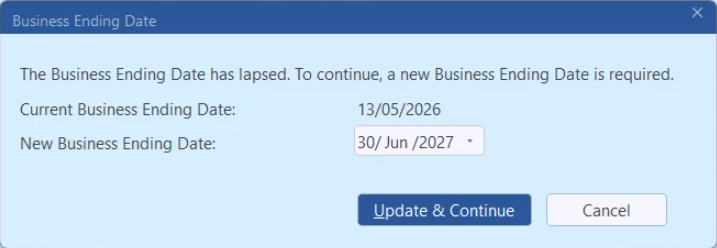
When the Business Ending Date has lapsed and you attempt to complete an invoice or save an order, Minfos now displays an improved prompt that lets you update the date on the spot.
The new Business Ending Date prompt provides a date picker pre-filled with the end of the next financial year (30 June). You can accept the suggested date or choose your own, then click Update & Continue to save the new date and proceed with your original action in a single step.
Refer to Change Business Ending Date.
Resolved Issues
- The window of the Free Form Text has been adjusted so it will only fit the printable text.
- Using the keyboard shortcut of full stop will now populate the dispense form with the electronic script details for scripts queued externally.
- It is now possible to dispense eligible S100 items as Continued Dispensing.
- The scheduled Debtors and Ageing Reports was generated with no data if ‘Report on the entire range’ is not ticked. This has now been rectified and the scheduled report will run correctly with or without ‘Report on the entire range’ selected.