
Updated functionality currently in Beta
This article contains either new or updated functionality that is not generally available at this time.
Enhancements
Dispense
Dispense now recognises Registered Nurse as a prescriber type, so you are ready for endorsed Registered Nurses to start prescribing PBS medicines from 1 December 2026.
You can add or edit a Registered Nurse prescriber in Prescriber Maintenance or from the Dispense form, and eScripts from these prescribers fill in the prescriber type automatically. If a PBS item cannot be prescribed by a Registered Nurse, Dispense warns you, just as it does for other prescriber types.
If a nurse holds both Registered Nurse and Nurse Practitioner endorsements under one prescriber number, Dispense records them as a Nurse Practitioner and updates this automatically when an eScript shows it. You can still change the type yourself in Prescriber Maintenance.
Nurse Practitioner and Midwife prescriber numbers are also now validated in the same way as Doctor numbers.
Minfos Robotics now correctly recognises 2D barcodes, including many on Sandoz and Apotex packs, when stock is loaded into a BD Rowa robot.
Previously, some packs returned an "Unknown barcode" message during new deliveries and return to stock. Minfos will now match them to the right product, and wholesale cartons will be declined with the message "Wholesale barcode not accepted".
Software
Minfos now locks automatically after 15 minutes without keyboard or mouse activity, and a lock screen appears over every open Minfos module on that workstation. To continue, log back in with your Minfos password and pick up where you left off, or close the session so another user can log in.
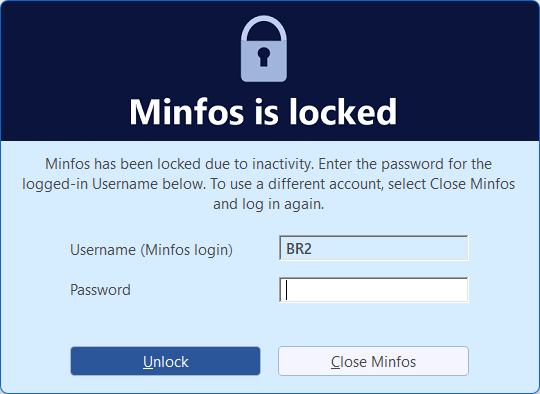
This is an Australian Digital Health Agency (ADHA) security requirement for all software that can connect to My Health Record, so it applies to every pharmacy, even if you don't use the My Health Record features in Minfos. Beyond meeting compliance, this change strengthens the security of Minfos by helping protect patient and pharmacy information when a workstation is left unattended. ADHA has stipulated the default timeout period must be 15 minutes. However, pharmacies can adjust this to a longer time period in Minfos.
Important notes about this change
- This is an ADHA requirement, not a Minfos decision.
- You can easily adjust the inactivity period leading to the timeout
- Nothing is lost: everything you had open is still there after you unlock.
- Background tasks such as reports, robotic dispensing, EDI and Cloud Backup keep running behind the lock screen.
- Unlocking one module unlocks every module on that workstation.
How to Adjust the timeout period
You can set the timeout anywhere from 1 to 120 minutes. Once adjusted, the timeout period will apply to all Minfos stations in your pharmacy.
- From the Minfos Launch Pad, click Special and select Utilities.
- Click Shop Configuration.
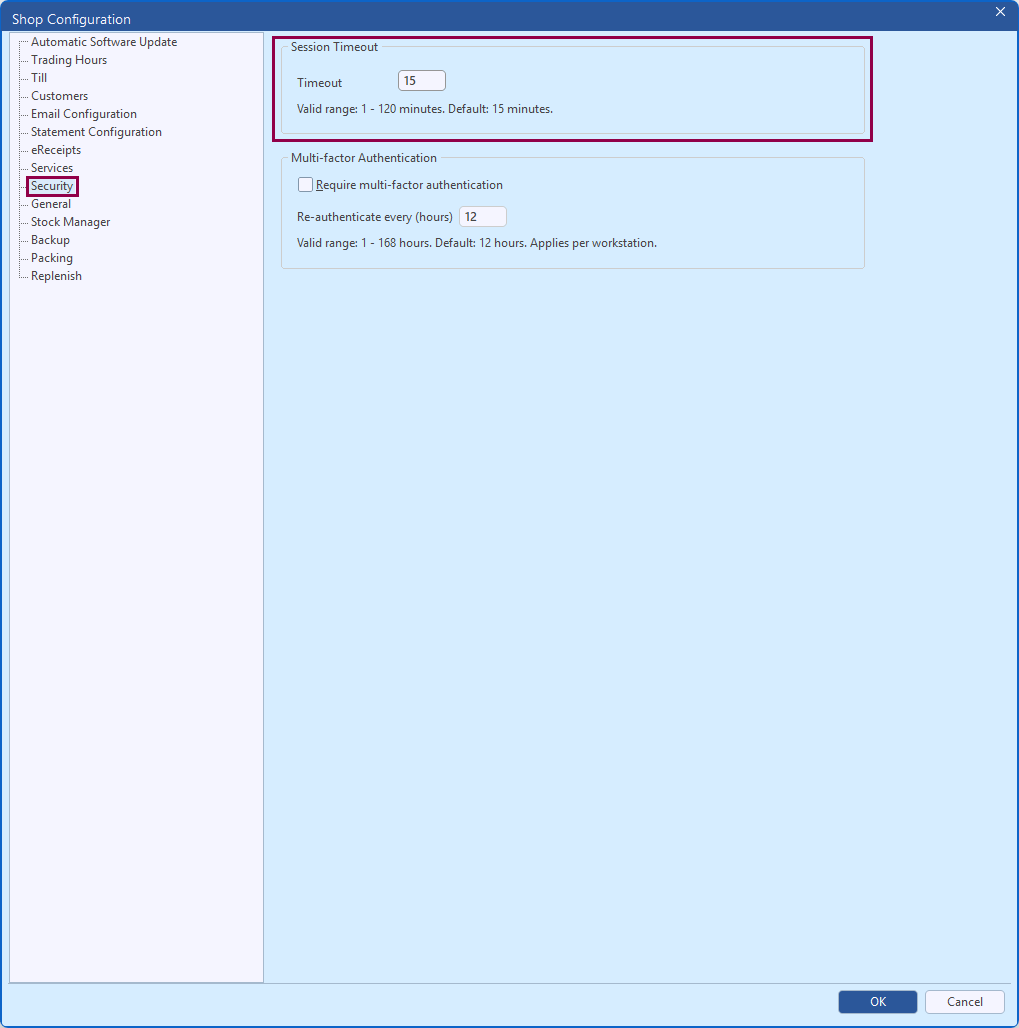
- Click the Security tab.
- Enter a Timeout period between 1 and 120 minutes.
- Click OK to save.
The new setting takes effect the next time a module is restarted or unlocked.
Minfos now stores user passwords using stronger, industry-standard security methods, in line with Australian Digital Health Agency security requirements. There's no change to how you log in, and your existing passwords will keep working.
Minfos 9.1.1 adds optional Multi-Factor Authentication (MFA), in line with Australian Digital Health Agency (ADHA) security requirements. When it's enabled, staff enter a 6-digit code from an authenticator app on their phone (such as Google Authenticator, Microsoft Authenticator or Authy) as well as their usual Minfos password.
MFA is off by default, so nothing changes until your pharmacy chooses to turn it on.
When MFA is enabled and set up, staff are asked for their code when they log in after the re-authentication period has passed, and when doing supervisor overrides.
Unlocking the session timeout screen only asks for a code if the re-authentication period ran out while the screen was locked.
Handheld scanners keep logging in as normal for accounts that don't use MFA. We recommend using separate accounts for handheld devices.
Enable Multi-Factor Authentication
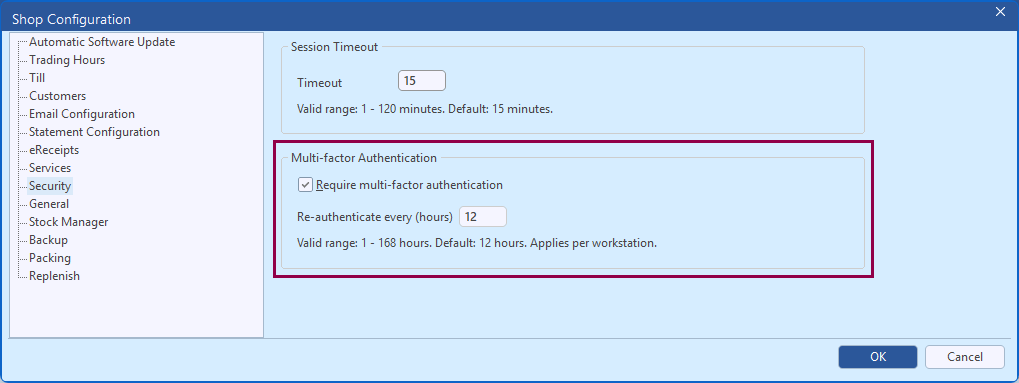
MFA is enabled in Shop Configuration under the Security tab:
- Tick Require multi-factor authentication.
- Enter how often staff need to enter a code on each workstation in Re-authenticate every (hours). The valid range is from 1 to 168 hours. In between, logging in on the same PC only needs a password.
- Click OK to apply.
Note Disabling MFA requires a code from an administrator who has already set up MFA.
Set up Users for MFA
When MFA is enabled in Shop Configuration, Minfos Users can set up their MFA.
1.Ensure you are logged into Minfos as the User you want to set up MFA for.
2. From the Minfos Launch Pad, click MFA Settings. 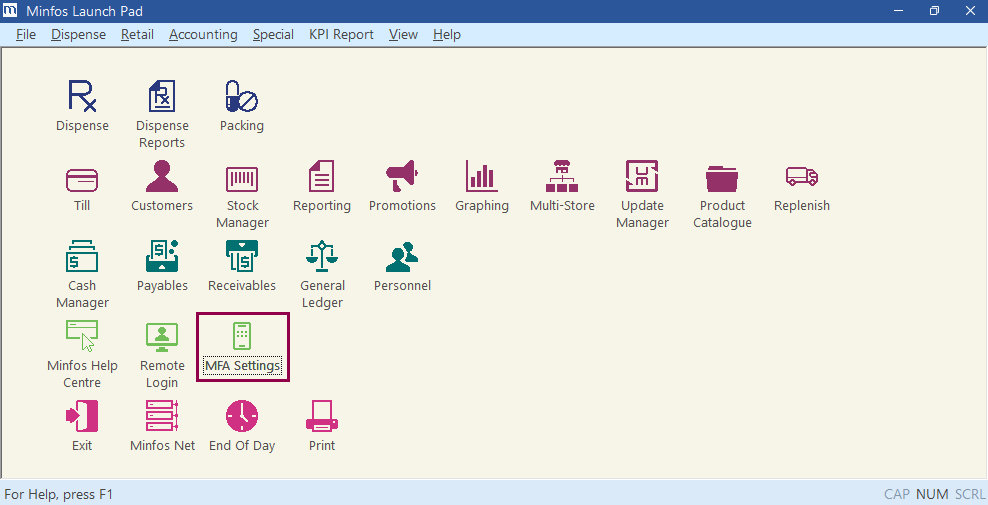 3. In your chosen authentication app, set up the account by scanning the QR code or entering the key displayed.
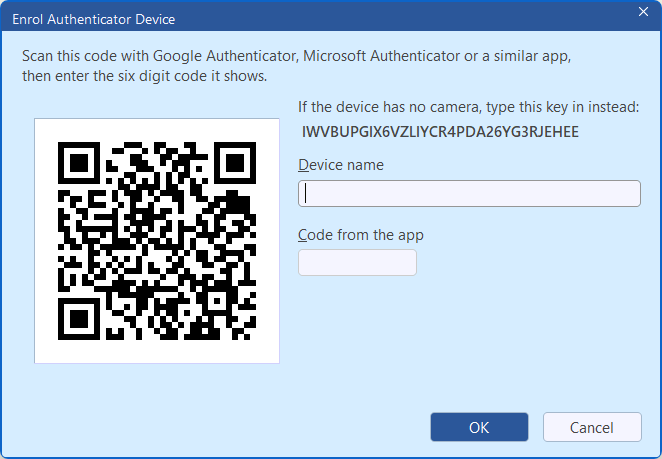
4. Enter a name for your device (e.g. Sally’s phone).
5. Enter the code from the app.
6. Click OK.
Your account is now set up.
Manage MFA Enrolment
You can also set up and manage MFA enrolment from the User Security Maintenance window. If a staff member loses or replaces their phone, an administrator can reset their MFA in this window.
- From the Utilities module, click Users.
- Select the relevant User from the User List.
- Click MFA Devices.
- Click Add Device and follow the prompts to set up a new MFA device for the User.
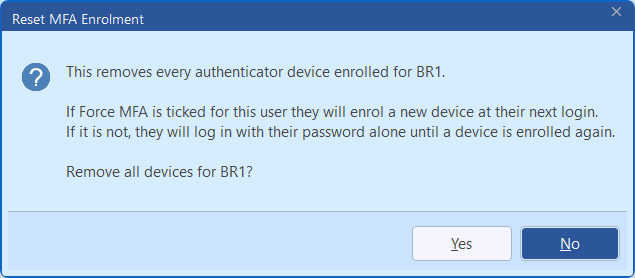
- Or click Reset Enrolment to clear all authenticator devices for the User. Click Yes to confirm.
Make MFA mandatory for specific Minfos Users
Administrators can make MFA mandatory for individual staff by ticking the Force MFA checkbox in User Security Maintenance. Those staff are asked to set it up at their next login.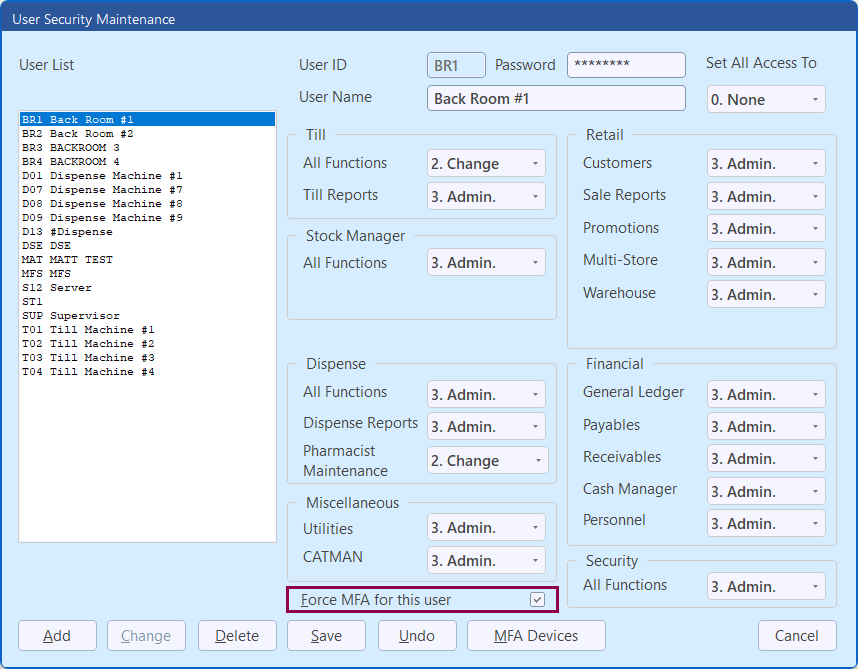
Note All MFA activity (including setup, reset, codes entered and setting changes) is recorded in the Audit Log Report.
Minfos will support the current software version and the major release prior.
For example, the current major release in production is 9.1.1. Minfos will support any issues or concerns that may arise from 9.1.1, the previous major release (9.0.1), and subsequent maintenance releases (9.0.2).
Minfos will not support any issues or concerns arising from using a version of software that is older than the previous major release (9.0.1). However, if the issue persists after upgrading to a supported release version, then Minfos will assist further to rectify the issue.
Stock Manager
We've made an improvement to the AI Invoice Scanner, and it's already live in your store. You don't need to update Minfos or do anything to start using it.
When the Scanner matches an invoice line to a product in Minfos, it now checks the Retail Units on that product's supplier stock card. If the Retail Units value is more than 1, the Scanner multiplies the invoice quantity by it and divides the unit cost to match. This means stock comes into Minfos in the units you sell.
For example, if the invoice shows 2 cartons of a product with 36 retail units, the Scanner brings it in as 72.
If Retail Units is 1 or not set, the quantity stays exactly as it is on the invoice.
Adjusted lines show a small indicator next to the quantity. Hover over it, or tap it on a touch screen, to see how the number was worked out, for example "Invoice qty 2 x 36 retail units = 72". Lines without adjustment look the same as before.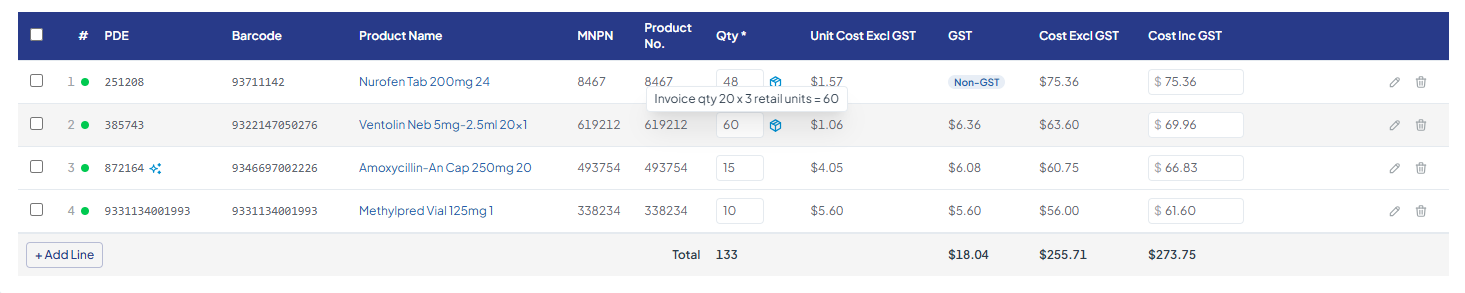 If required, you can still edit the quantity, and your updated value will be retained.
Note Retail Units are taken from Minfos only, not from the product description on the invoice.
Refer to Use AI Invoice Scanner for invoice entry for further information.
Resolved Issues
- Minfos Dispense will now display the Preferred Generic Drug prompt correctly for substitutable products even if the NHS code is different.
- The option to edit a paper script to change the patient has been fixed and can be performed successfully.
- Where a deceased patient is the Master of a Family PRF and has had no scripts dispensed in the current calendar year, the deceased will not be printed on the PRF generated when issuing a Safety Net card.
- The Original Dispensing Pharmacy Approval Number will now be included when saving an eScript.
- The Schedule Send day and time will now be updated correctly when there is a change in the schedule. In doing so, Suppliers setup with Schedule Send will now transmit the orders successfully.
- Scrypt Pay invoices now show the correct amount when more than one unit of a GST item is sold.
- Imported promotions will now display all missing products correctly. Previously only 1 missing product was shown when multiple products were missing.
- Stores configured with Authentication Method of OAuth will now use these credentials when sending emails and will not fall back to Basic Authentication.