
Updated functionality currently in Beta
This article contains either new or updated functionality that is not generally available at this time.
Enhancements
Stock Manager
Say goodbye to manual invoice entry.
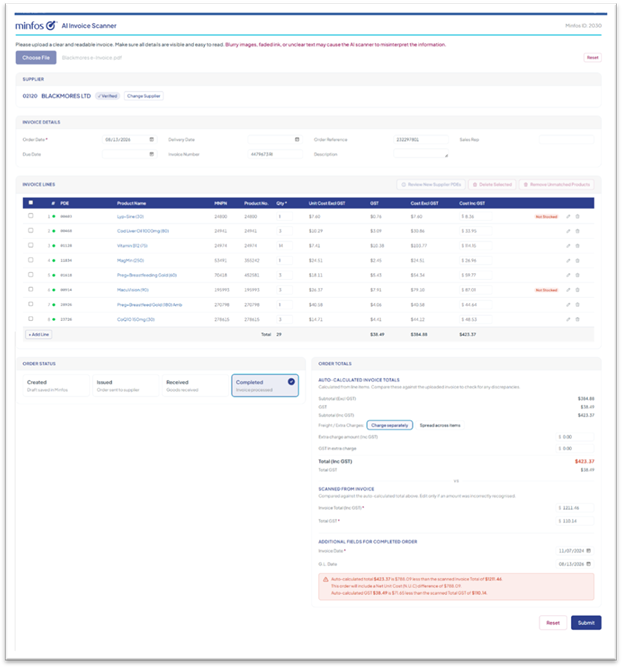
The new AI Invoice Scanner reads your supplier invoices for you - simply upload a PDF or image, review the extracted information, and create your order in Minfos in just a few clicks.
Less time typing, fewer data-entry errors, and orders created in a fraction of the time.
What it does
- Reads your invoice automatically. Upload a PDF or saved image (under 20MB) and the scanner extracts the supplier, invoice details, and every line item — no re-keying required.
- Matches products for you. Line items are matched to your Minfos products. You can re-match any line with a quick search and create new supplier PDEs on the spot where one doesn't exist.
- Keeps you in control. Review and edit quantities, costs and lines before anything is created in Minfos — add lines, delete lines, or remove unmatched products in bulk.
- Checks the maths. Calculated totals are compared against the totals scanned from the invoice, and any difference is clearly highlighted so nothing slips through.
- Handles freight and extra charges your way — charge them separately, spread them across items, or add your freight stock card as a separate line.
- Fits your workflow. Save the order as Created, Issued, Received or Completed, then scan your next invoice without leaving the window.
How to get started
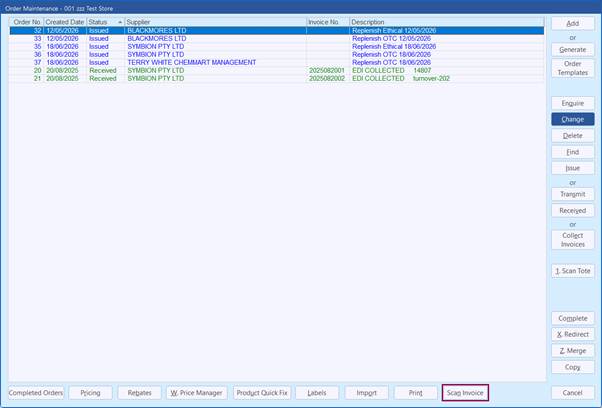
From the Stock Manager module, open Order Maintenance and click Scan Invoice.
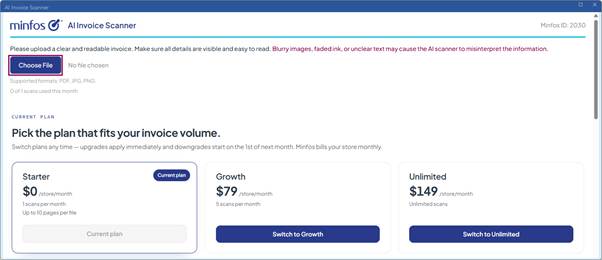
Click Choose File and upload your invoice.
For step-by-step instructions, refer to AI Invoice Scanner.
Subscription levels
The AI Invoice Scanner is available as a subscription — including a free Starter level, so every pharmacy can try it.
Level | Price | What's included |
Starter | Free | 1 invoice per month, up to 10 pages per invoice |
Growth | $79/month | Up to 5 invoices per month, no page limit |
Unlimited | $149/month | Unlimited invoices, no page limit |
Changing your subscription
Your subscription is managed right inside the AI Invoice Scanner window, so you can upgrade or change your plan at any time — no need to contact Minfos.
Simply select the level you would like to move to in the AI Invoice Scanner window.
Then authorize the change by entering a Supervisor Clerk Code and PIN and confirm. Your new level is active straight away.
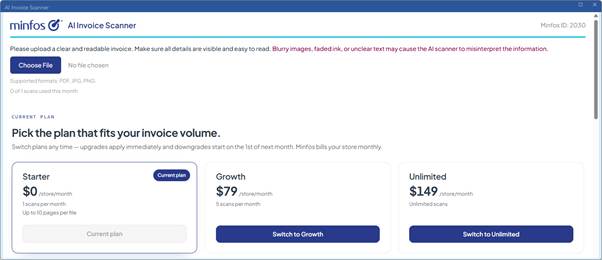
- Upgrades take effect immediately. Billing starts from the calendar month you first move to a paid level.
- If you downgrade, you keep your current level's access until the end of the billing period — you won't lose anything you've paid for.
For further information about this game changing new feature, refer to the guides below:
• AI Invoice Scanner
• Manage your AI Invoice Scanner subscription
• AI Invoice Scanner FAQs

Note: You must be logged in to the Minfos Help Centre to access the AI Invoice Scanner guides.
Dispense
Minfos now connects to eRx via REST API, in line with updated national conformance requirements for electronic prescribing. When you update to this version, your store is moved to the new connection automatically — there's nothing to prepare or configure.
This is a behind-the-scenes change to how Minfos communicates with eRx, not a change to how you work.
Everything stays the same:
- Dispensing eScripts, paper scripts, and medication charts — no workflow changes
- Your existing eRx certificate and Entity ID — no re-registration needed
- Repeats, reversals, owing reconciliation, ASL lookups, and MyHR uploads all continue as normal
Software
As part of our ongoing focus on security, this version enhances the way Minfos stores credentials, adding a further layer of protection behind the scenes.
The change is applied automatically when you update - there's no action required, and no change to how you log in or work.
From 1 July 2026, new Australian rules (the ACMA SMS Sender ID Register) mean text messages sent with an unregistered sender name will show as "Unverified" on customers' phones and may be treated as scam messages.
To meet these new requirements, this update automatically clears the Sender ID field in SMS settings for all stores, including where it was set to the default "Pharmacy".
What this means for you: your SMS messages will now be sent from a standard mobile number instead of a name. The message will not show as 'Unverified' however the sender number may change with each message. Customers may notice this small change, and your messages will continue to be delivered as normal.
Nothing else changes. Your SMS templates, message wording, customer details and the way you send messages are all untouched — only the Sender ID field is cleared. There's nothing you need to do.
Resolved Issues
- Previously, the Real Time Prescription Monitoring prompt displayed behind the Dispense Form in the first instance. It now displays correctly when applicable.
- The [Alt+L] keyboard shortcut in Robotic Drugs List Maintenance now delivers the selected drug without pressing [Enter].
- In certain scenarios, eScripts were returned from eRx with Invalid Transition State errors after dispensing. This has been resolved and eScripts are sent to eRx successfully.
- Previously, an incorrect Rx Type and Price was applied when Editing a script and selecting No to a displayed PDL warning. This has been resolved and the correct Rx Type and Price is applied.