
Updated functionality currently in Beta
This article contains either new or updated functionality that is not generally available at this time.
Note Updating to Minfos 9.0.1 may take slightly longer than usual to complete. Please allow extra time for the installation process and plan accordingly to minimise disruption.
Enhancements
Replenish
Replenish is now automatically enabled, making it easier than ever to start exploring smarter stock management. You’ll notice a new Replenish icon on the Minfos Launch Pad - your entry point to the Replenish window.
We encourage you to open the Replenish window and explore its features. You can do this confidently, as accessing Replenish will not impact your current ordering in Order Maintenance.
To help you get started, we recommend reviewing the Replenish Overview, which provides a helpful introduction to key features and workflows.
When Replenish is enabled an automatic process is run to flag any products marked as Stocked as Replenish Reorder. Products with the Replenish Reorder checkbox ticked will be considered in Replenish ordering. For further information refer to Manage the Replenish Reorder status of products.
Dispense
The Auto Sell Scripts configuration, introduced in Minfos 8.8.2, has been extended with an additional option to auto-sell $0 Private scripts. This extension gives pharmacies greater flexibility in managing till clean-up, reducing backlogs of zero-priced scripts across both NHS and Private script types.
The new $0 Private with Qty >0 is now available in the Auto Sell Scripts dropdown in Dispense Configuration. When selected, all Private scripts (including S3 recordable) with a price of $0 and a quantity greater than zero are automatically sold during EOD.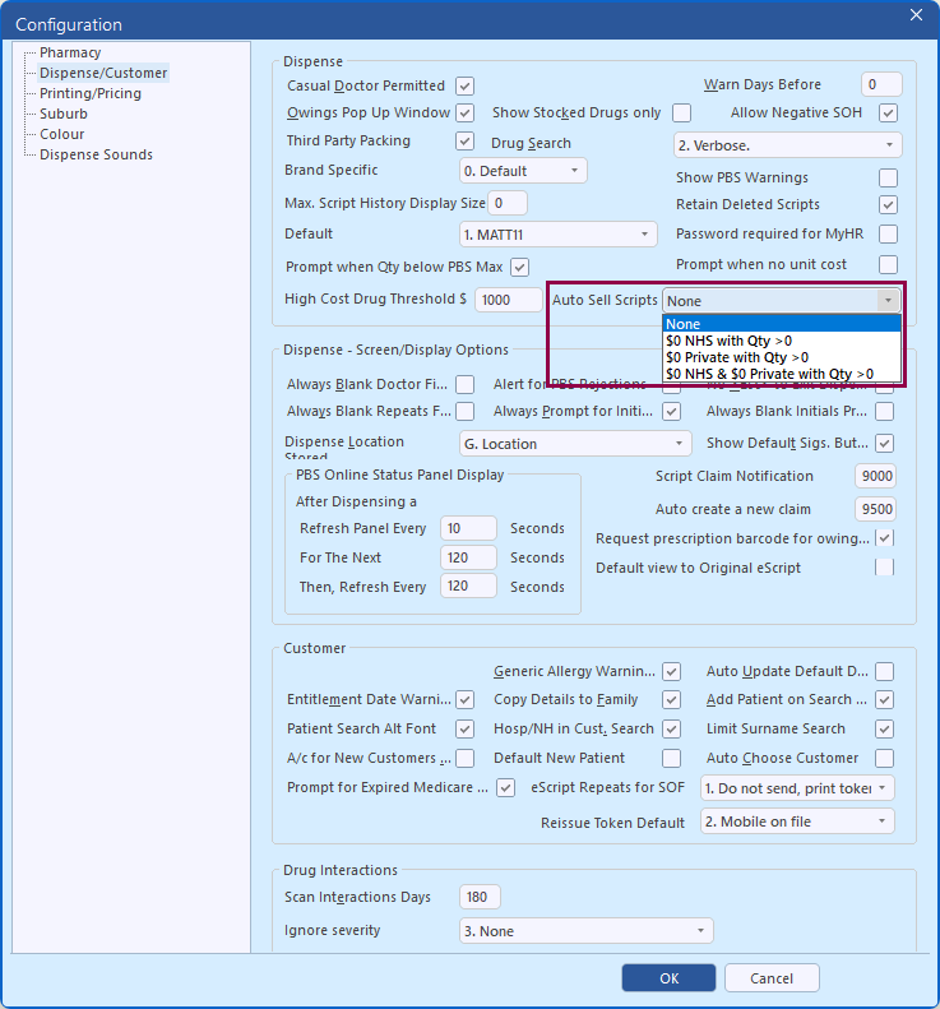
As with the existing options, auto-processed transactions are clearly identifiable in Sales Enquiry, and negative-quantity and deleted scripts remain excluded.
Refer to Configure $0 scripts to automatically sell at End of Day for further information.
Minfos 9.0.1 introduces the latest robotic interface (WWKS2), bringing a more reliable, efficient, and modern connection to your robotic dispensing system. All existing robotic functionality is maintained, with several enhancements to improve accuracy and workflow.
Key Improvements
- Smarter Product Identification - Products are now identified by Virtual ID (Product Number and MNPN) rather than barcode alone, minimising scan errors, and streamlining stock receiving.
- Expiry-Based Pack Prioritisation - Minfos can request stock by Product ID rather than a specific barcode, allowing the robot to select items using a First Expiry, First Out approach - helping reduce wastage from short-dated or expired stock. Note: This functionality may not be supported by all robotic systems.
- Broken Pack Visibility - Robot stock on hand now displays full packs plus individual broken units (e.g. 2+18u), providing clearer visibility of available quantities.
- Robot Stock Colour Coding - Items stored in the robot are now colour-coded in the Possible matches found/Drug recall window, allowing for quick identification during dispensing.
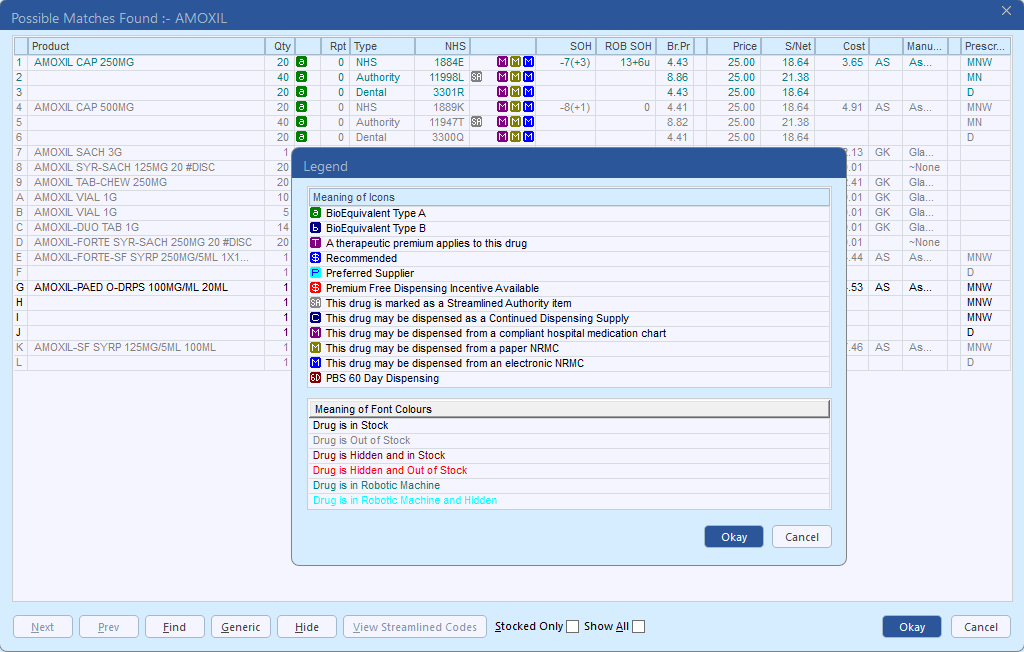
- Improved Stock Synchronisation – Enhanced sync options, including end-of-day, periodic, and real-time, ensure Minfos and your robot stay in lockstep.
- Quickly and accurately receipt orders - Colour coding added to the Robot SOH column in Order Editing highlights any discrepancies between the quantity counted and expected when receiving orders .
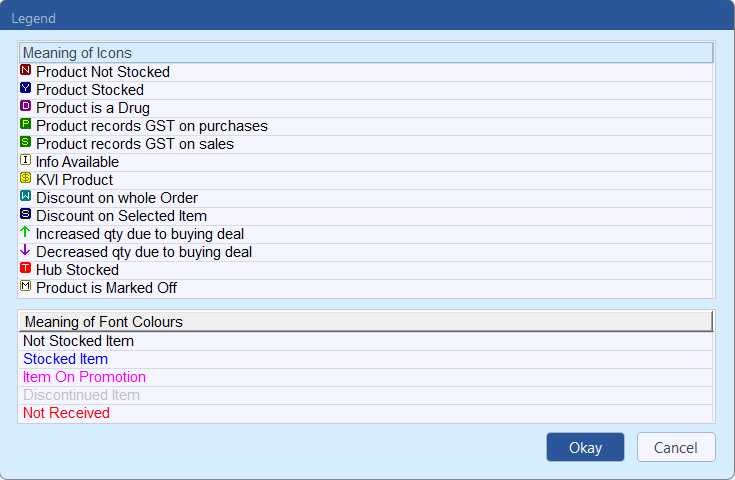
- Product merge support - The Robot Drug List automatically updates following product merges, reducing manual maintenance.
Your pharmacy can smoothly switch from current interface to WWKS2 without needing to re-scan your existing robot stock. Refer to Set up Minfos Robotics and contact Minfos Support for assistance.
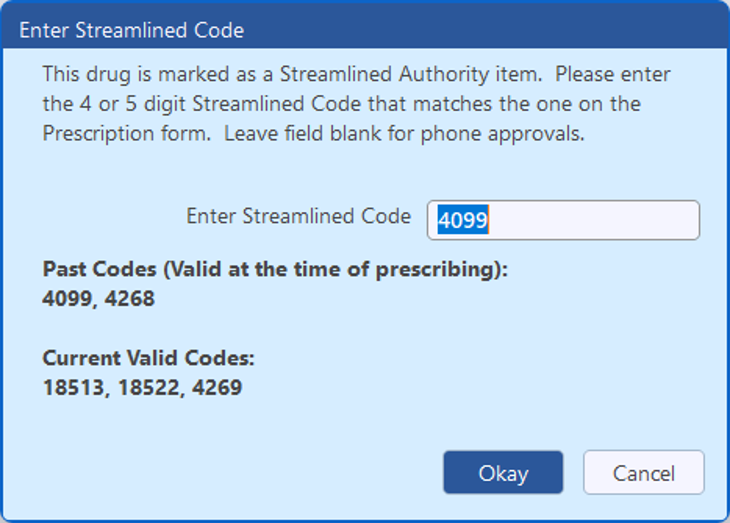
The Enter Streamlined Code window has been enhanced to improve clarity and reduce manual effort during dispensing. The on-screen message has been updated to reflect that streamlined codes can be either 4 or 5 digits, with clear guidance to leave the field blank for phone approvals.
The Enter Streamlined Code field will now be pre-filled with the first valid streamlined code, saving time and minimising entry errors. The pre-filled code is highlighted for easy review and remains fully editable if changes are required. To ensure accuracy, the system selects the streamlined code that was valid at the time of prescribing.
You can now open the Active Script List window directly from the Dispense Form using [Ctrl + Shift + A], giving you faster access without needing to click the button.
The shortcut is only active when the ASL View button is enabled, ensuring it’s available at the right time in your workflow.
The CAL display above the label preview in the Dispense form has been updated for improved clarity.
Sig codes are now shown first, followed by the corresponding CAL details, making the information easier to read and interpret at a glance. The CAL references continue to be displayed in the information panel. 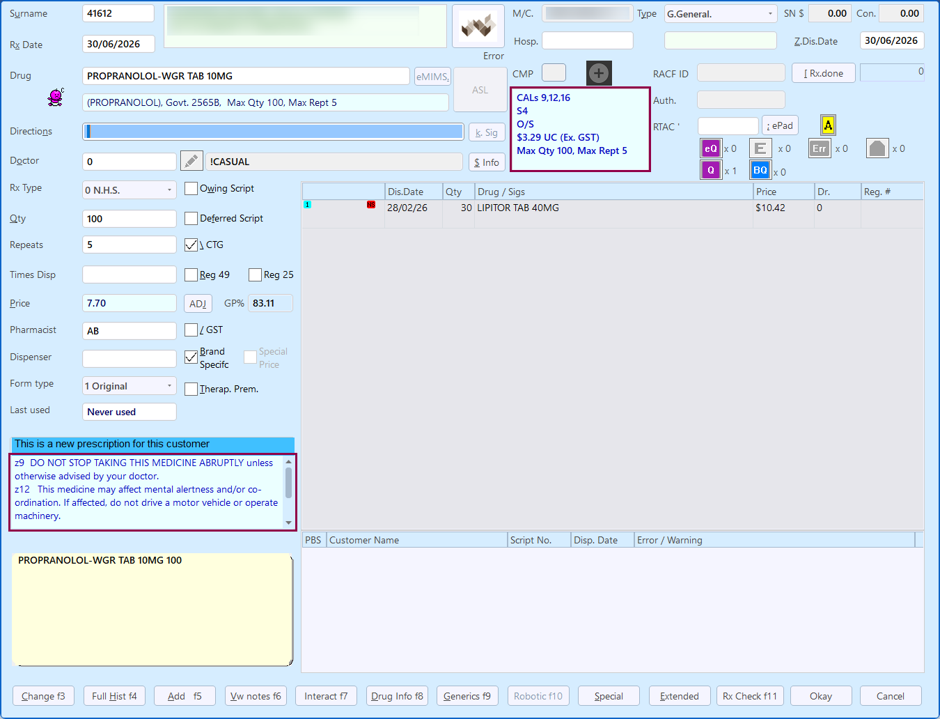
Safety Net (PRF) reports now automatically align with the PBS Safety Net calendar year, ensuring accurate and relevant results.
Results are limited to the calendar year of the selected start date (1 January to 31 December), removing the need for manual filtering and saving time. For example, a start date of 01/01/2025 will return records through to 31/12/2025 only.
We’ve updated multiple screens to improve layout, readability, and consistency. Improvements include better alignment, cleaner layouts, and more consistent styling, helping create a more seamless and user-friendly experience.
Customers
Managing new account customers is now more efficient for pharmacies without email enabled. From Minfos 9.0.1, when the Account Customer checkbox is selected, the Statement Method will automatically default to Print, removing the need for manual changes.
The default Statement Method for pharmacies where email is enabled will remain as Email.
Note This change does not affect the Statement settings for current account customers.
The Import Customer Attributes utility now supports Club Code and Club Points, making it easier to assign customers to Clubs and apply Club Points in one step.
How it works:
- Ensure the required Club is set up in Minfos.
- Prepare a text file using the existing import format, including:
- Customer Code (required) – used to match the customer profile
- Club Code (required) – must already exist in Minfos
- Club Points (optional) – opening points balance to apply
Note Club Points can only be updated at the time the customer is first added to the club. Points cannot be added/updated via this tool if the customer already exists in the club.
- Run the Import Customer Attributes utility and select the new fields.
Customers are automatically assigned to the specified club in the first available slot on their profile. Where points are provided, a Loyalty Opening Balance transaction is created to apply the balance.
Imported points can be viewed and adjusted via Loyalty Maintenance (Customer module > Maintenance menu > Loyalty Points).
Refer to Import Customer Attributes for details.
Stock Manager
Say goodbye to manually keying non-EDI supplier invoices. The new AI Invoice Scanner reads your supplier invoices for you — just upload a PDF or image format, review the extracted data, and create your order in a fraction of the time.
Scan and extract invoice data automatically
Click the new Scan Invoice button in Order Maintenance to upload a PDF or JPG invoice. The AI engine extracts supplier details and product lines — PDE, barcode, quantity, cost price, and totals — and lays everything out on a reconciliation screen for you to check and adjust before proceeding.
Supplier validation
The scanner matches the invoice to an existing Minfos supplier and pre-selects the closest match for confirmation. You can search for a different supplier if an exact match is found — only existing Minfos suppliers can be selected, keeping your data clean.
Intelligent product matching
Line items are matched against your Minfos product data (Supplier PDE first, then barcode), with colour-coded results:
- Green — Supplier PDE matched and ready to go
- Orange — matched by barcode; a new Supplier PDE will be created on submission (choose whether to use the invoice PDE or the barcode as the PDE value)
- Red — no match found; search manually by description, PDE, or barcode or remove if the item is not required
Unmatched items must be resolved or excluded before you can proceed, and you can also manually add products that weren't on the original invoice.  Duplicate detection and consolidation
If a product appears on multiple lines, the scanner flags it and lets you consolidate the lines (combining quantities and costs) or remove the extras — avoiding overwrite issues down the track.
Stocked status visibility
Matched products show a clear flag if they're not currently marked as stocked, so you can spot any outstanding product setup before completing the order.  Non-GST item support
The scanner checks the GST status of each matched product in Minfos.
Invoice totals validation
The scanner checks that line totals, GST, and the invoice total add up, flagging any discrepancies as warnings. These won't block submission but give you a chance to review before confirming.  Freight and extra charges handling
Choose how freight is applied:
- Map to Extra Charges — added to the Extra Charges field on Completed orders
- Add a freight line item — inserted as its own order line
- Distribute across line items — spread evenly across all products
Flexible order creation
Create your order directly from the validated data at any status — Created, Issued, Received, or Completed. Order date defaults to today if not detected, and all fields can be edited before submission. A success message confirms the order reference once created.
Refer to AI Invoice Scanner to learn more.
Resolved Issues
- The tab sequence in the Replenish window will now include the Add field.
- The Script Enquiry columns with a heading can now be resized where required.
- Occasionally, Minfos will use a different NHS Code of an equivalent drug when getting a repeat. This has now been resolved and the same NHS Code will be used when getting a repeat.
- Merging patients will no longer result in blank names in Edit Claim.
- The Dispense Form will not be populated with a drug after prompting with the ‘Drug Not Found’ message for certain downloaded scripts.
- Scripts waiting at the Till will now be included in the ‘Certification of Supply’ where the configuration ‘Re-serialise Script at Till on Close Claim’ option is disabled.
- Filling a deferred script for a Gold Repatriation patient will now set the Form Type correctly.
- Long text entered into the Calendar using the Tranquil Theme will now be saved and displayed correctly.
- In certain scenarios, selecting the ‘View Notes f6’ option in Dispense can cause Dispense to stop responding. Additional improvements have been made to limit this from occurring.
- Correcting a Concession Card number will no longer incorrectly report an error that it is identical to another patient.
- In certain scenarios, when launching the Dispense Form or when editing a script, Minfos is not retaining the focus in the Dispense Form. Improvements have been made to ensure that the focus is correctly set to the field in Dispense.
- The Invoice No. field in Order Maintenance will now accommodate up to 10 characters including letters.
- Escaping out of the Find Member and Replace Card field in the Till Loyalty window will return the focus to the Product field.