Refer to the below table for an explanation and troubleshooting steps to resolve errors that may be displayed when importing or converting an Excel format promotion file created using the Minfos Excel Promotion Template.
Error message | Explanation | Suggested action |
Invalid file type 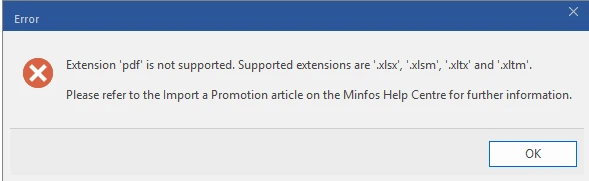
| The selected file is not a valid Excel promotion file. The converter only supports the official Minfos Excel promotion template saved as a .xlsx/.xlsm/.xltx/.xltm file. | - Close the message.
- Check the file extension shown in Windows (for example, .pdf, .txt, .csv).
- If the file is not one of the supported Excel formats (.xlsx, .xlsm, .xltx, .xltm), open the promotion data in Excel and save it as an Excel Workbook (.xlsx) or another supported Excel format.
- If you started from a non‑template file, copy and paste the data into a fresh copy of the official Minfos Excel promotion template (download it from this article) and save it as .xlsx.
- Try the import again using the corrected file.
|
Invalid template – required columns missing or renamed | The Excel file structure does not match the Minfos promotion template. One or more required worksheets or column headings have been removed, renamed, or moved. | - Open the Excel file.
- Check that:
- All original worksheets from the template (for example, Form, Products sheet, etc.) are present.
- Column headings (for example, CampaignName, OfferName, OfferType, StartDate, MNPN, Barcode) are unchanged.
- No new columns have been inserted into the middle of the template.
- If the structure has been altered: Open a fresh copy of the official Minfos Excel promotion template (download it from this article).
- Copy your data into the matching cells, without changing any sheet names or headings.
- Save the file and import again.
|
Worksheet 'Form' not found 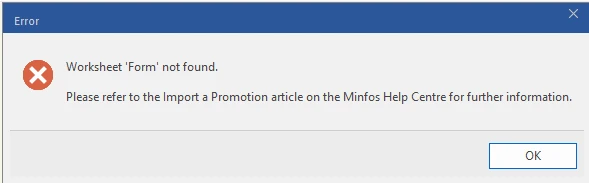
| A required worksheet in the template (Form) has been deleted, renamed, or hidden, so the converter cannot read the offer details. This error also occurs when the file is not in the specified template. | - Open the Excel file and confirm the Form worksheet exists and uses the exact name Form.
- If the sheet has been renamed, change the name back to Form.
- If the sheet has been deleted, open a fresh copy of the official Minfos Excel promotion template and copy your data into it. Download the template from this article.
- Save the corrected file and try the import again.
|
Expected int, got '' 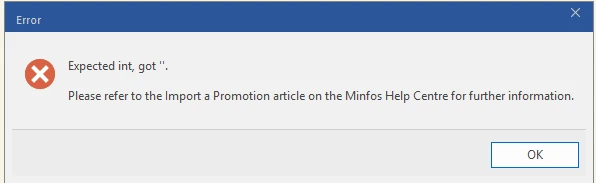 | A field that must contain a whole number (integer) is blank or contains invalid text. Common examples include numeric flags (IsLoyalty, MultipleRedemptions, IsDiscountable) or discount/quantity fields. | - Note which field and row the error refers to if shown in the message or error listing.
- Open the Excel promotion file and go to the affected field.
- For fields that must be numeric: Enter a valid whole number (for example 0 or 1 for Yes/No flags, or a whole number quantity).
- Remove any free text, symbols or spaces from the cell.
- If the field is mandatory, do not leave it blank.
- Save the file and run the import again.
|
Unsupported promotion type / Invalid promotion type | The value entered in OfferType is not one of the supported promotion types (0, 1 or 2). | - Open the Excel file and locate the OfferType field on the Form worksheet.
- Ensure the value is one of:
- 0 – Set Sales Price
- 1 – Dollar ($) Off Retail Price
- 2 – Percent (%) Off Retail Price
- Correct any invalid values (for example letters, blank cells, or numbers outside 0–2).
- Save the file and import again.
|
