
You can create a promotion in Minfos using the Excel Minfos Promotion Template. First, download and save the template to your computer, then fill in all required fields with your promotion details. Once completed, the file can be imported directly into Minfos. Refer to Import a promotion.
- Download the Minfos Promotion Template Excel file. It can be downloaded from the end of this article.
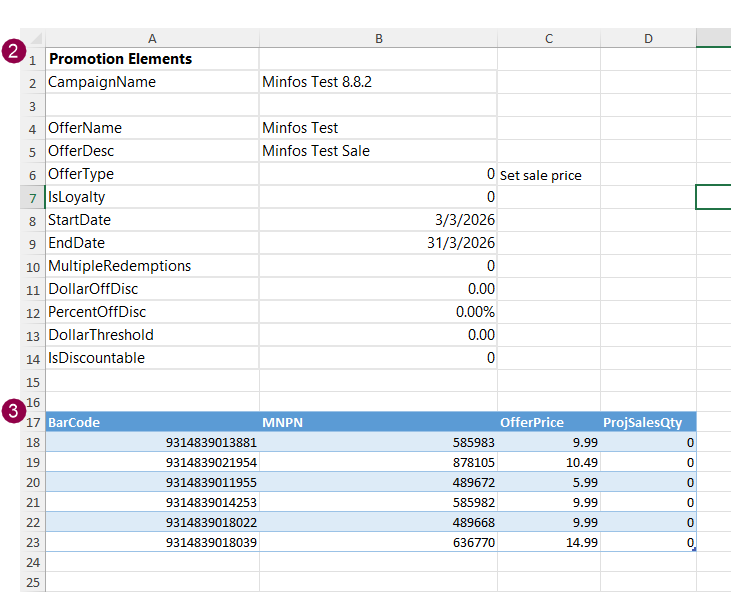
- Enter the Promotion Elements information in the Excel template.
- Enter the name of the campaign in the CampaignName field (cell B2). This field is mandatory.
- Enter the name of the offer in the OfferName field (cell B4). This field is mandatory.
- Enter the description of the offer in the OfferDesc field (cell B5). This field is mandatory.
- Click into cell B6 and select the OfferType from the dropdown. Options are:
- 0. Set sale price - All products included in the promotion are sold at the specified promotional price
- 1. $ off retail price - The specified dollar value is discounted from the retail price of each product included in the promotion
- 2. % off retail price - The specified percentage is discounted from the retail price of each product included in the promotion.
The OfferType description is displayed in cell C6.
- If this is a Loyalty promotion enter 1 in the IsLoyalty field (B7). Otherwise leave set to 0. This field is mandatory.
- Enter the date the promotion should begin in the StartDate field (B8) in DD/MM/YYYY format. This field is mandatory.
- Enter the date the promotion should finish in the EndDate field (B9) in DD/MM/YYYY format. This field is mandatory.
- To apply the promotional discount multiple times in a single transaction enter 1 in the MultipleRedemptions field (cell B10) or, to only apply a single promotional discount in a transaction leave MultipleRedemptions set to 0. This field is mandatory.
- For 1. $ off retail price promotions only, enter the $ value of the discount in DollarOffDisc field (cell B11). Otherwise leave as is.
- For 2. % off retail price promotions only, enter the % value of the discount in PercentOffDisc field (cell B12). E.g. Enter 5.00 for 5%. Otherwise leave as is.
- For 1. $ off retail price and 2. % off retail price promotions, specify a minimum spend threshold to be reached before the promotion discount is applied, if desired. Otherwise leave as is.
- Specify if the products in the promotion are eligible for further discounts in the IsDiscountable field. To set the promotion products to be non-discountable (except for the promotion discount), leave set to 0. To allow the products to be eligible for further discounts enter 1 (cell b14).
- Enter the promotion product details for all products to be included in the promotion. Extend the table if required.
- Enter the Barcode. This is an optional field. At least one of barcode or MNPN must be entered per product row.
- Enter the MNPN. This is an optional field. At least one of barcode or MNPN must be entered per product row.
- Enter the OfferPrice for 0. Set sale price promotions. This is the set sales price value.
- In ProjSalesQty enter the projected sales quantity, or set the field to 0 if there is not a projected sales quantity. For example, if you only want to sell 10 of this product at the promotion price enter 10 into this field, or enter 0 in this field and there will be no limit.
- Save the file to your computer and take note of the location.