
Enhancements
Dispense
A new Auto Sell Scripts configuration has been added to help pharmacies reduce manual Till clean‑up and keep script and stock records accurate. When enabled, Minfos will automatically sell eligible $0 NHS and/or $0 Private scripts as part of the End of Day (EOD) process.
This configuration removes the need to manually clear large backlogs of zero‑priced scripts, ensures SOH and script status remain accurate, and clearly marks auto‑processed transactions in Sales Enquiry for full visibility.
Key benefits:
- Save time: Eligible $0 scripts are automatically sold during EOD - no manual ringing off required
- Reduce clutter in the till window: Prevent backlogs of $0 scripts left waiting at the Till
- Maintain accuracy: SOH and script status are updated as part of the automatic sell process
- Full visibility: Auto‑processed transactions appear in Sales Enquiry and are clearly identifiable
The new Auto Sell Scripts option can be set in Dispense Configuration, in the Dispense/Customer tab.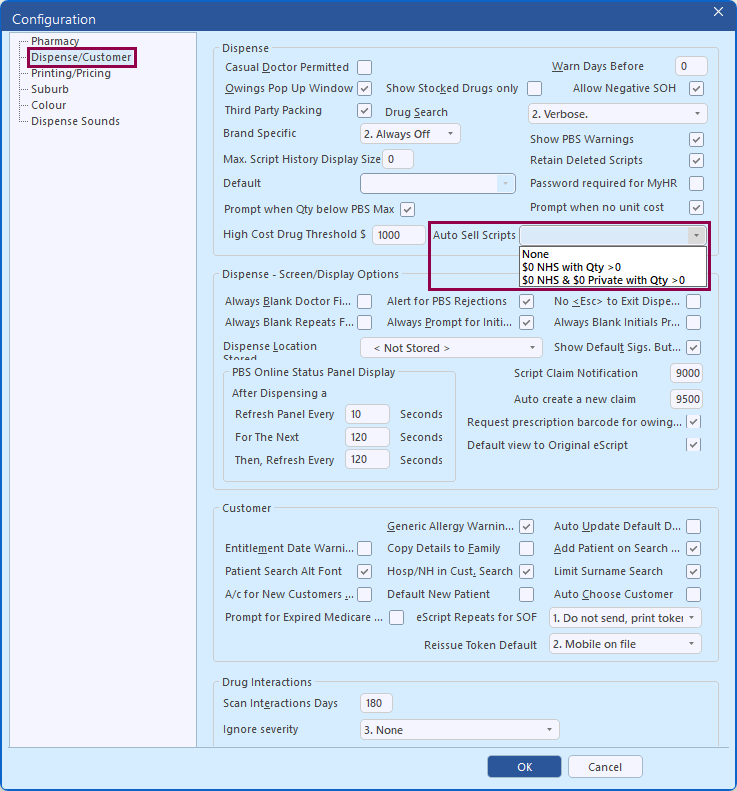 Click the Auto Sell Scripts dropdown to select an option:
- None – set by default
- $0 NHS with Qty >0 – When selected, all NHS scripts with a price of $0 and a quantity greater than zero are automatically sold during EOD. An NHS script refers to NHS, Entitlement, CTG, CMP, Repatriation, Authority, Dental, Optometrist, Special, Section 100 and Doctor's Bag type scripts but does not include scripts dispensed to General patients priced at $0
- $0 NHS & $0 Private with Qty >0 – When selected, all NHS (as above) and Private scripts (including S3 recordable) with a price of $0 and a quantity greater than zero are automatically sold during EOD
Note

Once enabled, the Auto Sell function will process all existing $0 scripts that match the selected criteria, not just new ones. If your store has a backlog of older scripts meeting the criteria, they will be sold automatically when this setting is activated.

Negative‑quantity and deleted scripts are excluded and must still be managed manually.
Refer to Configure $0 scripts to automatically sell at End of Day for further details.
When marking off an owing eScript, Minfos will now automatically display the Authority Number and Streamlined Code from the downloaded eScript. This ensures the information used during mark-off matches the Script details, reducing manual edits and improving accuracy.
Two new fields have been added to the Owing Script Details window - Authority Number and Streamlined Code. When available, these fields will prefill with values from the downloaded eScript, with the option to select the original owing details if required.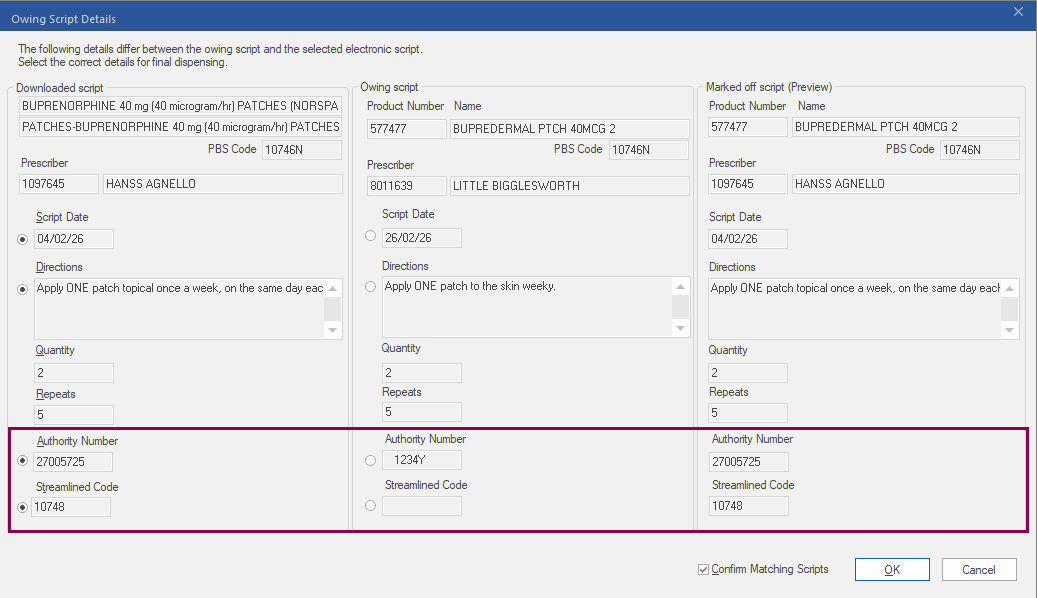
We’ve streamlined the Patient Medical Profile by removing drug images from PMP reports. These images were often incomplete, rarely referenced, and frequently caused unnecessary download issues. The PMP report now displays a cleaner layout with extended drug names and no image placeholders, improving readability and removing reliance on incomplete third‑party images.
As a part of this update the Manual and Automatic PMP Update options have been removed, and locally stored PMP images (located in the Minfos01\CMI folder) will be automatically cleared when you update to Minfos 8.8.2.
Stock Manager
Smart Complete lets your store automatically complete eligible electronic invoices, reducing manual processing and saving time. Once enabled, Minfos compares the supplier’s invoice total with the total collected in your store. If the difference falls within your configured Invoice Total Threshold, the order moves straight from Issued to Completed, and stock‑on‑hand is updated automatically.
Invoices completed via Smart Complete can by easily identified by the Completed via Smart Complete note.
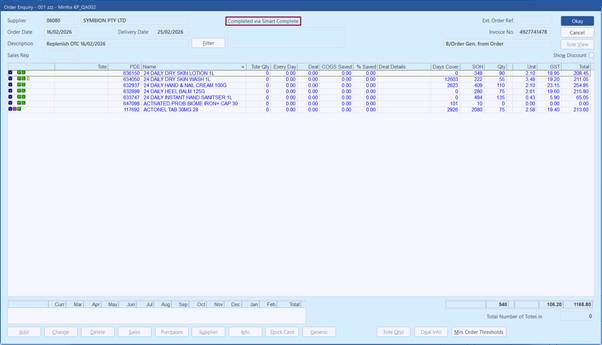
Once enabled via Shop Config, Smart Complete is enabled for all electronic suppliers by default. You can choose to exclude certain electronic suppliers (if required) and nominate the acceptable variance, giving you full control and a safe boundary for automation. Any invoices outside your threshold remain in Received for manual review.
Benefits for your pharmacy:
- Less manual work – routine EDI invoices are completed automatically
- Safer automation – you set the acceptable variance and control which supplier’s invoices are included
- Works across all gateways – supports both PharmX and MVX electronic invoices
Note
Only electronic invoices that originated in Minfos (the order was created/generated and sent electronically from Minfos) are eligible for Smart Complete.

Invoices that contain Schedule 8 items are not eligible for Smart Complete and will remain in Received status.
Find out how to set it up here: Configure invoices to automatically complete with Smart Complete.
Replenish
The Replenish window has been optimised to handle large product lists more efficiently, so the screen stays responsive while you work. Updates to key product details - like SOH, PDE, and stocked status - now appear quickly without slowing you down. Sorting, scrolling and reviewing products remain smooth, even while Replenish processes changes in the background.
These improvements happen behind the scenes, but the benefit is clear: faster loading, fewer interruptions and a more stable experience when managing large volumes of products.
Adding new items to Replenish is now smoother and more intuitive. Previously, when a new item was added and the list re‑sorted, the item could jump to a new position and disappear from view. With this enhancement, the newly added item now stays highlighted and visible - no matter which sorting method you’re using.
This makes working through Replenish lists faster, reduces frustration, and keeps your focus exactly where you expect it to be.
Promotions
You can now build your promotions in a simple Excel template and import them straight into Minfos. This removes the need to manually create XML files and makes promotion setup faster, easier, and more accurate for both stores and banner groups.
How It Works:
1. Build your promotion in Excel
- Download the Excel template from the Minfos Help Centre and use it to create your own promotion.
- Supported promotion types include:
- Set Sales Price
- Dollar Off
- Percent Off
- Refer to Create a promotion using Excel promotion template
2. Import into Minfos
- In Promotion Maintenance → Manual Import, select Excel as the file format
- Minfos will validate the import file and display any errors that need to be fixed
- Refer to Import a promotion
This enhancement makes promotion setup faster and less technical.
Work in Excel - the program your team already knows - and let Minfos handle the technical steps behind the scenes.
Create a promotion using the Minfos Excel Promotion Template then easily convert it to XML format in Minfos.
This functionality is ideal where a Group Head Office creates promotion files for the group.
- The Head Office creates the promotion using the Minfos Excel Promotion Template. Refer to Create a promotion using Excel promotion template
- The Head Office converts the Excel to an XML file using the Export Excel Promotion to XML function. Refer to Convert Excel promotion file to XML format
- The XML file can then be sent to pharmacies for easy importing
This functionality lets Head Offices create promotions quickly in Excel - where it’s easier to manage and update - then seamlessly convert them to XML for effortless sharing with stores.
Multi-store
We’ve removed the Recalculate GST and Manual Sales Import utilities to help protect data accuracy and ensure consistent reporting across Multi‑Store environments. These tools were no longer suitable for current workflows.
Removing them makes your system more reliable, reduces risk, and keeps your data clean and secure.
Resolved Issues
- The Generic drug name will now be transmitted for an extemporaneous Schedule 8 drug.
- The Manufacturers' codes and names will no longer be blank when you select an option in the Generic Drug Listing window.
- Column sorting in Replenish has been corrected. Clicking a column-header now sorts the column as expected.