
The Business Ending Date can be adjusted:
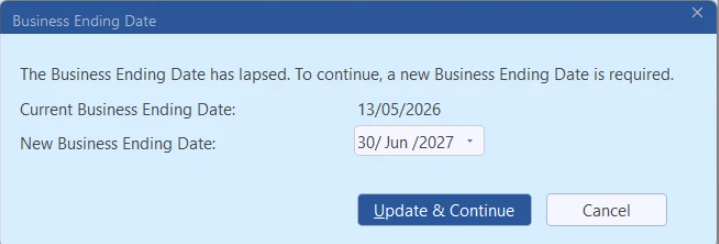
- When prompted by Minfos when attempting to save an order or complete an invoice
- Or manually at any time
Change the Business Ending Date when prompted
- When you attempt to save an order or complete an invoice with a date beyond the configured Business Ending Date, the Business Ending Date prompt is displayed.
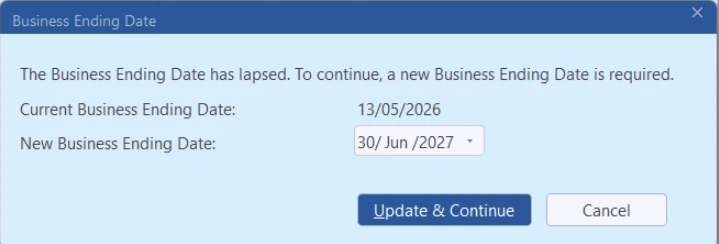
The New Business Ending Date defaults to the end of the next financial year.
- To select a different date, click the New Business Ending Date dropdown and select your preferred date from the calendar.
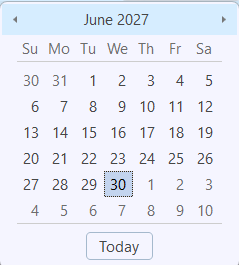
- Check that you have selected the desired date, then click Update & Continue.
Note Click Cancel to exit without changing the Business Ending Date. You cannot save orders or complete invoices until the Business Ending Date has been updated.
- The Business Ending Date is updated and the action you were previously performing (saving an order or completing an invoice) is continued.
Change the Business Ending Date Manually
- Take note of the relevant Business.
- Navigate to Stock Manager.
- Click File and select Business.
The Business Maintenance window is displayed.
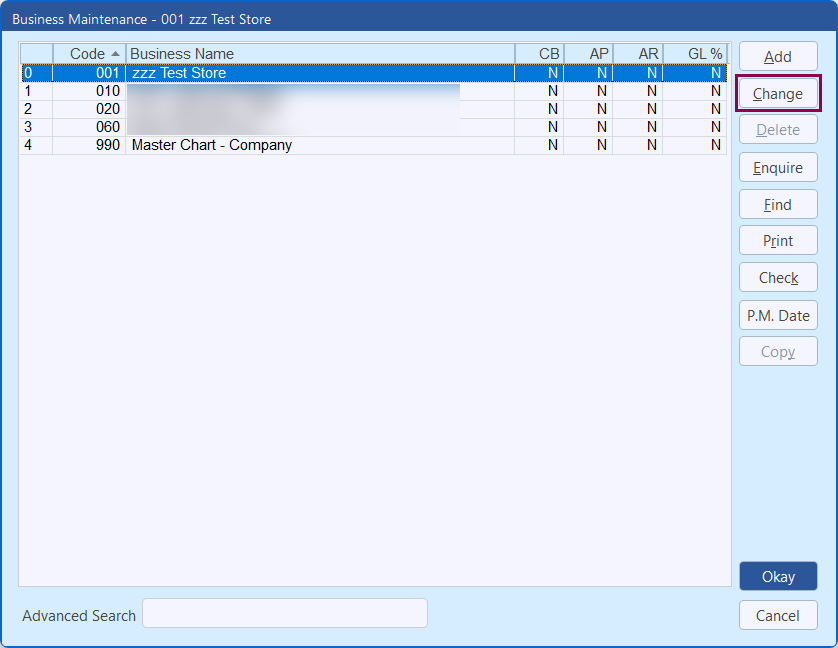
- Highlight the relevant business and click Change.
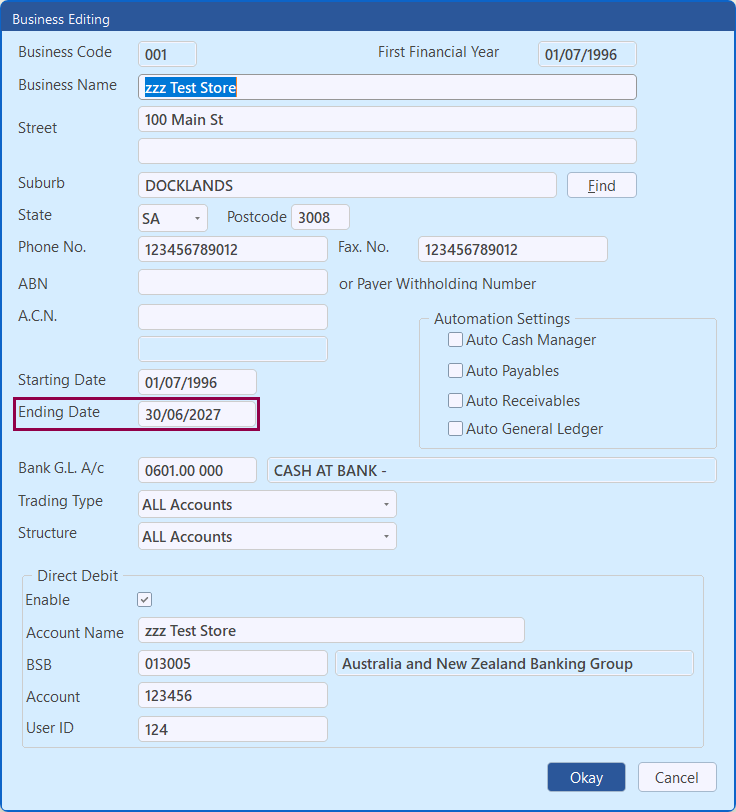
The Business Editing window is displayed.
- Update the Ending Date. It is recommended that stores who use Minfos Accounting change the Ending Date to the last date of the current financial year (30 June).
- Click Okay to save your changes.
The Business Maintenance window is redisplayed.
- Ensure you highlight the appropriate business name e.g. 001 and click Okay to close Business Maintenance.