Transitioning from Minfos API to WWKS2 interface
To transition from the Minfos API to the WWKS2 interface please contact Minfos Support for assistance.
1.Connect to the Minfos WWKS2 Robotics API
Using Minfos WWKS2 Robotics API is optional. This means you can continue to use your existing robotics interface. However, if you choose to use Minfos Robotics API at your pharmacy, all of your robotics workstations must be connected to the API.
If you want to use the new API and your pharmacy uses a compatible robotic dispense, please contact Minfos support to schedule your connection.
2. Set up Stations for Minfos WWKS2 Robotics API
1. From the Minfos Launch Pad click Special then select Utilities.
The Utilities module is displayed.
2. Click Stations.
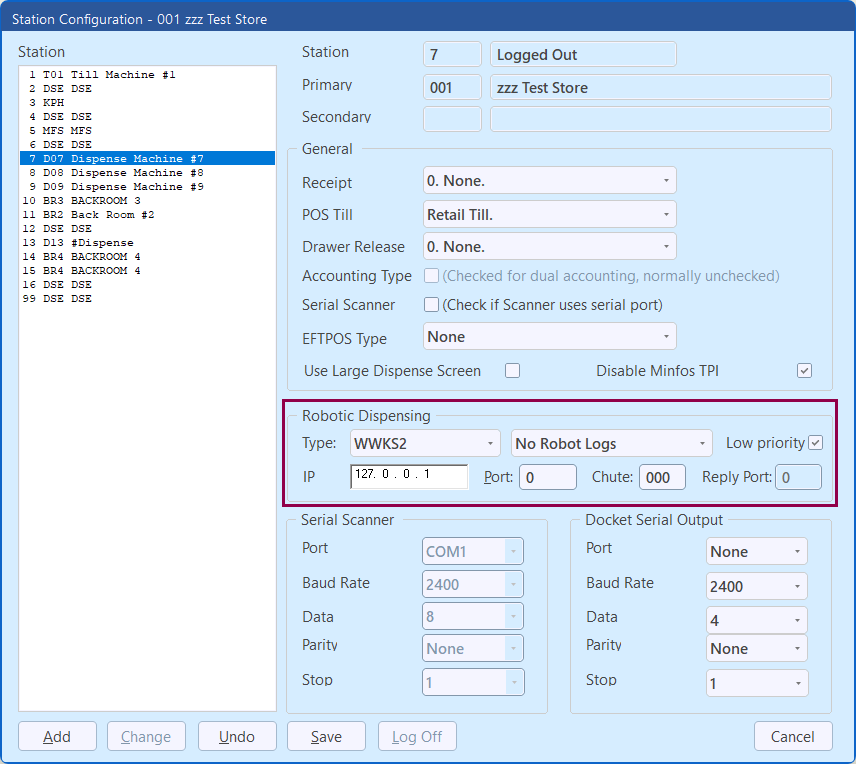
The Station Configuration window is displayed.
3. Select the server (Station 99) and click Change.
4. In the Robotic Dispensing groupbox click Type and select WWKS2.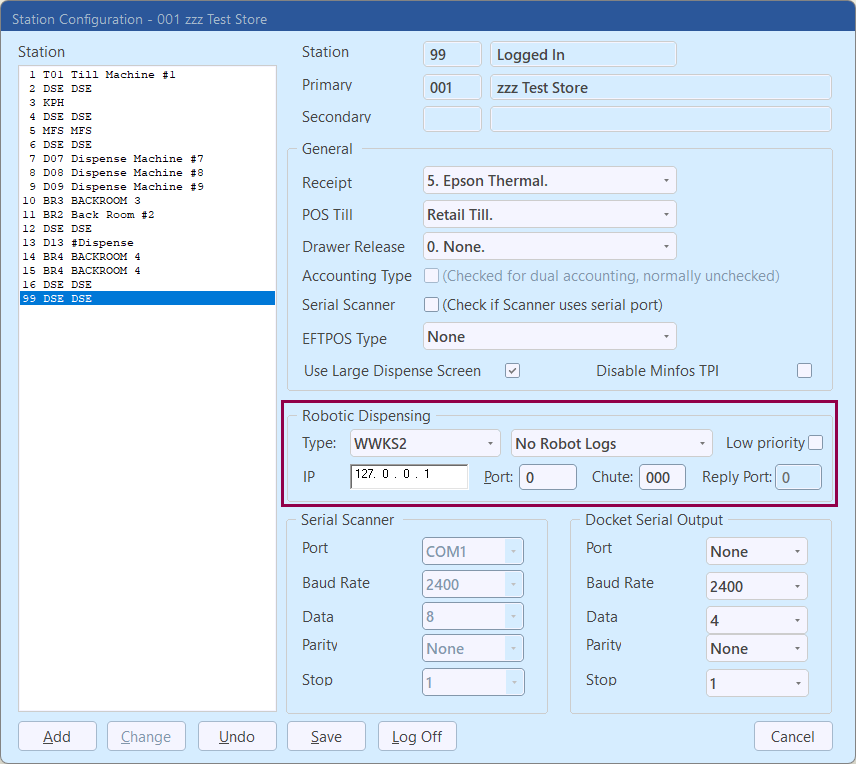
5. Set the IP/Port to the correct WWKS2 robot server. These details should be provided by the robotic vendor.
6. Repeat these steps for all other dispensing stations.
7. Restart Minfos server and Minfos application on the workstations.
3. Synchronise your Minfos robotic drugs database with your robot
When you first connect to the Minfos Robotics API you’ll need to synchronise your Minfos robotic drugs database with your robot to ensure your database has the most up-to-date robot stock on hand.
To synchronise your Minfos robotic drugs database with your robot:
1. From Minfos Launch Pad, click the Dispense icon.
The Dispense Pro module is displayed.
2. Click the Dispense menu and click 8. Robotic Drugs Database.
The Robotic Drugs List Maintenance window is displayed and shows the robot’s connections status; either:
- Robot connected.
- Robot not connected.
3. If the robot:
- Is connected, click Synch. Your robotic drugs database is updated with the most up-to-date robot stock on hand.
- Is not connected, contact Minfos support for assistance.
Note: As part of End of Day (EOD) Minfos will automatically update the robot stock count.
4. Change robotics workstation to low priority
Note These steps must be performed for the server (usually Station 99) in addition to the dispensing stations.
When you dispense from a low priority workstation and a co-worker dispenses from a regular robotics workstation, the request from your co-worker’s workstation is processed first.
To change a robotics workstation to low priority:
1. From the Minfos Launch Pad, click the Special menu and select Utilities.
The Utilities module is displayed.
2. Click the Stations icon.
The Stations Configuration window is displayed.
3. In the Station List listbox, click the station for which you want to reduce the priority, then click Change.
4. In the Robotic Dispensing groupbox, check the Low priority checkbox, then click Save.