
Promotion Maintenance allows you to import promotion files that contain the details of the promotion and the products included in the promotion. This is typically provided by a pharmacy head office or brand, or can be created using the approved Minfos Excel Template. Refer to Create a promotion using Excel promotion template.
- Promotion files need to be saved to your workstation or a networked drive e.g. H Drive
- Promotion files need to be in the approved Excel or XML format to be imported into Minfos (refer to Create a promotion using Excel promotion template)
- After you have imported the promotion, it automatically starts on the specified start date or can be started manually
Step by step instructions
Manually import a promotion
Note: Ensure you have saved the promotion file provided by your Brand or Head Office. By default Minfos will prompt you to open the promotion file from H:\Minfos01\Promo\Import.
From the Promo Manager module:
1. Click the Promotions menu and select 1. Promotion Maintenance or click the Promotion Maintenance icon.
The Promotion setup window is displayed.
2. From the Maintenance groupbox select the Manual Import radio button and click Next.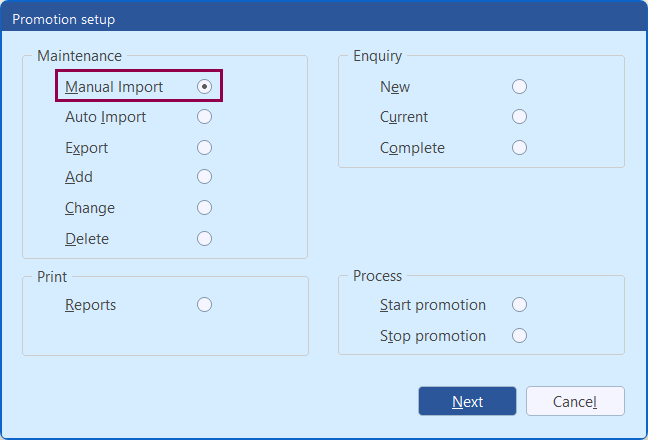 The Promotion maintenance - Manual import window is displayed.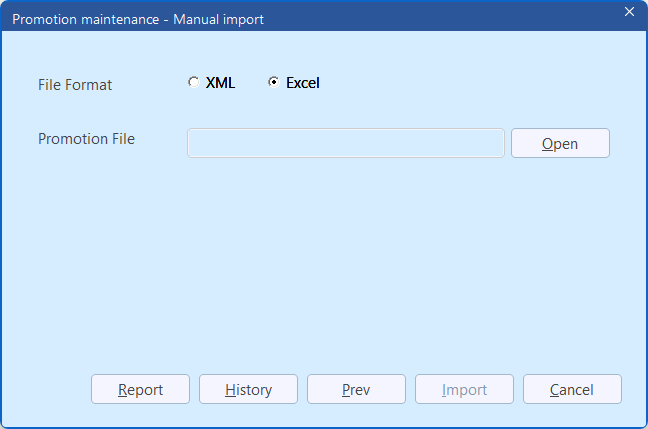
3. Use the File Format radio buttons to select the format your promotion file is saved in - XML or Excel.
4. Then Click Open.
The Open window is displayed. 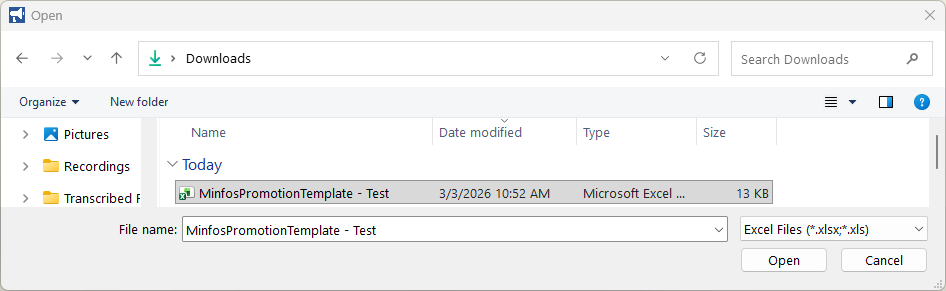
5. By default Minfos will look to open the file from H:\Minfos01\Promo\Import. If you saved the promo file in a different location, navigate to where the promo file was saved, highlight the promo file and click Open.
The Promotion maintenance - Manual import window is re-displayed with the updated file path.
6. Click Import.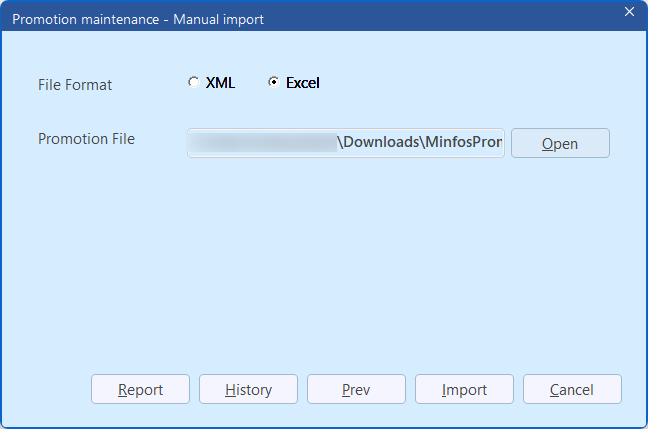
The Processing prompt is displayed.
Note If there are any issues with the import, an Error message will display. Refer to Troubleshoot errors displayed when importing or converting an Excel format promotion for guidance.
7. If there are any promotion errors with the products in the promotion (such as promotion price less than cost price), then the Import error prompt is displayed. Click No.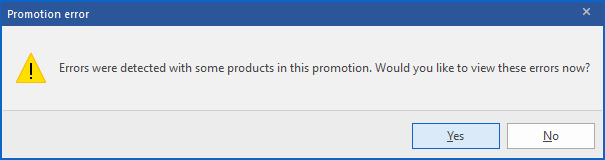
Tip: It is best practice to view and action all promotion all errors at once.
The Promotion Enquiry - Manual Import Promotions window is displayed.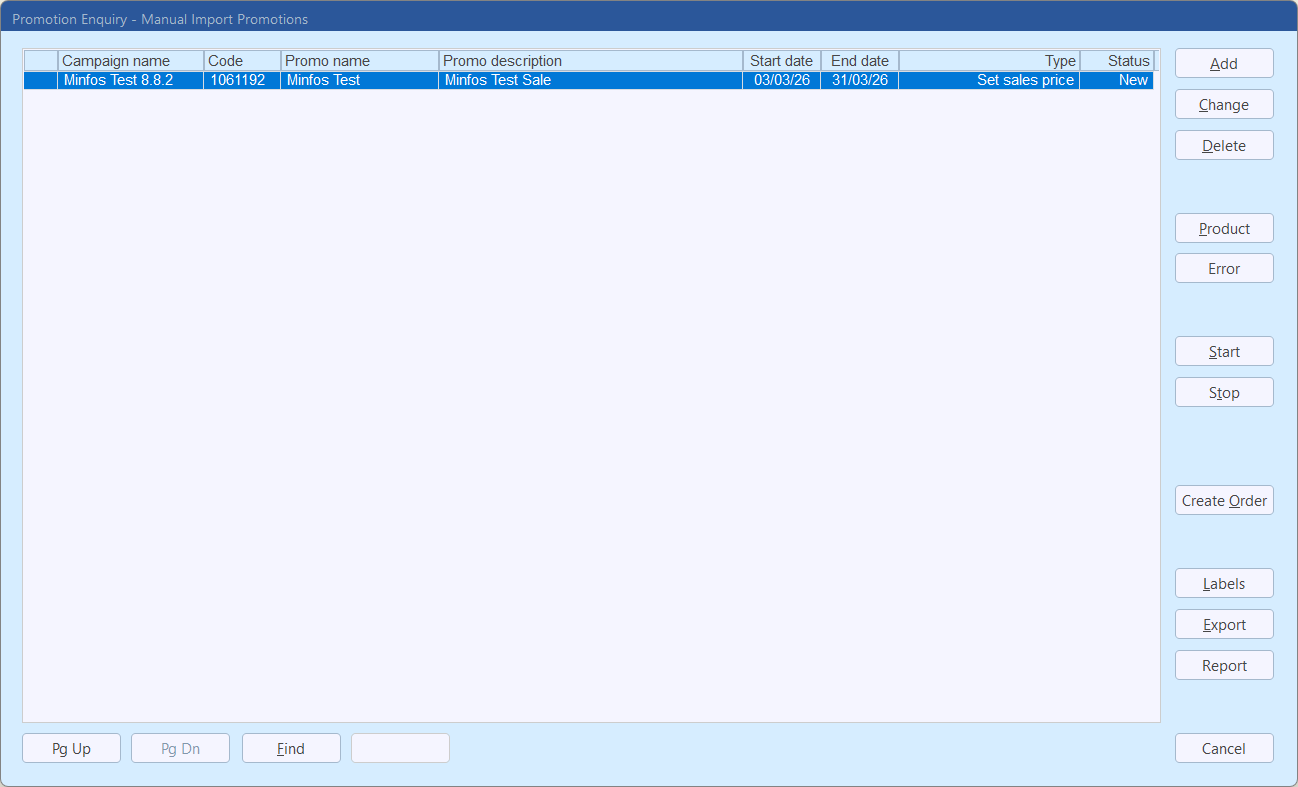 8. If the Promotion error prompt displayed, you will now need to action the errors. Highlight the promotion and click Error and refer to Review & action promotion errors.
9. Once all Errors have been actioned, refer to Start a Promotion.